
ESP32-C3 WiFi Scan
ESP32-C3 WiFi Scan is a runnable microcontroller simulation example on SensBench — open the wired circuit, inspect the code, and compile real firmware in your browser, no install needed. Last updated Aug 14, 2026.
FREE SIMULATOR EXAMPLE · BEGINNER
ESP32-C3 WiFi Scan
This example turns the ESP32-C3 into a WiFi scanner: one scanNetworks() call returns every 2.4 GHz network in range, and the sketch prints an aligned table — SSID, signal strength in dBm, Open or Encrypted — to the Serial Monitor. No wiring, no external parts; the board and its radio are the whole circuit.
| Board | ESP32-C3 (RISC-V single-core, 160 MHz) |
|---|---|
| Difficulty | beginner |
| Category | communication |
| Libraries | None — WiFi.h ships with the Arduino core |
| Runs in | Sensbench browser simulator — free, no account |
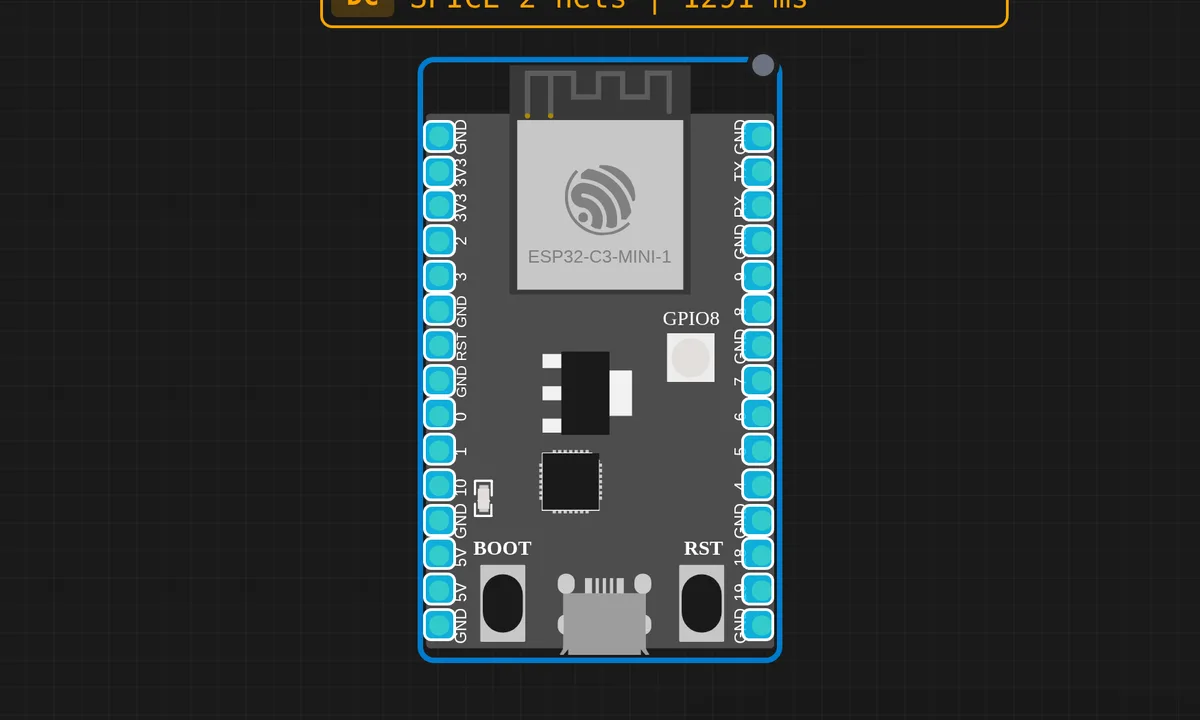
The exact circuit you get when you open this example — already wired, ready to run.
The sketch
#include <WiFi.h>

void setup() {
  Serial.begin(115200);
  delay(1000);
  Serial.println("ESP32-C3 WiFi Scanner");
  Serial.println("=====================");

  WiFi.mode(WIFI_STA);
  WiFi.disconnect();
  delay(100);

  Serial.println("Scanning for networks...");
  int n = WiFi.scanNetworks();
  if (n == 0) {
    Serial.println("No networks found");
  } else {
    Serial.printf("Found %d networks:\n", n);
    for (int i = 0; i < n; i++) {
      Serial.printf("  %d: %-20s  %d dBm  %s\n",
        i + 1,
        WiFi.SSID(i).c_str(),
        WiFi.RSSI(i),
        WiFi.encryptionType(i) == WIFI_AUTH_OPEN ? "Open" : "Encrypted");
    }
  }
  Serial.println("\nDone! Scan again in 10 seconds...");
}

void loop() {
  delay(10000);
  setup();  // re-scan
}
How it works
The prep is three lines: WiFi.mode(WIFI_STA) puts the radio in station mode — the same mode it would use to join a router, except nothing ever joins — then WiFi.disconnect() clears any stored auto-connect state so the chip does not glue itself to an AP mid-scan, and a 100 ms delay lets the driver settle.
WiFi.scanNetworks() is an active scan: the radio walks the 2.4 GHz channels, listens for beacons, and returns how many networks it heard. The sketch then pulls each result apart — WiFi.SSID(i) for the name, WiFi.RSSI(i) for signal in dBm, and WiFi.encryptionType(i) compared against WIFI_AUTH_OPEN to label open networks. The %-20s in the printf pads every SSID to twenty characters, which is why the output lines up in clean columns instead of spraying across the monitor.
Then the odd bit: loop() waits ten seconds and calls setup() again to re-scan. It works here because everything in setup is safely re-runnable — but read the note below before copying that move into your own firmware.
Before you build it for real
That re-scan-by-calling-setup() trick is a demo shortcut, not a pattern: on a real project it re-runs Serial.begin() and re-initializes everything else you will eventually add, so pull scanning into its own function instead. Two physics lessons the simulator cannot teach: 5 GHz networks never appear because the C3 radio is 2.4 GHz only — scan next to a WiFi 6 router with its 2.4 GHz band off and you will see nothing — and on real hardware the list changes every scan as beacons collide and conditions shift, so never conclude a network is down just because it vanished from one scan.
Get the parts
Related examples
FAQ
Why does my home network not show up?
Two usual suspects. If it is a 5 GHz-only network, the C3 cannot hear it — the radio is 2.4 GHz b/g/n only. If your router merges both bands under one SSID with the 2.4 GHz side disabled, the same thing happens. Check the router’s 2.4 GHz band before suspecting the code.
What is a good RSSI number?
dBm is a negative scale, so closer to zero is louder. −40 dBm is a router on your desk, −60 to −70 is a healthy link, and below −85 you are one wall away from dropouts. A network at −90 shows up in the scan but is barely usable.