
Button Control
Button Control is a runnable microcontroller simulation example on SensBench — open the wired circuit, inspect the code, and compile real firmware in your browser, no install needed. Last updated Aug 14, 2026.
FREE SIMULATOR EXAMPLE · BEGINNER
Button Control
This example lights the Arduino Uno’s built-in LED on pin 13 while you hold a pushbutton wired to pin 2 — the first sketch where the board reacts to you instead of just running a script. Press the button on the canvas and the LED follows your finger: no latching, no delay, no magic.
| Board | Arduino Uno (ATmega328P, 16 MHz, 5 V logic) |
|---|---|
| Difficulty | beginner |
| Category | basics |
| Libraries | None — just the Arduino core |
| Runs in | Sensbench browser simulator — free, no account |
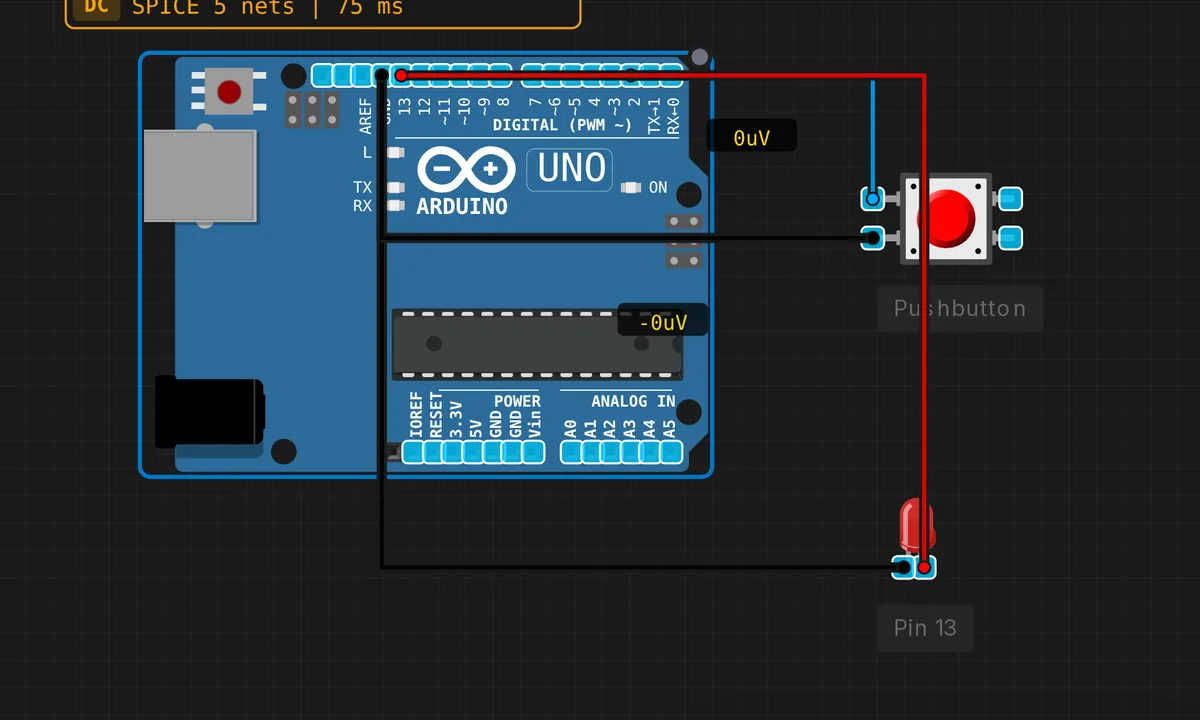
The exact circuit you get when you open this example — already wired, ready to run.
The sketch
// Button LED Control
// Press button to turn LED on

const int BUTTON_PIN = 2;
const int LED_PIN = 13;

void setup() {
  pinMode(BUTTON_PIN, INPUT_PULLUP);
  pinMode(LED_PIN, OUTPUT);
}

void loop() {
  int buttonState = digitalRead(BUTTON_PIN);

  if (buttonState == LOW) {
    digitalWrite(LED_PIN, HIGH);
  } else {
    digitalWrite(LED_PIN, LOW);
  }
}
How it works
The line that matters is pinMode(BUTTON_PIN, INPUT_PULLUP). Instead of an external resistor, it switches on the ATmega328P’s internal pull-up (roughly 20–50 kΩ to 5 V), so pin 2 reads HIGH at rest. The button is wired between the pin and GND — press it and the pin is shorted low. That is why the test is if (buttonState == LOW): with pull-ups, pressed reads LOW. The logic feels backwards the first time, and then you use it for the rest of your career.
The loop is a pure poll: every pass does one digitalRead() and one conditional digitalWrite(), so the LED tracks the button state within microseconds at 16 MHz. There is no debounce because there is nothing to debounce — the LED just mirrors the contact, bounce and all, and your eye cannot see 5 ms of flicker.
Before you build it for real
Two hardware realities the simulator smooths over. First, wire the button between the pin and GND, never to 5 V — with INPUT_PULLUP a button on the 5 V side leaves the pin floating when released and it reads random noise (the classic symptom: the LED flickers when you touch the wires). Second, the moment you extend this to a toggle — one press on, next press off — mechanical bounce becomes real: contacts rattle for 5–20 ms and one press registers as several. Add a 20–50 ms debounce or a state machine before you trust it.
Get the parts
Related examples
FAQ
Why does the LED turn on when the reading is LOW?
INPUT_PULLUP holds the pin HIGH through an internal resistor. The button connects the pin to ground, so a press pulls it LOW. Pressed = LOW, released = HIGH — inverted from what most people expect, and the reason this sketch tests for LOW.
Can I use a different pin for the button?
Any digital pin except 0 and 1 works — those two carry the Uno’s hardware serial (RX/TX) and pressing the button would corrupt uploads and Serial output. Pin 2 here is also interrupt-capable, which matters once you move from polling to attachInterrupt().