
[Pi 3] Blink an LED
[Pi 3] Blink an LED is a runnable microcontroller simulation example on SensBench — open the wired circuit, inspect the code, and compile real firmware in your browser, no install needed. Last updated Aug 14, 2026.
FREE SIMULATOR EXAMPLE · BEGINNER
[Pi 3] Blink an LED
This example blinks a red LED on the Raspberry Pi 3’s GPIO17 using a Python gpiozero script. The flow is deliberately different from a microcontroller: boot the emulated Pi, upload the script to its filesystem, run python3 /home/pi/script.py, and watch the LED pulse once per second.
| Board | Raspberry Pi 3 Model B (Cortex-A53, QEMU-emulated Linux) |
|---|---|
| Difficulty | beginner |
| Category | basics |
| Libraries | None — just the Arduino core |
| Runs in | Sensbench browser simulator — free, no account |
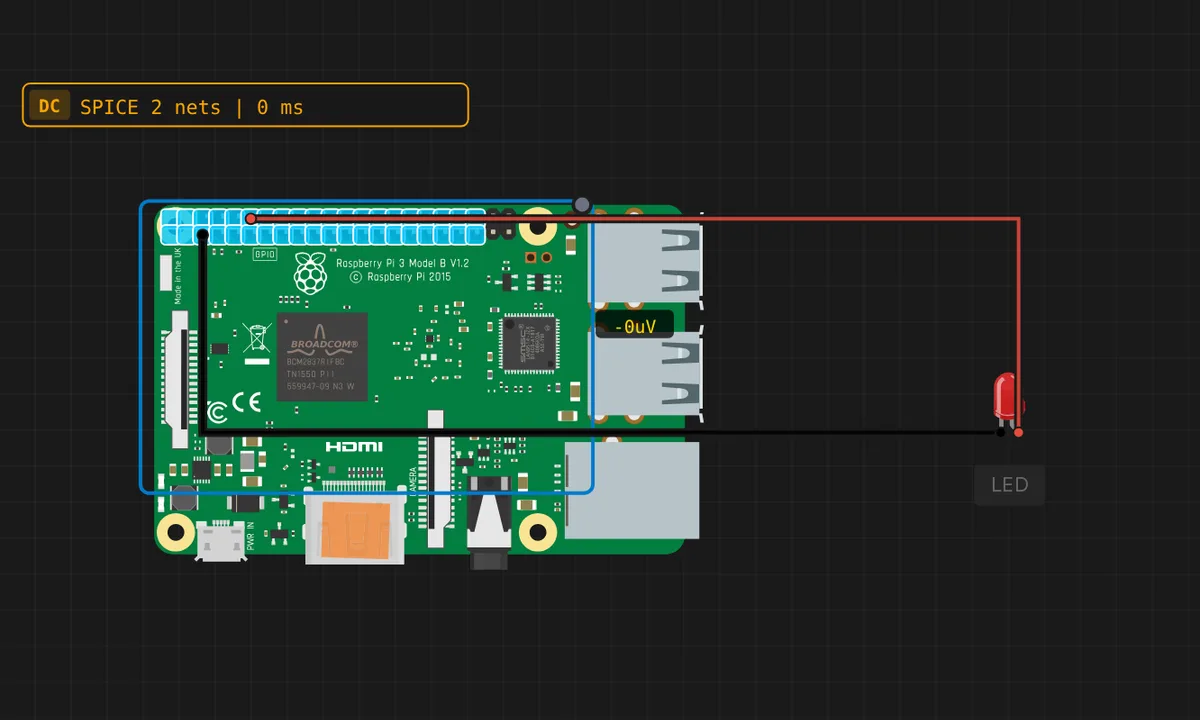
The exact circuit you get when you open this example — already wired, ready to run.
The Python script
#!/usr/bin/env python3
# Raspberry Pi 3 - Blink an LED
# Wiring: GPIO17 -> LED(+)  ;  LED(-) -> GND   (add a 220 ohm series
# resistor on real hardware; the simulator's LED needs none).
from gpiozero import LED
from time import sleep

led = LED(17)
print("Blinking LED on GPIO17 - Ctrl-C to stop")
try:
    while True:
        led.on()
        print("LED ON")
        sleep(1)
        led.off()
        print("LED OFF")
        sleep(1)
except KeyboardInterrupt:
    led.off()
    print("Stopped")
How it works
The script creates an LED(17) object from gpiozero, which configures GPIO17 as an output. The loop calls led.on(), sleeps 1 second, led.off(), sleeps 1 second — a 0.5 Hz blink. The try/except KeyboardInterrupt block is the polite Pi pattern: Ctrl-C stops the loop, turns the LED off, and prints “Stopped” instead of leaving the pin energized.
The comments carry the hardware honesty: the simulator’s LED needs no series resistor, but the real one wants a 220 Ohm resistor in series. On the Pi, GPIO17 is BCM pin 17 — physical pin 11 on the header — and gpiozero uses BCM numbering by default, which trips up people arriving from Arduino-style labeled pins.
Before you build it for real
The Pi’s GPIOs are 3.3 V logic, never 5 V — and the header carries a 5 V rail right next to the 3.3 V pins, so a mis-wired jumper can destroy the Pi’s processor in milliseconds. A real LED needs a 220 Ohm series resistor (the comment says it; the simulator skips it). The header pins are not 5 V-tolerant like some microcontrollers, and gpiozero’s BCM numbering means GPIO17 is physical pin 11 — wiring to the wrong physical pin is the classic first mistake. The Pi also has internal pull resistors, but they are weak; a long wire to the LED can pick up enough noise to flicker.
Get the parts
Related examples
FAQ
Why Python instead of an Arduino sketch?
The Raspberry Pi runs a full Linux operating system, and gpiozero is the standard Python library for controlling its GPIO pins. Unlike a microcontroller, the Pi boots an OS, then your script runs on top of it — the upload-then-run flow (File System panel, then python3 /home/pi/script.py) is how every Pi project starts.
What does the File System panel do?
The emulated Pi has a virtual filesystem. The Upload button copies your script to /home/pi/script.py, and the terminal command python3 /home/pi/script.py executes it — the same flow as editing on a real Pi with a text editor and running it. The script survives reboots of the emulated Pi just like real files do.