
[Pi 4] Button Toggles LED
[Pi 4] Button Toggles LED is a runnable microcontroller simulation example on SensBench — open the wired circuit, inspect the code, and compile real firmware in your browser, no install needed. Last updated Aug 14, 2026.
FREE SIMULATOR EXAMPLE · BEGINNER
[Pi 4] Button Toggles LED
This example toggles an LED on the Raspberry Pi 4’s GPIO17 every time you press a button on GPIO2 — a Python gpiozero script where the button’s internal pull-up means zero external resistors. Run it, click the button on the canvas, and the LED flips.
| Board | Raspberry Pi 4 Model B (Cortex-A72, QEMU-emulated Linux) |
|---|---|
| Difficulty | beginner |
| Category | basics |
| Libraries | None — just the Arduino core |
| Runs in | Sensbench browser simulator — free, no account |
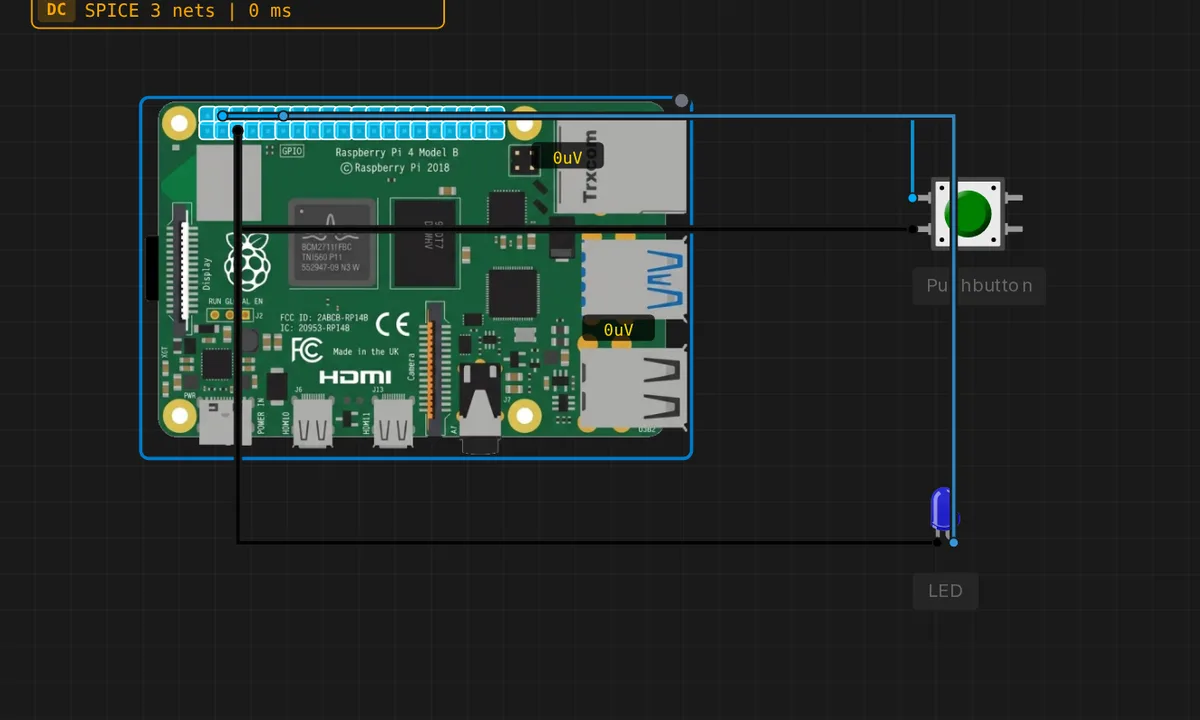
The exact circuit you get when you open this example — already wired, ready to run.
The Python script
#!/usr/bin/env python3
# Raspberry Pi 4 - Button toggles an LED
# Wiring: button GPIO2 <-> GND (internal pull-up; pressed reads LOW).
#         LED on GPIO17 -> LED(+) ; LED(-) -> GND
from gpiozero import Button, LED
from time import sleep

button = Button(2)   # pull_up=True by default
led = LED(17)
print("Press the button to toggle the LED - Ctrl-C to stop")
state = False
try:
    while True:
        button.wait_for_press()
        state = not state
        led.value = state
        print("LED", "ON" if state else "OFF")
        sleep(0.3)   # simple debounce
except KeyboardInterrupt:
    led.off()
    print("Stopped")
How it works
The script creates Button(2) — gpiozero configures GPIO2 with its internal pull-up and debounces the input in the background — and LED(17) for output. The loop calls button.wait_for_press(), toggles a state boolean, writes it to led.value, and sleeps 300 ms as an extra debounce between presses.
The toggle pattern is the essential UI primitive: each press flips the LED, and the state lives in the script, not in the hardware. The 300 ms sleep swallows the contact bounce that a fast finger produces — gpiozero already debounces internally, but the sleep keeps rapid double-presses from registering as two toggles.
Before you build it for real
The internal pull-up is about 50 kOhm — fine for a clean bench, marginal for long wires: a 2-meter cable to the button can pick up enough interference to register phantom presses, and the script’s 300 ms sleep will not filter those. On a real build, use a dedicated 10 kOhm pull-up to 3.3 V or debounce in software with timestamps instead of a sleep — the sleep also blocks wait_for_press(), so rapid legitimate presses can be lost. The button pins are 3.3 V logic: wiring a 5 V button circuit into GPIO2 risks the Pi’s SoC.
Get the parts
Related examples
FAQ
Why does the button use wait_for_press instead of polling?
wait_for_press() blocks the script until the button is pressed — no busy loop, no CPU burn, and the press is caught even if it happens between checks. It is the event-driven counterpart to the polling loops a microcontroller uses, and it is the idiomatic gpiozero way.
What does pull_up=True by default mean?
gpiozero’s Button enables the Pi’s internal pull-up resistor unless you say otherwise, so the button reads HIGH at rest and LOW when pressed — pressed connects the pin to GND. The default is exactly the wiring the example shows: button between GPIO2 and GND, no external resistor needed.