
Pico W — Async LED control over Wi-Fi
Pico W — Async LED control over Wi-Fi is a runnable microcontroller simulation example on SensBench — open the wired circuit, inspect the code, and compile real firmware in your browser, no install needed. Last updated Aug 14, 2026.
FREE SIMULATOR EXAMPLE · BEGINNER
Pico W — Async LED control over Wi-Fi
This example joins a Pico W to WiFi and runs a tiny async HTTP server: visiting /on or /off toggles the onboard LED through the CYW43 chip — the same path the real WiFi driver takes. It is the smallest complete Pico W web device.
| Board | Raspberry Pi Pico W (RP2040 + WiFi) |
|---|---|
| Difficulty | beginner |
| Category | communication |
| Libraries | None — just the Arduino core |
| Runs in | Sensbench browser simulator — free, no account |
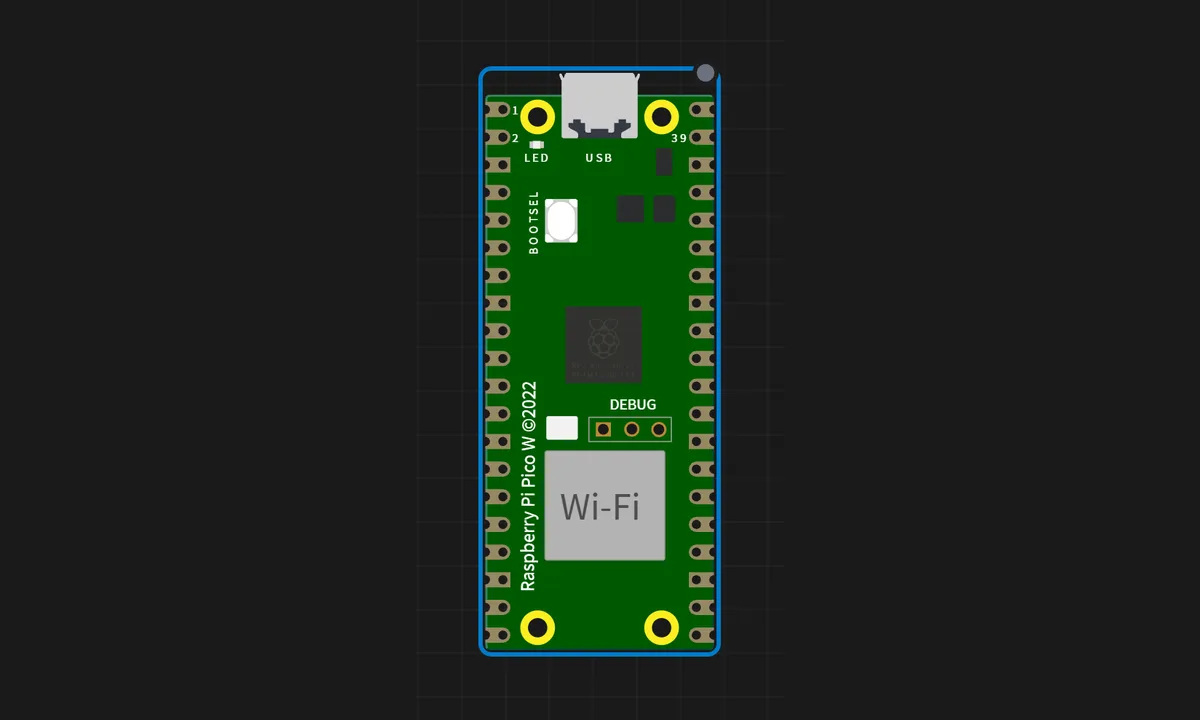
The exact circuit you get when you open this example — already wired, ready to run.
The MicroPython script
# main.py
# Pico W Async LED Control — MicroPython
#
# Connects to SENSBENCH-GUEST and runs a tiny async HTTP server on :80
# that toggles the on-board LED via Pin('LED'). The LED is wired
# through the CYW43439 chip — the emulator picks up the
# gpioout IOCTL and drives the LED in the canvas.

import uasyncio as asyncio
import network
from machine import Pin

SSID = "SENSBENCH-GUEST"
PASSWORD = ""

led = Pin("LED", Pin.OUT)
led.off()

async def wifi_connect():
    wlan = network.WLAN(network.STA_IF)
    wlan.active(True)
    wlan.connect(SSID, PASSWORD)
    print("Connecting WiFi...")
    while not wlan.isconnected():
        await asyncio.sleep(0.5)
    ip = wlan.ifconfig()[0]
    print("IP:", ip)
    print("Open browser: http://%s/" % ip)

led_on = False

def page():
    # The board's onboard LED isn't drawn on the canvas, so show a big
    # state indicator here; the buttons reload so you can see it flip.
    color = "#22c55e" if led_on else "#666"
    label = "LED ON" if led_on else "LED OFF"
    return ("<!DOCTYPE html><html><head>"
            "<meta name=viewport content='width=device-width,initial-scale=1'></head>"
            "<body style='font-family:sans-serif;text-align:center;padding:24px;background:#fafafa'>"
            "<h2>Pico W Onboard LED</h2>"
            "<div style='margin:18px auto;width:170px;padding:26px 0;border-radius:14px;"
            "background:%s;color:#fff;font-size:24px;font-weight:bold'>%s</div>"
            "<button style='font-size:18px;padding:12px 28px;margin:6px' "
            "onclick=\"fetch('on').then(()=>location.reload())\">ON</button>"
            "<button style='font-size:18px;padding:12px 28px;margin:6px' "
            "onclick=\"fetch('off').then(()=>location.reload())\">OFF</button>"
            "</body></html>") % (color, label)

async def handle_client(reader, writer):
    global led_on
    request = (await reader.readline()).decode()
    while await reader.readline() != b"\r\n":
        pass
    if "GET /on" in request:
        led.on(); led_on = True
    elif "GET /off" in request:
        led.off(); led_on = False
    writer.write(("HTTP/1.1 200 OK\r\nContent-Type: text/html\r\nConnection: close\r\n\r\n" + page()).encode())
    await writer.drain()
    await writer.wait_closed()

async def main():
    await wifi_connect()
    await asyncio.start_server(handle_client, "0.0.0.0", 80)
    print("Server running on port 80")
    while True:
        await asyncio.sleep(1)

asyncio.run(main())
How it works
The script connects the Pico W to the SENSBENCH-GUEST network, then starts an asyncio HTTP server on port 80. /on and /off toggle the onboard LED through Pin('LED') — the CYW43 path the real driver uses — and reply with plain-text status lines the browser displays.
The MicroPython uasyncio pattern is the interesting part: the server coroutine accepts connections in a loop and spawns a handler per client, so slow clients never block fast ones. On the single-core RP2040 that scheduling is the difference between a responsive device and one that drops requests.
Before you build it for real
The onboard LED on the Pico W is not a plain GPIO — it lives on the CYW43439 WiFi chip, so digitalWrite() style code does not exist for it in MicroPython; only Pin('LED') works. On real hardware the WiFi join can fail silently: 2.4 GHz only, no 5 GHz, and the SSID/password are hard-coded — change them in the source before flashing. And the async server has no error handling for malformed requests, which a real browser sends regularly; the demo survives them by accident, production code would not.
Related examples
FAQ
Why does the onboard LED go through the CYW43 chip?
The Pico W’s onboard LED is not wired to an RP2040 GPIO — it hangs off the CYW43439 WiFi chip, so MicroPython drives it with Pin('LED') and the driver translates that into CYW43 GPIO commands. The emulator models this exact path, which is why the example is titled after it.
Why async instead of a blocking server?
A blocking server handles one request at a time — fine for a single toggle, terrible once a browser fires multiple requests at once (favicon, page, CSS). asyncio lets the Pico W interleave connections on one core. This example shows the async pattern you will want for anything beyond a toy server.