
ESP32 OLED Smart UI Eyes Animation Time & Weather (MicroPython)
ESP32 OLED Smart UI Eyes Animation Time & Weather (MicroPython) is a runnable microcontroller simulation example on SensBench — open the wired circuit, inspect the code, and compile real firmware in your browser, no install needed. Last updated Aug 14, 2026.
FREE SIMULATOR EXAMPLE · INTERMEDIATE
ESP32 OLED Smart UI Eyes Animation Time & Weather (MicroPython)
This example runs a smart UI on the ESP32’s OLED — animated eyes with random blinks and looks, a clock, and live weather, rotating in one display. The three-mode IoT face pattern in MicroPython.
| Board | ESP32 DevKit (Xtensa LX6, 240 MHz) |
|---|---|
| Difficulty | intermediate |
| Category | displays |
| Libraries | None — just the Arduino core |
| Runs in | Sensbench browser simulator — free, no account |
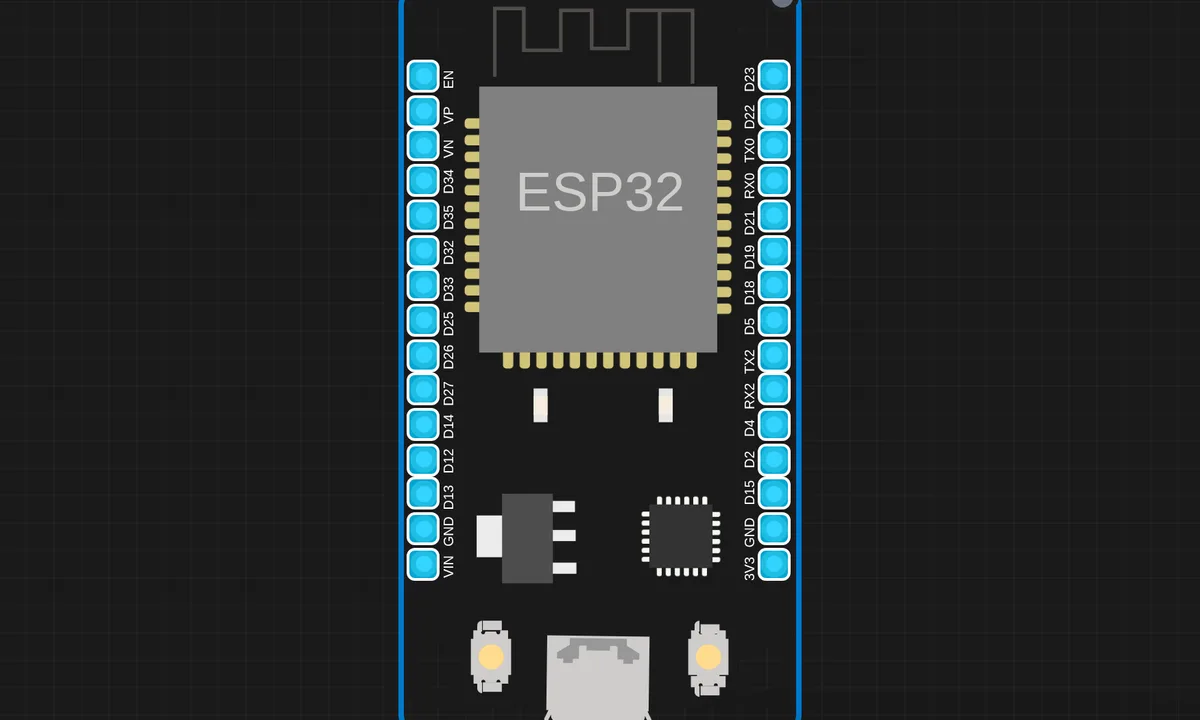
The exact circuit you get when you open this example — already wired, ready to run.
The sketch
# main.py
from machine import Pin, I2C
import ssd1306
from time import sleep, localtime, time
import network, ntptime
import urequests as requests
import urandom as random

# ================= CONFIG =================
SSID = "ssid"
PASSWORD = "pass"
# IST Offset: 5 hours 30 mins = (5*3600 + 30*60) = 19800 seconds
UTC_OFFSET = 19800
OWM_API_KEY = "key"
CITY = "city"

# ================= HARDWARE =================
# Hardware I2C (peripheral 0) — SoftI2C bit-bangs GPIO and the SENSBENCH
# ESP32 QEMU bridge can't route GPIO toggles back to the ssd1306
# slave registered at 0x3C, so write_cmd fails with ENODEV. Hardware
# I2C goes through the emulated I2C controller and reaches the slave.
i2c = I2C(0, scl=Pin(22), sda=Pin(21))
oled = ssd1306.SSD1306_I2C(128, 64, i2c)

# PULL_DOWN, not plain Pin.IN: the buttons sit between 3V3 and the pin, so
# without a pull-down the pin FLOATS while the button is open and pin.value()
# is meaningless. On a real board you read noise; here the node resolves to
# 3.3 V and both buttons look pressed forever, with wait_for_release()
# spinning on nothing. Same failure as on real hardware, not an emulator artifact.
touch_next = Pin(14, Pin.IN, Pin.PULL_DOWN)
touch_sel  = Pin(27, Pin.IN, Pin.PULL_DOWN)

# ================= UTILS =================
def wifi_connect():
    wlan = network.WLAN(network.STA_IF)
    wlan.active(True)
    if not wlan.isconnected():
        wlan.connect(SSID, PASSWORD)
        for _ in range(20):
            if wlan.isconnected(): break
            sleep(0.5)

def sync_time():
    try:

        ntptime.host = "pool.ntp.org"
        ntptime.settime()
        print("Time Synced!")
        return True
    except:
        print("Sync Failed")
        return False

def get_local_time():

    return localtime(time() + UTC_OFFSET)

def wait_for_release(pin):
    while pin.value():
        sleep(0.05)

def pressed(pin):
    if pin.value():
        sleep(0.1)
        wait_for_release(pin)
        return True
    return False

# ================= EYE SYSTEM  =================
def draw_eye(x, y, state=2, look=0):
    w, h = 24, 16
    if state == 0: # Closed
        oled.fill_rect(x, y + (h//2), w, 2, 1)
    elif state == 1: # Half-open
        oled.rect(x, y + (h//4), w, h//2, 1)
        oled.fill_rect(x + 8 + look, y + (h//4) + 2, 8, 4, 1)
    elif state == 2: # Fully Open
        oled.rect(x, y, w, h, 1)
        oled.fill_rect(x + 6 + look, y + 4, 10, 8, 1)

def animate_eyes_step():
    dirs = [-4, 0, 4]
    look_dir = dirs[random.getrandbits(8) % 3]
    for _ in range(30):
        oled.fill(0)
        draw_eye(25, 22, state=2, look=look_dir)
        draw_eye(78, 22, state=2, look=look_dir)
        oled.show()
        if touch_sel.value():
            wait_for_release(touch_sel)
            return True
        sleep(0.1)
    for p in [1, 0, 1]:
        oled.fill(0)
        draw_eye(25, 22, state=p, look=look_dir)
        draw_eye(78, 22, state=p, look=look_dir)
        oled.show()
        sleep(0.05)
    return False

# ================= SCREENS =================
def show_time_screen():
    while True:
        t = get_local_time()
        oled.fill(0)
        oled.text("TIME (IST)", 30, 0)
        # Time format: HH:MM:SS
        oled.text("{:02d}:{:02d}:{:02d}".format(t[3], t[4], t[5]), 30, 25)
        # Date format: DD/MM/YYYY
        oled.text("{:02d}/{:02d}/{}".format(t[2], t[1], t[0]), 22, 40)
        oled.text("Nxt:Sync,Sel:Ext", 0, 55)
        oled.show()

        if touch_next.value():
            sync_time()
            wait_for_release(touch_next)
        if pressed(touch_sel):
            break

def show_weather_screen():
    oled.fill(0)
    oled.text("Loading...", 30, 25)
    oled.show()
    try:
        url = "http://api.openweathermap.org/data/2.5/weather?q={}&appid={}&units=metric".format(CITY, OWM_API_KEY)
        res = requests.get(url).json()
        temp, hum = res['main']['temp'], res['main']['humidity']
        desc = res['weather'][0]['main']
        while True:
            oled.fill(0)
            oled.text("WEATHER: " + CITY, 0, 0)
            oled.text("Temp: {}C".format(temp), 10, 20)
            oled.text("Hum:  {}%".format(hum), 10, 35)
            oled.text("Cond: " + desc, 10, 50)
            oled.show()
            if pressed(touch_sel): break
    except:
        oled.fill(0)
        oled.text("API Error", 30, 25)
        oled.show()
        sleep(2)

# ================= MAIN =================
WELCOME, EYES, MENU, TIME_S, WEATHER = range(5)
state = WELCOME
menu = ["TIME", "WEATHER", "BACK"]
menu_index = 0

wifi_connect()
sync_time()

while True:
    if state == WELCOME:
        oled.fill(0)
        oled.text("Welcome Kritish", 5, 25)
        oled.show()
        sleep(2)
        state = EYES

    elif state == EYES:
        if animate_eyes_step():
            state = MENU

    elif state == MENU:
        oled.fill(0)
        oled.text("-- MENU --", 30, 0)
        for i, item in enumerate(menu):
            marker = ">" if i == menu_index else " "
            oled.text("{} {}".format(marker, item), 10, 20 + i*12)
        oled.show()

        if pressed(touch_next):
            menu_index = (menu_index + 1) % len(menu)
        if pressed(touch_sel):
            choice = menu[menu_index]
            if choice == "TIME": state = TIME_S
            elif choice == "WEATHER": state = WEATHER
            else: state = EYES

    elif state == TIME_S:
        show_time_screen()
        state = MENU

    elif state == WEATHER:
        show_weather_screen()
        state = MENU


# ssd1306.py
# MicroPython SSD1306 OLED driver, I2C and SPI interfaces

from micropython import const
import framebuf


# register definitions
SET_CONTRAST = const(0x81)
SET_ENTIRE_ON = const(0xA4)
SET_NORM_INV = const(0xA6)
SET_DISP = const(0xAE)
SET_MEM_ADDR = const(0x20)
SET_COL_ADDR = const(0x21)
SET_PAGE_ADDR = const(0x22)
SET_DISP_START_LINE = const(0x40)
SET_SEG_REMAP = const(0xA0)
SET_MUX_RATIO = const(0xA8)
SET_COM_OUT_DIR = const(0xC0)
SET_DISP_OFFSET = const(0xD3)
SET_COM_PIN_CFG = const(0xDA)
SET_DISP_CLK_DIV = const(0xD5)
SET_PRECHARGE = const(0xD9)
SET_VCOM_DESEL = const(0xDB)
SET_CHARGE_PUMP = const(0x8D)

# Subclassing FrameBuffer provides support for graphics primitives
# http://docs.micropython.org/en/latest/pyboard/library/framebuf.html
class SSD1306(framebuf.FrameBuffer):
    def __init__(self, width, height, external_vcc):
        self.width = width
        self.height = height
        self.external_vcc = external_vcc
        self.pages = self.height // 8
        self.buffer = bytearray(self.pages * self.width)
        super().__init__(self.buffer, self.width, self.height, framebuf.MONO_VLSB)
        self.init_display()

    def init_display(self):
        for cmd in (
            SET_DISP | 0x00,  # off
            # address setting
            SET_MEM_ADDR,
            0x00,  # horizontal
            # resolution and layout
            SET_DISP_START_LINE | 0x00,
            SET_SEG_REMAP | 0x01,  # column addr 127 mapped to SEG0
            SET_MUX_RATIO,
            self.height - 1,
            SET_COM_OUT_DIR | 0x08,  # scan from COM[N] to COM0
            SET_DISP_OFFSET,
            0x00,
            SET_COM_PIN_CFG,
            0x02 if self.width > 2 * self.height else 0x12,
            # timing and driving scheme
            SET_DISP_CLK_DIV,
            0x80,
            SET_PRECHARGE,
            0x22 if self.external_vcc else 0xF1,
            SET_VCOM_DESEL,
            0x30,  # 0.83*Vcc
            # display
            SET_CONTRAST,
            0xFF,  # maximum
            SET_ENTIRE_ON,  # output follows RAM contents
            SET_NORM_INV,  # not inverted
            # charge pump
            SET_CHARGE_PUMP,
            0x10 if self.external_vcc else 0x14,
            SET_DISP | 0x01,
        ):  # on
            self.write_cmd(cmd)
        self.fill(0)
        self.show()

    def poweroff(self):
        self.write_cmd(SET_DISP | 0x00)

    def poweron(self):
        self.write_cmd(SET_DISP | 0x01)

    def contrast(self, contrast):
        self.write_cmd(SET_CONTRAST)
        self.write_cmd(contrast)

    def invert(self, invert):
        self.write_cmd(SET_NORM_INV | (invert & 1))

    def show(self):
        x0 = 0
        x1 = self.width - 1
        if self.width == 64:
            # displays with width of 64 pixels are shifted by 32
            x0 += 32
            x1 += 32
        self.write_cmd(SET_COL_ADDR)
        self.write_cmd(x0)
        self.write_cmd(x1)
        self.write_cmd(SET_PAGE_ADDR)
        self.write_cmd(0)
        self.write_cmd(self.pages - 1)
        self.write_data(self.buffer)


class SSD1306_I2C(SSD1306):
    def __init__(self, width, height, i2c, addr=0x3C, external_vcc=False):
        self.i2c = i2c
        self.addr = addr
        self.temp = bytearray(2)
        self.write_list = [b"\x40", None]  # Co=0, D/C#=1
        super().__init__(width, height, external_vcc)

    def write_cmd(self, cmd):
        self.temp[0] = 0x80  # Co=1, D/C#=0
        self.temp[1] = cmd
        self.i2c.writeto(self.addr, self.temp)

    def write_data(self, buf):
        self.write_list[1] = buf
        self.i2c.writevto(self.addr, self.write_list)


class SSD1306_SPI(SSD1306):
    def __init__(self, width, height, spi, dc, res, cs, external_vcc=False):
        self.rate = 10 * 1024 * 1024
        dc.init(dc.OUT, value=0)
        res.init(res.OUT, value=0)
        cs.init(cs.OUT, value=1)
        self.spi = spi
        self.dc = dc
        self.res = res
        self.cs = cs
        import time

        self.res(1)
        time.sleep_ms(1)
        self.res(0)
        time.sleep_ms(10)
        self.res(1)
        super().__init__(width, height, external_vcc)

    def write_cmd(self, cmd):
        self.spi.init(baudrate=self.rate, polarity=0, phase=0)
        self.cs(1)
        self.dc(0)
        self.cs(0)
        self.spi.write(bytearray([cmd]))
        self.cs(1)

    def write_data(self, buf):
        self.spi.init(baudrate=self.rate, polarity=0, phase=0)
        self.cs(1)
        self.dc(1)
        self.cs(0)
        self.spi.write(buf)
        self.cs(1)
How it works
The script runs a UI state machine on the OLED: an eye animation with randomized blinks and gaze shifts, a clock, and a weather panel fetched over WiFi. The rendering is all procedural — the eyes are built from geometric primitives redrawn each frame.
The rotation between modes is time-based, with the weather fetch happening periodically so the panel stays fresh without hammering the API. The animation timing uses frame counters, so the blink cadence feels organic rather than metronomic.
Before you build it for real
The weather mode depends on the API and WiFi: offline, the panel either shows stale data or a blank mode, so the UI must degrade gracefully — a real design ships with a cached fallback. The OLED’s refresh rate is a battery and life trade-off: continuous animation shortens both, which is why the rotation includes idle states. And the geometric eye rendering is resolution-bound — the 128×64 panel can only express so much expression; the animation reads as personality precisely because it stays within those limits.
Get the parts
Related examples
FAQ
Why animate eyes on an OLED?
Eyes give a device personality: the animation alternates blinking, looking around and idle states, which makes the gadget feel alive. It is also a rendering exercise — the eyes are drawn from arcs and ellipses, not image assets.
How does the weather get into the display?
The ESP32 fetches weather data over WiFi from a web API and renders the values in the UI rotation. The screen alternates between the eye animation, the clock and the weather view — a three-mode smart display.