
Joystick Direction Display with OLED
Joystick Direction Display with OLED is a runnable microcontroller simulation example on SensBench — open the wired circuit, inspect the code, and compile real firmware in your browser, no install needed. Last updated Aug 14, 2026.
FREE SIMULATOR EXAMPLE · INTERMEDIATE
Joystick Direction Display with OLED
This example shows joystick direction on an OLED from the Raspberry Pi Pico — two ADC axes become a rendered arrow that tracks the stick. The input-to-visualization loop in MicroPython.
| Board | Raspberry Pi Pico (RP2040 dual-core Cortex-M0+, 133 MHz) |
|---|---|
| Difficulty | intermediate |
| Category | displays |
| Libraries | None — just the Arduino core |
| Runs in | Sensbench browser simulator — free, no account |
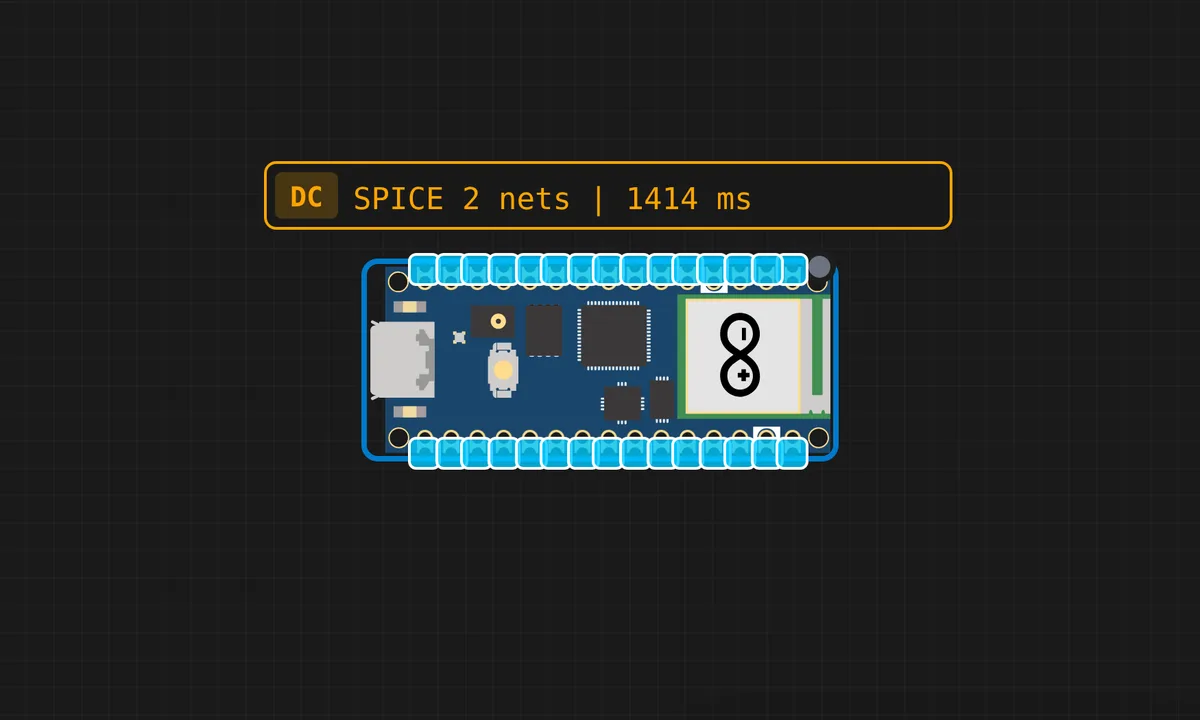
The exact circuit you get when you open this example — already wired, ready to run.
The sketch
# main.py
from machine import ADC, Pin, I2C
import ssd1306
import time

# Joystick
vrx = ADC(Pin(26))
vry = ADC(Pin(27))
sw  = Pin(15, Pin.IN, Pin.PULL_UP)

# OLED
i2c  = I2C(0, sda=Pin(0), scl=Pin(1), freq=400000)
oled = ssd1306.SSD1306_I2C(128, 64, i2c)

def show_direction(direction, x, y, btn):
    oled.fill(0)

    # Big arrow in center
    if direction == "UP":
        oled.text("^", 58, 20, 1)
        oled.text("UP", 52, 35, 1)
    elif direction == "DOWN":
        oled.text("v", 58, 20, 1)
        oled.text("DOWN", 48, 35, 1)
    elif direction == "RIGHT":
        oled.text(">", 58, 20, 1)
        oled.text("RIGHT", 44, 35, 1)
    elif direction == "LEFT":
        oled.text("<", 58, 20, 1)
        oled.text("LEFT", 48, 35, 1)
    elif direction == "PRESSED":
        oled.text("* SW *", 40, 20, 1)
        oled.text("PRESSED", 36, 35, 1)
    else:
        oled.text("+", 58, 20, 1)
        oled.text("CENTER", 40, 35, 1)

    # Raw values at bottom
    oled.text(f"X:{x:4d} Y:{y:4d}", 0, 52, 1)

    oled.show()

print("Pico 2 Joystick + OLED Ready!")

while True:
    x   = vrx.read_u16() >> 4
    y   = vry.read_u16() >> 4
    btn = sw.value()

    if btn == 0:
        direction = "PRESSED"
    elif x > 3000:
        direction = "RIGHT"
    elif x < 1000:
        direction = "LEFT"
    elif y > 3000:
        direction = "DOWN"
    elif y < 1000:
        direction = "UP"
    else:
        direction = "CENTER"

    show_direction(direction, x, y, btn)
    print(f"X={x:4d}  Y={y:4d}  SW={btn}  -> {direction}")
    time.sleep_ms(150)

# ssd1306.py
# MicroPython SSD1306 OLED driver, I2C and SPI interfaces

from micropython import const
import framebuf


# register definitions
SET_CONTRAST = const(0x81)
SET_ENTIRE_ON = const(0xA4)
SET_NORM_INV = const(0xA6)
SET_DISP = const(0xAE)
SET_MEM_ADDR = const(0x20)
SET_COL_ADDR = const(0x21)
SET_PAGE_ADDR = const(0x22)
SET_DISP_START_LINE = const(0x40)
SET_SEG_REMAP = const(0xA0)
SET_MUX_RATIO = const(0xA8)
SET_COM_OUT_DIR = const(0xC0)
SET_DISP_OFFSET = const(0xD3)
SET_COM_PIN_CFG = const(0xDA)
SET_DISP_CLK_DIV = const(0xD5)
SET_PRECHARGE = const(0xD9)
SET_VCOM_DESEL = const(0xDB)
SET_CHARGE_PUMP = const(0x8D)

# Subclassing FrameBuffer provides support for graphics primitives
# http://docs.micropython.org/en/latest/pyboard/library/framebuf.html
class SSD1306(framebuf.FrameBuffer):
    def __init__(self, width, height, external_vcc):
        self.width = width
        self.height = height
        self.external_vcc = external_vcc
        self.pages = self.height // 8
        self.buffer = bytearray(self.pages * self.width)
        super().__init__(self.buffer, self.width, self.height, framebuf.MONO_VLSB)
        self.init_display()

    def init_display(self):
        for cmd in (
            SET_DISP | 0x00,  # off
            # address setting
            SET_MEM_ADDR,
            0x00,  # horizontal
            # resolution and layout
            SET_DISP_START_LINE | 0x00,
            SET_SEG_REMAP | 0x01,  # column addr 127 mapped to SEG0
            SET_MUX_RATIO,
            self.height - 1,
            SET_COM_OUT_DIR | 0x08,  # scan from COM[N] to COM0
            SET_DISP_OFFSET,
            0x00,
            SET_COM_PIN_CFG,
            0x02 if self.width > 2 * self.height else 0x12,
            # timing and driving scheme
            SET_DISP_CLK_DIV,
            0x80,
            SET_PRECHARGE,
            0x22 if self.external_vcc else 0xF1,
            SET_VCOM_DESEL,
            0x30,  # 0.83*Vcc
            # display
            SET_CONTRAST,
            0xFF,  # maximum
            SET_ENTIRE_ON,  # output follows RAM contents
            SET_NORM_INV,  # not inverted
            # charge pump
            SET_CHARGE_PUMP,
            0x10 if self.external_vcc else 0x14,
            SET_DISP | 0x01,
        ):  # on
            self.write_cmd(cmd)
        self.fill(0)
        self.show()

    def poweroff(self):
        self.write_cmd(SET_DISP | 0x00)

    def poweron(self):
        self.write_cmd(SET_DISP | 0x01)

    def contrast(self, contrast):
        self.write_cmd(SET_CONTRAST)
        self.write_cmd(contrast)

    def invert(self, invert):
        self.write_cmd(SET_NORM_INV | (invert & 1))

    def show(self):
        x0 = 0
        x1 = self.width - 1
        if self.width == 64:
            # displays with width of 64 pixels are shifted by 32
            x0 += 32
            x1 += 32
        self.write_cmd(SET_COL_ADDR)
        self.write_cmd(x0)
        self.write_cmd(x1)
        self.write_cmd(SET_PAGE_ADDR)
        self.write_cmd(0)
        self.write_cmd(self.pages - 1)
        self.write_data(self.buffer)


class SSD1306_I2C(SSD1306):
    def __init__(self, width, height, i2c, addr=0x3C, external_vcc=False):
        self.i2c = i2c
        self.addr = addr
        self.temp = bytearray(2)
        self.write_list = [b"\x40", None]  # Co=0, D/C#=1
        super().__init__(width, height, external_vcc)

    def write_cmd(self, cmd):
        self.temp[0] = 0x80  # Co=1, D/C#=0
        self.temp[1] = cmd
        self.i2c.writeto(self.addr, self.temp)

    def write_data(self, buf):
        self.write_list[1] = buf
        self.i2c.writevto(self.addr, self.write_list)


class SSD1306_SPI(SSD1306):
    def __init__(self, width, height, spi, dc, res, cs, external_vcc=False):
        self.rate = 10 * 1024 * 1024
        dc.init(dc.OUT, value=0)
        res.init(res.OUT, value=0)
        cs.init(cs.OUT, value=1)
        self.spi = spi
        self.dc = dc
        self.res = res
        self.cs = cs
        import time

        self.res(1)
        time.sleep_ms(1)
        self.res(0)
        time.sleep_ms(10)
        self.res(1)
        super().__init__(width, height, external_vcc)

    def write_cmd(self, cmd):
        self.spi.init(baudrate=self.rate, polarity=0, phase=0)
        self.cs(1)
        self.dc(0)
        self.cs(0)
        self.spi.write(bytearray([cmd]))
        self.cs(1)

    def write_data(self, buf):
        self.spi.init(baudrate=self.rate, polarity=0, phase=0)
        self.cs(1)
        self.dc(1)
        self.cs(0)
        self.spi.write(buf)
        self.cs(1)
How it works
The firmware reads the joystick’s X and Y axes on two ADC channels, computes the direction vector, and renders an arrow on the OLED. The display updates continuously, so the pointer tracks the stick in real time.
The direction math is the interesting part: the two axis readings form a vector, and the arrow’s angle is the vector’s bearing. The OLED redraws the arrow each frame, with the angle quantized to a readable number of steps.
Before you build it for real
The joystick’s center dead zone is essential — carbon pots jitter around neutral, and without a dead zone the arrow flickers in random directions when the stick is released. The ADC’s end-range compression makes the diagonal directions slightly distorted unless the code normalizes both axes. And the OLED refresh is the latency budget: I2C at 400 kHz redraws the 128×64 frame in tens of milliseconds, which feels instant for a pointer but is the floor for anything faster.
Get the parts
Related examples
FAQ
What does the direction display show?
The OLED renders the joystick’s position as a direction indicator — typically an arrow or compass-style readout that updates as the stick moves. Two axes become a visual direction, which is the difference between reading numbers and seeing a pointer.
Why the Pico for this?
The Pico’s ADC reads both joystick axes, and its I2C drives the OLED — the two peripherals the project needs, on the two buses the Pico does best. MicroPython’s OLED libraries are mature, so the display code is a few lines.