
WebSocket LED Control using Raspberry Pi Pico W
WebSocket LED Control using Raspberry Pi Pico W is a runnable microcontroller simulation example on SensBench — open the wired circuit, inspect the code, and compile real firmware in your browser, no install needed. Last updated Aug 14, 2026.
FREE SIMULATOR EXAMPLE · ADVANCED
WebSocket LED Control using Raspberry Pi Pico W
This example controls an LED on the Raspberry Pi Pico W over WebSocket — the browser’s upgrade request becomes a persistent frame channel, and ON/OFF frames drive GP15. The protocol’s handshake and framing, hand-implemented.
| Board | Raspberry Pi Pico W (RP2040 + WiFi) |
|---|---|
| Difficulty | advanced |
| Category | communication |
| Libraries | None — just the Arduino core |
| Runs in | Sensbench browser simulator — free, no account |
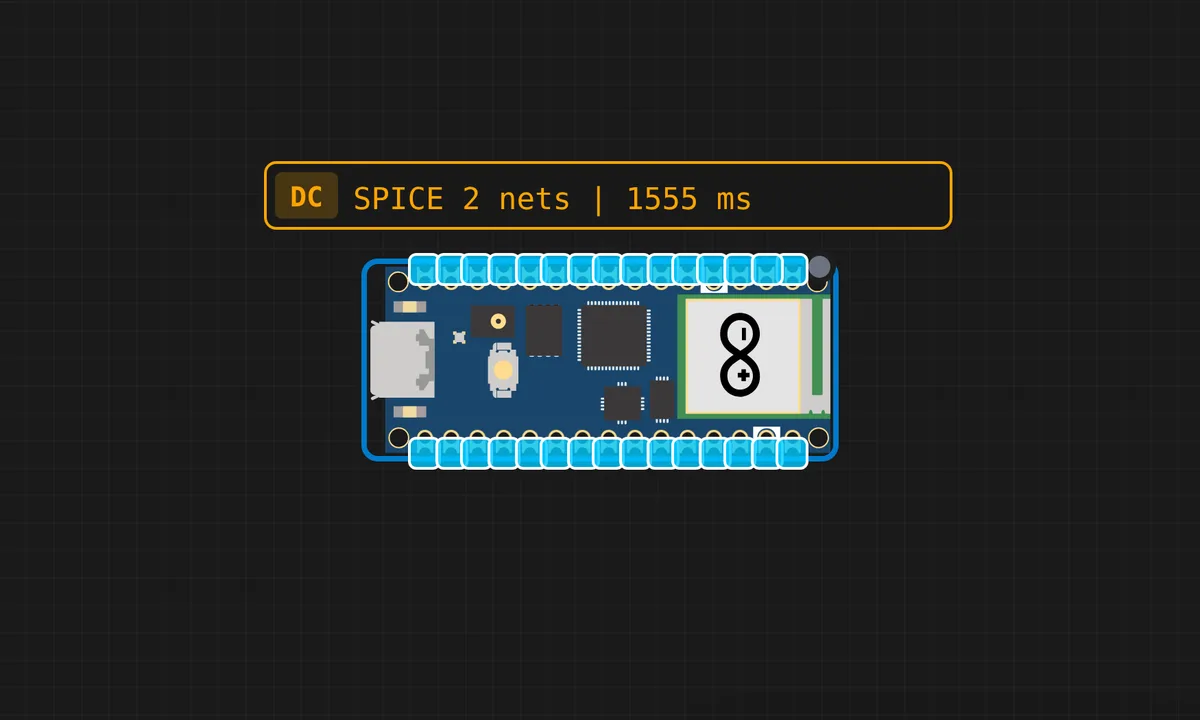
The exact circuit you get when you open this example — already wired, ready to run.
The sketch
# main.py
import socket
import network
import time
from machine import Pin
import ubinascii
import uhashlib

# LED Setup
led = Pin(15, Pin.OUT)
led.value(0)

# WiFi Configuration
SSID = "kritish"
PASSWORD = "pass"

def websocket_accept(key):
    GUID = "258EAFA5-E914-47DA-95CA-C5AB0DC85B11"
    sha1 = uhashlib.sha1((key + GUID).encode()).digest()
    return ubinascii.b2a_base64(sha1).strip().decode()

def ws_decode(data):
    if len(data) < 6: return ""
    payload_len = data[1] & 127
    mask = data[2:6]
    payload = data[6:6 + payload_len]
    decoded = bytearray()
    for i in range(len(payload)):
        decoded.append(payload[i] ^ mask[i % 4])
    return decoded.decode()

# Connect to WiFi
wlan = network.WLAN(network.STA_IF)
wlan.active(True)
wlan.connect(SSID, PASSWORD)

print("Connecting to WiFi...")
while not wlan.isconnected():
    time.sleep(1)
print("Connected! Pico IP:", wlan.ifconfig()[0])

# Start Server
server = socket.socket()
server.setsockopt(socket.SOL_SOCKET, socket.SO_REUSEADDR, 1)
server.bind(("0.0.0.0", 80))
server.listen(1)

while True:
    print("\n--- Waiting for fresh connection ---")
    conn, addr = server.accept()
    print("New client from:", addr)

    try:
        # 1. Handle Handshake
        raw_request = conn.recv(1024).decode()
        if "Sec-WebSocket-Key" in raw_request:
            ws_key = raw_request.split("Sec-WebSocket-Key: ")[1].split("\r\n")[0].strip()
            accept_key = websocket_accept(ws_key)

            handshake = (
                "HTTP/1.1 101 Switching Protocols\r\n"
                "Upgrade: websocket\r\n"
                "Connection: Upgrade\r\n"
                f"Sec-WebSocket-Accept: {accept_key}\r\n\r\n"
            )
            conn.send(handshake)
            print("Handshake Success!")

            # 2. Communication Loop
            while True:
                data = conn.recv(1024)
                if not data:
                    print("Client disconnected.")
                    break

                msg = ws_decode(data)
                print("Cmd:", msg)

                if msg == "ON":
                    led.value(1)
                    reply = "LED IS ON"
                elif msg == "OFF":
                    led.value(0)
                    reply = "LED IS OFF"
                else:
                    reply = "OK"

                # Send response frame
                frame = bytearray([0x81, len(reply)]) + reply.encode()
                conn.send(frame)
        else:
            print("Not a WebSocket request.")

    except Exception as e:
        print("Error during session:", e)
    finally:
        conn.close()
        print("Connection closed. Ready for next.")
How it works
The firmware runs a WebSocket server: the handshake upgrades an HTTP connection, and subsequent frames carry the ON/OFF commands that drive the LED. The frame parsing — header, mask, payload — is implemented directly, so the protocol’s mechanics are visible in the source.
The masking rule is the protocol’s signature detail: clients mask their frames, servers do not — the firmware enforces it in both directions. The LED on GP15 is the observable, the frame exchange is the lesson.
Before you build it for real
Hand-implemented WebSocket means hand-implemented correctness — the handshake’s SHA1 accept value and the masking-key parsing are where subtle bugs hide, and a wrong accept makes every browser silently refuse the connection. The server handles one client at a time — a second tab’s upgrade fails until the first closes. And the LED still needs its series resistor on real hardware — the protocol is the lesson, but the electronics are still real.
Get the parts
Related examples
FAQ
Why WebSocket instead of polling HTTP?
WebSocket keeps one connection open and pushes frames instantly in both directions — the LED flips the moment the button is clicked, without the page-reload dance of HTTP. For interactive control, the persistent connection is the whole difference.
What happens under the hood on connect?
The browser sends an HTTP upgrade request with a handshake key; the server validates it against the WebSocket GUID and replies with the accept value. After the handshake, the connection speaks frames instead of HTTP — the protocol switch this example implements.