
Pico: Analog Joystick
Pico: Analog Joystick is a runnable microcontroller simulation example on SensBench — open the wired circuit, inspect the code, and compile real firmware in your browser, no install needed. Last updated Aug 14, 2026.
FREE SIMULATOR EXAMPLE · BEGINNER
Pico: Analog Joystick
This example reads both axes and the push button of an analog joystick on the Raspberry Pi Pico: X on A0 (GP26), Y on A1 (GP27), and the SELECT button on GP16. The values are mapped to -100..+100 and printed to the Serial Monitor — the same setup you would use to steer a robot or control a game.
| Board | Raspberry Pi Pico (RP2040 dual-core Cortex-M0+, 133 MHz) |
|---|---|
| Difficulty | beginner |
| Category | sensors |
| Libraries | None — just the Arduino core |
| Runs in | Sensbench browser simulator — free, no account |
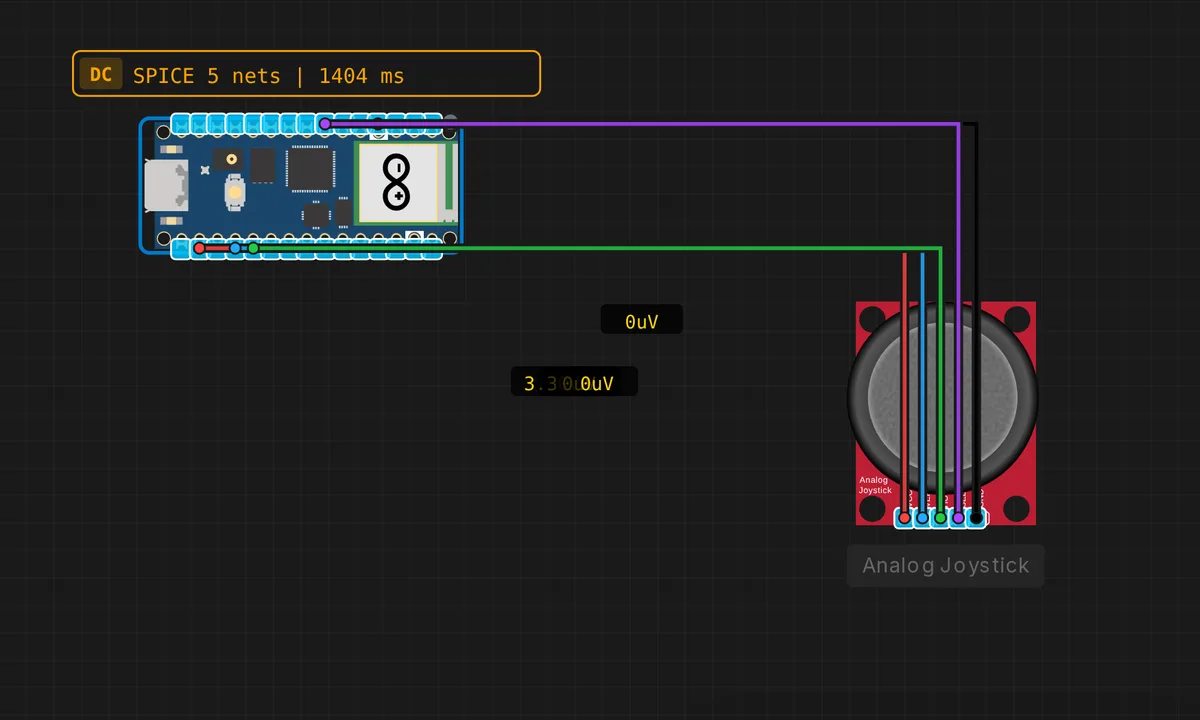
The exact circuit you get when you open this example — already wired, ready to run.
The sketch
// Raspberry Pi Pico — Analog Joystick
// Wiring: VERT → A0(GP26)  |  HORZ → A1(GP27)  |  SEL → D4(GP16)
//         VCC → 3.3V  |  GND → GND

#define JOY_VERT A0   // GP26
#define JOY_HORZ A1   // GP27
#define JOY_BTN  16   // GP16 (D4)

void setup() {
  Serial.begin(115200);
  pinMode(JOY_BTN, INPUT_PULLUP);
  analogReadResolution(10);
  Serial.println("Pico Analog Joystick ready");
}

void loop() {
  int x   = analogRead(JOY_HORZ); // 0–1023
  int y   = analogRead(JOY_VERT); // 0–1023
  bool btn = (digitalRead(JOY_BTN) == LOW);

  // Map to -100..+100
  int xP = map(x, 0, 1023, -100, 100);
  int yP = map(y, 0, 1023, -100, 100);

  Serial.print("X="); Serial.print(xP);
  Serial.print("  Y="); Serial.print(yP);
  Serial.print("  BTN="); Serial.println(btn ? "PRESSED" : "---");
  delay(150);
}
How it works
The joystick is two potentiometers on one stick: moving it changes the resistance in the X and Y dividers, which the Pico reads on A0 and A1. The code samples both axes with analogRead() and converts each to a signed range with map(x, 0, 1023, -100, 100), so you get a -100..+100 value representing the stick position as a percentage.
The button is read with INPUT_PULLUP on GP16 — pressing the stick pushes it LOW, so digitalRead(JOY_BTN) == LOW means pressed. The 150 ms delay in the loop is a simple anti-jitter: readings update fast enough for most UI and robot control, but slow enough that rapid bouncing on the button rarely registers twice.
Before you build it for real
The joystick module has no precision reference — its two potentiometers are cheap carbon tracks, so the center position may not read exactly 0 and the axes may not be perfectly orthogonal. In real code, calibrate the zero point at startup (read both axes once, store as offsets) and apply a dead zone of plus/minus 10 around center, or your robot will drift when the stick is released. Also, many joystick modules are 5 V parts; this sketch powers it from 3.3 V, which works but reduces the effective voltage span the ADC sees — acceptable here, but check the module before wiring a real one.
Get the parts
Related examples
FAQ
Why does the joystick need three pins?
The two analog axes (VERT and HORZ) each need an ADC pin to measure the position of the internal potentiometers, and the push button needs a digital input. The SELECT button is wired between GP16 and ground with INPUT_PULLUP, so it reads LOW when pressed.
Why map to -100 to +100 instead of using raw values?
Raw ADC values (0-1023) are hardware-specific and hard to reason about in game or robot code. Mapping to -100..+100 gives you a signed percentage that reads naturally: -100 is full left, +100 is full right, 0 is center. The map() function does the linear conversion for you.