
Raspberry Pi Pico: SSD1306 OLED (4-pin I2C)
Raspberry Pi Pico: SSD1306 OLED (4-pin I2C) is a runnable microcontroller simulation example on SensBench — open the wired circuit, inspect the code, and compile real firmware in your browser, no install needed. Last updated Aug 14, 2026.
FREE SIMULATOR EXAMPLE · INTERMEDIATE
Raspberry Pi Pico: SSD1306 OLED (4-pin I2C)
This example drives a cheap 4-pin SSD1306 OLED module (GND/VCC/SCL/SDA) from the Raspberry Pi Pico over I2C — SDA on GP4, SCL on GP5. It shows “Hello sensbench!” in large text with a live counter, using the same Adafruit SSD1306 + GFX library stack you would use on real hardware.
| Board | Raspberry Pi Pico (RP2040 dual-core Cortex-M0+, 133 MHz) |
|---|---|
| Difficulty | intermediate |
| Category | displays |
| Libraries | Adafruit SSD1306, Adafruit GFX Library |
| Runs in | Sensbench browser simulator — free, no account |
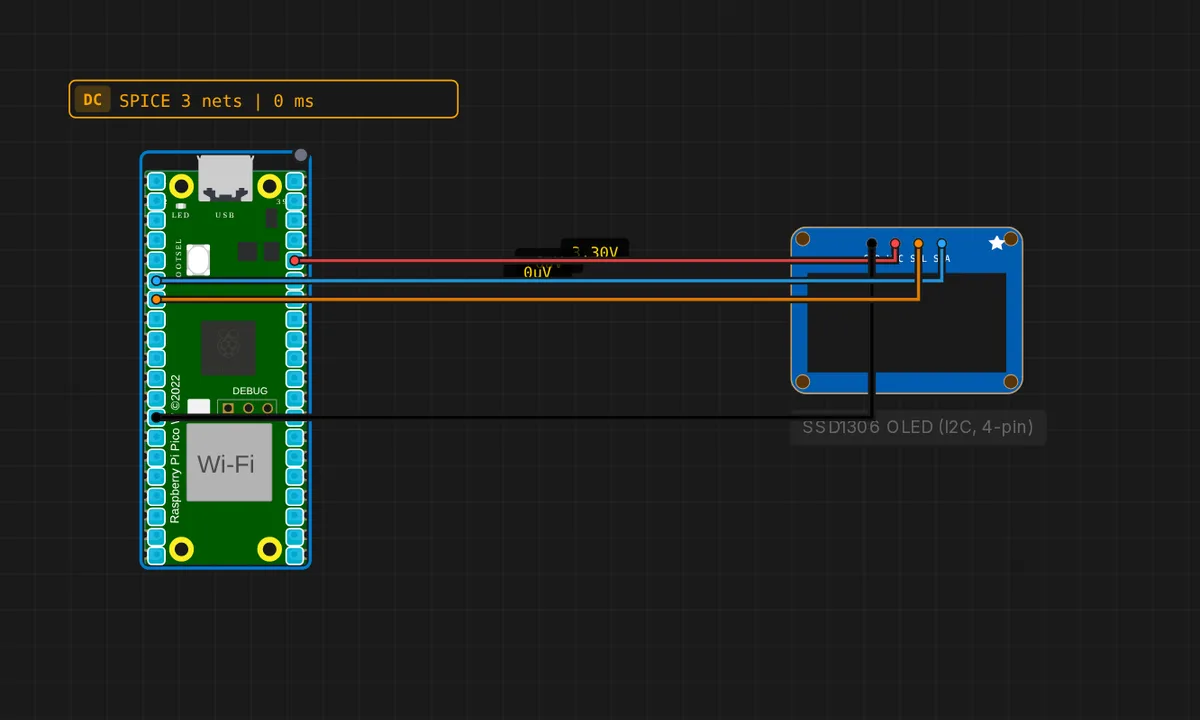
The exact circuit you get when you open this example — already wired, ready to run.
The sketch
// Raspberry Pi Pico — SSD1306 128x64 OLED (4-pin I2C module)
// Wiring: SDA -> GP4  |  SCL -> GP5  |  VCC -> 3V3  |  GND -> GND
#include <Wire.h>
#include <Adafruit_GFX.h>
#include <Adafruit_SSD1306.h>

Adafruit_SSD1306 display(128, 64, &Wire, -1);
int n = 0;

void setup() {
  Serial.begin(115200);
  Wire.setSDA(4);
  Wire.setSCL(5);
  Wire.begin();
  if (!display.begin(SSD1306_SWITCHCAPVCC, 0x3C)) {
    Serial.println("SSD1306 not found!");
    while (true) delay(10);
  }
  display.clearDisplay();
  Serial.println("OLED ready");
}

void loop() {
  n++;
  display.clearDisplay();
  display.setTextSize(2);
  display.setTextColor(SSD1306_WHITE);
  display.setCursor(0, 0);
  display.println("Hello");
  display.println("sensbench!");
  display.setTextSize(1);
  display.setCursor(0, 48);
  display.print("Count: ");
  display.print(n);
  display.display();
  delay(500);
}
How it works
The sketch explicitly sets the I2C pins with Wire.setSDA(4) and Wire.setSCL(5) before Wire.begin() — on the Pico the default I2C0 pins are GP4/GP5 anyway, but being explicit makes the wiring unambiguous. Then display.begin(SSD1306_SWITCHCAPVCC, 0x3C) initializes the 128×64 panel at the standard address.
The loop clears the display, prints “Hello” and “sensbench!” in 2x text, draws a 1x “Count: N” line that increments every 500 ms, and calls display.display() to push the buffer to the panel. The count is the visual proof that the loop is live — the OLED updates in place without flicker because the whole frame is rendered off-screen and blitted at once.
Before you build it for real
The 4-pin module’s pin order is GND, VCC, SCL, SDA — not SDA, SCL. Reversing the two signal lines is the most common wiring error, and the display simply never answers (the sketch hangs in the “SSD1306 not found!” loop, which is its way of telling you). Also, the module’s I2C address can be 0x3C or 0x3D depending on the address resistor on the back — if 0x3C fails, try 0x3D. The SSD1306 is a 3.3 V part: do not connect VCC to 5 V even though many modules survive it — the Pico’s 3V3 is the right rail.
Get the parts
Related examples
FAQ
Why do I need the Adafruit GFX library?
The Adafruit_SSD1306 library drives the OLED controller, but it depends on Adafruit_GFX for the drawing primitives — text, lines, circles, rectangles. Together they are the de-facto standard stack for SSD1306 displays, and the same code runs on Arduino, ESP32, and Pico alike.
What does SSD1306_SWITCHCAPVCC mean?
It tells the library how the display is powered: SSD1306_SWITCHCAPVCC is the normal 3.3 V supply mode with the internal charge pump on. The display.begin() call fails — and the sketch hangs in the not-found loop — if the wiring or the address (0x3C here) is wrong.