
Pico W — WebSocket-controlled LED
Pico W — WebSocket-controlled LED is a runnable microcontroller simulation example on SensBench — open the wired circuit, inspect the code, and compile real firmware in your browser, no install needed. Last updated Aug 14, 2026.
FREE SIMULATOR EXAMPLE · ADVANCED
Pico W — WebSocket-controlled LED
This example hand-rolls a WebSocket server on the Pico W: the browser opens an upgrade request, then sends ON/OFF frames that toggle an LED on GP15 in real time. No library — the upgrade handshake, key validation and frame masking are all in the source.
| Board | Raspberry Pi Pico W (RP2040 + WiFi) |
|---|---|
| Difficulty | advanced |
| Category | communication |
| Libraries | None — just the Arduino core |
| Runs in | Sensbench browser simulator — free, no account |
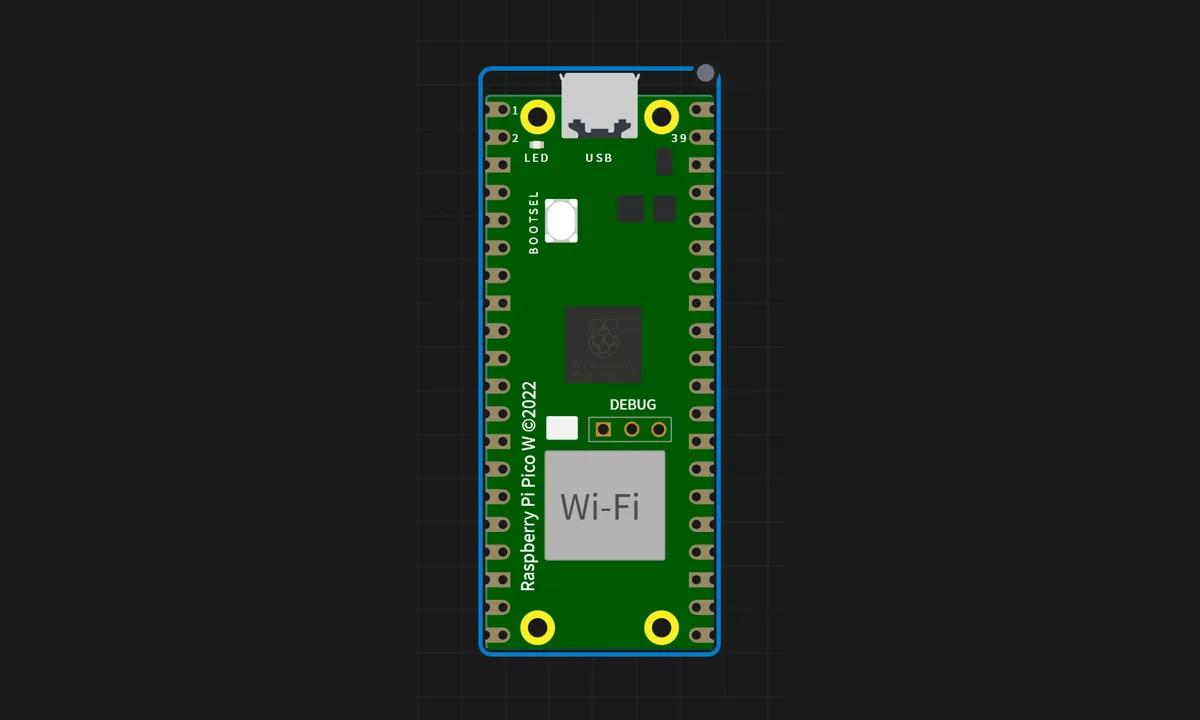
The exact circuit you get when you open this example — already wired, ready to run.
The MicroPython script
# main.py
# WebSocket LED Control — MicroPython

import socket, network, time, ubinascii, uhashlib
from machine import Pin

led = Pin(15, Pin.OUT); led.value(0)

SSID = "SENSBENCH-GUEST"
PASSWORD = ""

def ws_accept(key):
    GUID = "258EAFA5-E914-47DA-95CA-C5AB0DC85B11"
    return ubinascii.b2a_base64(uhashlib.sha1((key + GUID).encode()).digest()).strip().decode()

def ws_decode(data):
    if len(data) < 6: return ""
    payload_len = data[1] & 127
    mask = data[2:6]
    payload = data[6:6 + payload_len]
    return bytes(payload[i] ^ mask[i % 4] for i in range(len(payload))).decode()

wlan = network.WLAN(network.STA_IF); wlan.active(True); wlan.connect(SSID, PASSWORD)
while not wlan.isconnected():
    time.sleep(1)
print("Connected!", wlan.ifconfig()[0])

server = socket.socket()
server.setsockopt(socket.SOL_SOCKET, socket.SO_REUSEADDR, 1)
server.bind(("0.0.0.0", 80)); server.listen(1)

while True:
    conn, addr = server.accept()
    try:
        raw = conn.recv(1024).decode()
        if "Sec-WebSocket-Key" in raw:
            key = raw.split("Sec-WebSocket-Key: ")[1].split("\r\n")[0].strip()
            conn.send(("HTTP/1.1 101 Switching Protocols\r\nUpgrade: websocket\r\n"
                       "Connection: Upgrade\r\nSec-WebSocket-Accept: %s\r\n\r\n" % ws_accept(key)))
            while True:
                data = conn.recv(1024)
                if not data: break
                msg = ws_decode(data)
                if msg == "ON": led.value(1); reply = "LED IS ON"
                elif msg == "OFF": led.value(0); reply = "LED IS OFF"
                else: reply = "OK"
                conn.send(bytearray([0x81, len(reply)]) + reply.encode())
    finally:
        conn.close()
How it works
The script accepts a TCP connection and performs the WebSocket handshake by hand: it validates the browser’s Sec-WebSocket-Key against the magic GUID, replies with the computed Sec-WebSocket-Accept, and from then on parses incoming frames. The browser sends “ON” or “OFF” as text frames, and the LED on GP15 follows.
The frame parsing is the protocol’s core: text frames arrive with a small header plus a payload, and the server unmasked the client’s data (clients must mask, servers must not — a rule this hand-rolled code implements explicitly). It is the same exchange a WebSocket library hides, written out so the upgrade and masking rules are visible.
Before you build it for real
Hand-rolled WebSocket means hand-rolled correctness: the masking key parsing and the SHA1 handshake are exactly where subtle bugs live, and a wrong Sec-WebSocket-Accept makes every browser reject the connection with no useful error. The server also handles one client connection at a time — a second tab’s upgrade request is refused until the first closes. And on real hardware the LED still needs its series resistor: the simulator’s LED is free, silicon is not. This example is a protocol lesson, not production infrastructure — use a proper WebSocket library for anything that ships.
Get the parts
Related examples
FAQ
Why WebSocket instead of plain HTTP?
HTTP is request-response: each toggle needs a full page reload or a background fetch. WebSocket keeps one connection open and pushes frames in both directions instantly — the difference between a light switch that feels wired and one that feels like a web form. This example hand-rolls the upgrade to show the protocol underneath.
Why is the LED on GP15 instead of the onboard one?
The onboard Pico W LED goes through the CYW43 chip, which complicates the wiring story this example wants to keep simple. GP15 is a plain GPIO — one pin, one LED, no WiFi-chip indirection — so the WebSocket protocol is the only thing to learn here.