
Serial Hello World
Serial Hello World is a runnable microcontroller simulation example on SensBench — open the wired circuit, inspect the code, and compile real firmware in your browser, no install needed. Last updated Aug 14, 2026.
FREE SIMULATOR EXAMPLE · BEGINNER
Serial Hello World
The smallest useful Arduino program that talks back: print two lines in setup(), then report uptime in seconds every two seconds, forever. Ten lines of code — but they prove the entire serial path, USB cable to drivers to baud rate to monitor, before you build anything bigger on top of it.
| Board | Arduino Uno (ATmega328P, 16 MHz, 5 V logic) |
|---|---|
| Difficulty | beginner |
| Category | communication |
| Libraries | None — just the Arduino core |
| Runs in | Sensbench browser simulator — free, no account |
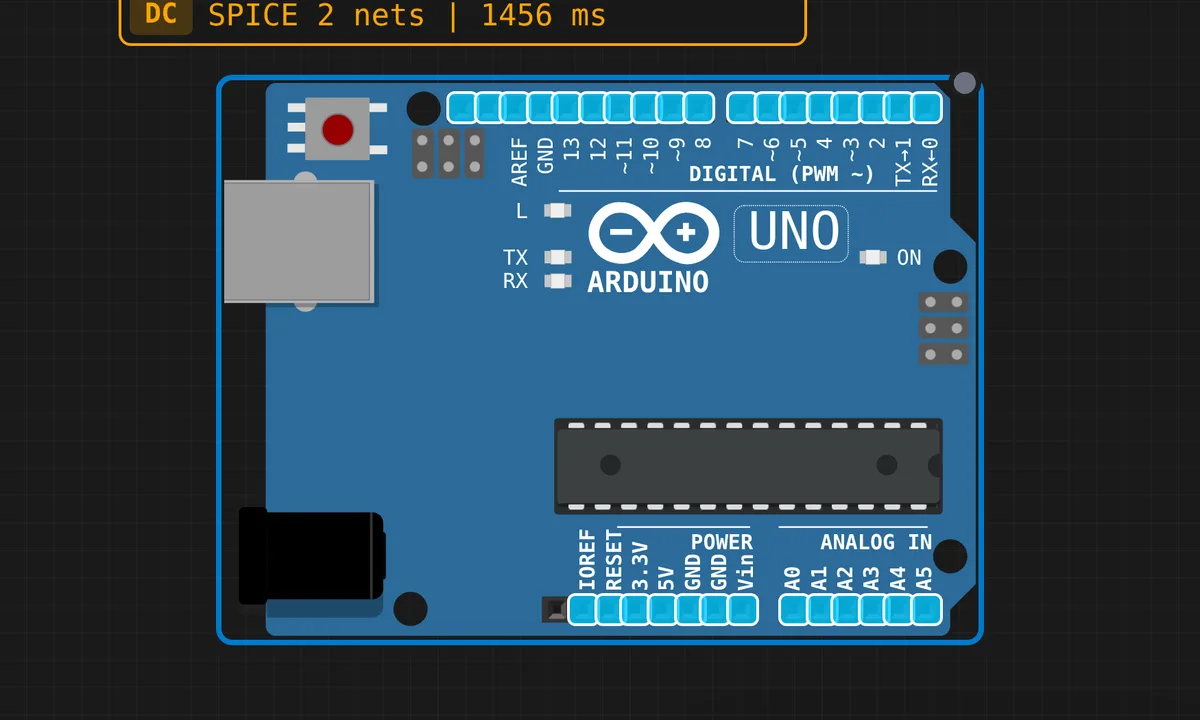
The exact circuit you get when you open this example — already wired, ready to run.
The sketch
// Serial Communication Example
// Send messages to Serial Monitor

void setup() {
  Serial.begin(9600);
  Serial.println("Hello, Arduino!");
  Serial.println("System initialized");
}

void loop() {
  Serial.print("Uptime: ");
  Serial.print(millis() / 1000);
  Serial.println(" seconds");
  delay(2000);
}
How it works
Serial.begin(9600) opens the USART at 9600 baud. On the Uno that is the hardware UART on pins 0 and 1, forwarded to USB by the bridge chip (16u2 or CH340 depending on the board). Every Serial.println() appends its own newline, which is why each message lands on its own line in the monitor.
setup() runs exactly once, so the banner prints once; loop() then repeats print-plus-delay(2000) forever. millis() counts milliseconds since boot, so millis() / 1000 is a free running clock — note the uptime keeps counting even while the sketch sits inside delay(), because the timer is hardware, not your code.
The blocking delay() is honest here because there is literally nothing else to do. The moment you add a second task — a sensor read, a button check — this structure falls apart, because nothing else can run during those two seconds. The fix is the millis() scheduling pattern you can see in action in the Serial Echo example.
Before you build it for real
On a real Uno, opening the serial connection resets the board — the USB-serial bridge asserts DTR, the bootloader runs, and your monitor usually connects after the banner has already been sent. If you open the monitor and only ever see uptime lines, that is why; hit the reset button to watch setup() run again. And the boring one that still gets everyone weekly: the baud rate. Sketch says 9600, monitor must say 9600, or you get garbage glyphs that look exactly like a hardware fault but are not.
Related examples
FAQ
Why does the Serial Monitor stay completely empty?
Check three things in order: the baud dropdown matches 9600, you selected the right port, and — on a real board — press reset after opening the monitor, because connecting reboots the Uno and the setup banner fires before you attach. Still nothing? Upload a blink sketch to prove the board is alive at all.
Can I print faster than every two seconds?
Sure — shrink the delay(2000). Just remember the serial buffer is 64 bytes and at 9600 baud a line takes ~20 ms to transmit. Print in a tight loop with no delay and Serial.print() starts blocking once the buffer fills, throttling your whole sketch to the baud rate.