
Serial LED Control
Serial LED Control is a runnable microcontroller simulation example on SensBench — open the wired circuit, inspect the code, and compile real firmware in your browser, no install needed. Last updated Aug 14, 2026.
FREE SIMULATOR EXAMPLE · BEGINNER
Serial LED Control
This example turns the Arduino Uno’s Serial Monitor into a tiny console: send ‘1’ and the LED on pin 13 lights, send ‘0’ and it goes out, send ‘?’ and the board answers with its state and uptime in seconds. Everything runs over a 9600 baud USB serial link with zero external parts — the LED is the one already on the Uno.
| Board | Arduino Uno (ATmega328P, 16 MHz, 5 V logic) |
|---|---|
| Difficulty | beginner |
| Category | communication |
| Libraries | None — just the Arduino core |
| Runs in | Sensbench browser simulator — free, no account |
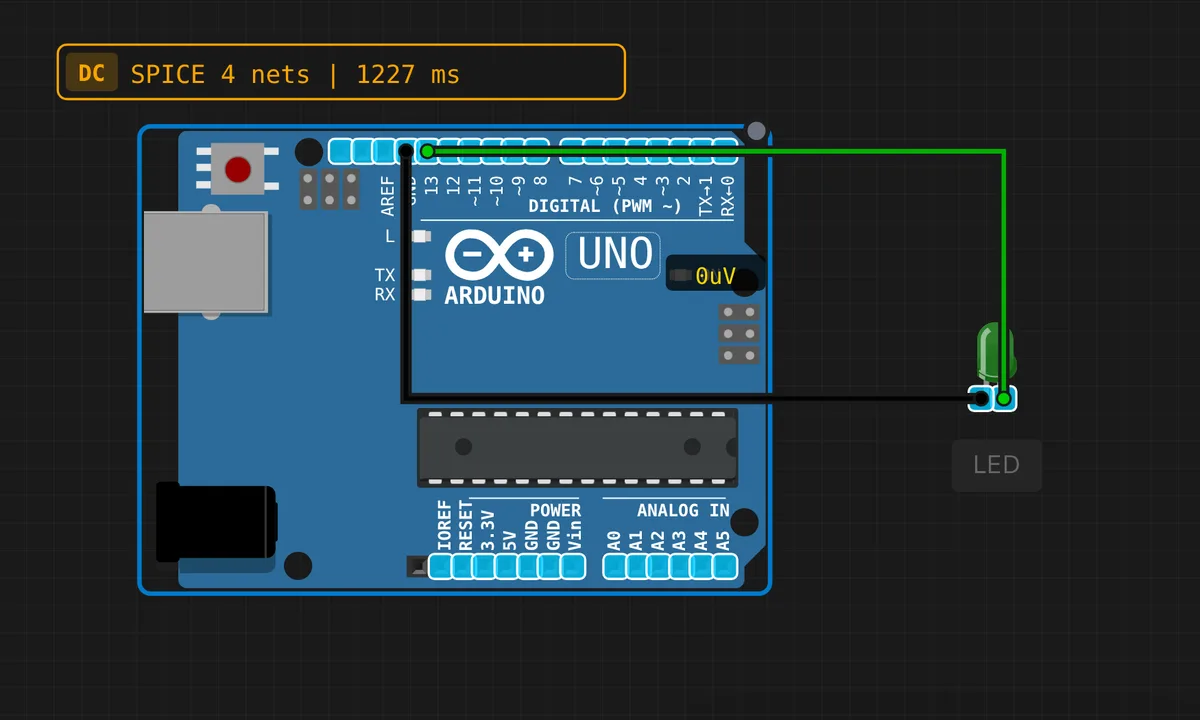
The exact circuit you get when you open this example — already wired, ready to run.
The sketch
// Serial LED Control
// Send "1" to turn LED ON, "0" to turn LED OFF.
// Demonstrates Serial input controlling hardware.

const int LED_PIN = 13;

void setup() {
  Serial.begin(9600);
  pinMode(LED_PIN, OUTPUT);
  digitalWrite(LED_PIN, LOW);

  Serial.println("=========================");
  Serial.println(" Serial LED Controller");
  Serial.println("=========================");
  Serial.println("Send '1' = LED ON");
  Serial.println("Send '0' = LED OFF");
  Serial.println("Send '?' = Status");
  Serial.println();
}

bool ledState = false;

void loop() {
  if (Serial.available() > 0) {
    char cmd = Serial.read();

    switch (cmd) {
      case '1':
        digitalWrite(LED_PIN, HIGH);
        ledState = true;
        Serial.println("[OK] LED is ON");
        break;
      case '0':
        digitalWrite(LED_PIN, LOW);
        ledState = false;
        Serial.println("[OK] LED is OFF");
        break;
      case '?':
        Serial.print("[STATUS] LED is ");
        Serial.println(ledState ? "ON" : "OFF");
        Serial.print("[STATUS] Uptime: ");
        Serial.print(millis() / 1000);
        Serial.println("s");
        break;
      default:
        if (cmd >= 32) { // ignore control chars
          Serial.print("[ERR] Unknown command: '");
          Serial.print(cmd);
          Serial.println("'  (use 1, 0, or ?)");
        }
        break;
    }
  }
}
How it works
setup() opens the port with Serial.begin(9600), prints a banner, and configures LED_PIN 13 as an output. On the Uno, pin 13 is the LED already soldered to the board, so the whole demo runs with nothing plugged in. The loop then polls Serial.available() and pulls one byte at a time with Serial.read() — the smallest command parser that still feels interactive.
A switch maps three commands to actions: '1' drives the pin HIGH, '0' drives it LOW, and '?' prints the state plus millis() / 1000 as an uptime in seconds. Notice the state lives in a ledState bool rather than being re-read from the pin — a habit worth copying into bigger projects, because your code should know what it last commanded.
The guard in the default branch is the quiet detail: if (cmd >= 32) silently swallows carriage-return and newline bytes. Without it, setting your Serial Monitor’s line ending to “Newline” would fire an [ERR] Unknown command after every legitimate command — the printable-ASCII filter is why that doesn’t happen.
Before you build it for real
Two things differ on a real Uno. First, auto-reset: every time you open the serial port, the USB-serial bridge pulses DTR and reboots the ATmega328P — the banner reprints and your uptime counter restarts at zero. Not a bug, but it confuses everyone once. Second, pin 13 is also the SPI SCK line and already carries the onboard LED with its series resistor; it is perfect for this sketch, but if you later add SPI hardware the LED will flicker with clock traffic, and an external LED on pin 13 still needs its own 220 ohm resistor against the 20 mA per-pin budget.
Related examples
FAQ
Why does the board reset every time I open the Serial Monitor?
That is the Uno’s auto-reset circuit: the USB-serial chip pulses the DTR line when a port opens, which resets the ATmega328P so the bootloader can accept an upload. Your sketch restarts, the banner prints again, and the uptime counter goes back to zero. It is a feature, not a fault.
I typed 1 but nothing happened — what do I check first?
Baud rate first: the monitor must be set to 9600 or every byte arrives as garbage and the switch falls through. Second, make sure you send a plain ‘1’ — the sketch ignores bytes below ASCII 32, so a lone carriage return does nothing by design.