
Arduino Uno: SSD1306 OLED (4-pin I2C)
Arduino Uno: SSD1306 OLED (4-pin I2C) is a runnable microcontroller simulation example on SensBench — open the wired circuit, inspect the code, and compile real firmware in your browser, no install needed. Last updated Aug 14, 2026.
FREE SIMULATOR EXAMPLE · INTERMEDIATE
Arduino Uno: SSD1306 OLED (4-pin I2C)
This example drives a 128×64 SSD1306 OLED over I2C from an Arduino Uno — SDA on A4, SCL on A5 — and prints ‘Hello sensbench!’ in double-size text above a counter that ticks every 500 ms. It uses the standard Adafruit SSD1306 plus GFX library pair, the same install you would pull from Library Manager for real hardware.
| Board | Arduino Uno (ATmega328P, 16 MHz, 5 V logic) |
|---|---|
| Difficulty | intermediate |
| Category | displays |
| Libraries | Adafruit SSD1306, Adafruit GFX Library |
| Runs in | Sensbench browser simulator — free, no account |
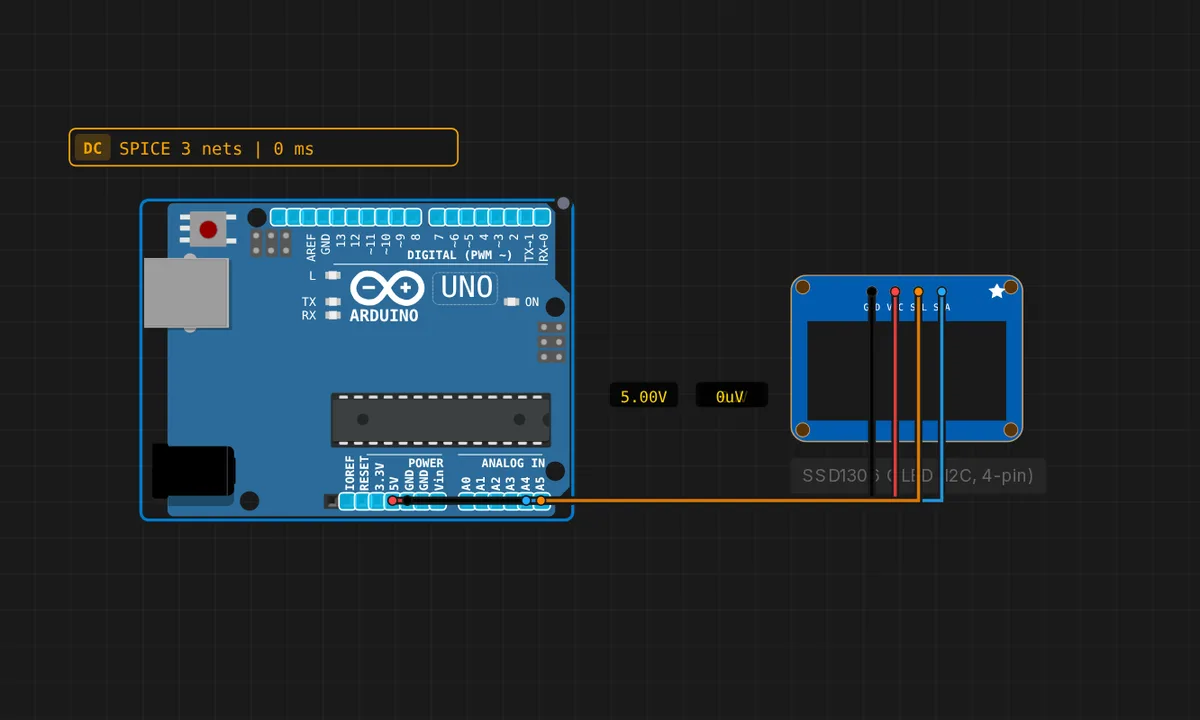
The exact circuit you get when you open this example — already wired, ready to run.
The sketch
// Arduino Uno — SSD1306 128x64 OLED (4-pin I2C module)
// Wiring: SDA -> A4  |  SCL -> A5  |  VCC -> 5V  |  GND -> GND
#include <Wire.h>
#include <Adafruit_GFX.h>
#include <Adafruit_SSD1306.h>

Adafruit_SSD1306 display(128, 64, &Wire, -1);
int n = 0;

void setup() {
  Serial.begin(115200);
  Wire.begin();
  if (!display.begin(SSD1306_SWITCHCAPVCC, 0x3C)) {
    Serial.println("SSD1306 not found!");
    while (true) delay(10);
  }
  display.clearDisplay();
  Serial.println("OLED ready");
}

void loop() {
  n++;
  display.clearDisplay();
  display.setTextSize(2);
  display.setTextColor(SSD1306_WHITE);
  display.setCursor(0, 0);
  display.println("Hello");
  display.println("sensbench!");
  display.setTextSize(1);
  display.setCursor(0, 48);
  display.print("Count: ");
  display.print(n);
  display.display();
  delay(500);
}
How it works
On the Uno, I2C lives on the analog header: A4 doubles as SDA and A5 as SCL, and Wire.begin() hands those pins over to the bus. The display constructor takes -1 as its reset pin because the 4-pin module has none — power-on reset does the job. display.begin(SSD1306_SWITCHCAPVCC, 0x3C) then probes address 0x3C, and if nothing ACKs, the sketch prints ‘SSD1306 not found!’ and parks forever rather than drawing into the void.
Nothing you draw appears until display.display() runs. Adafruit GFX renders text into a 1024-byte framebuffer in the Uno’s RAM — setTextSize(), setCursor() and print() all just edit that buffer — and display() pushes the whole frame over I2C in one go. That is why clearDisplay() at the top of the loop never flickers: the screen only ever sees completed frames.
Before you build it for real
That framebuffer costs 1024 bytes — half of the ATmega328P’s 2 KB SRAM. It fits, but add a few long strings or a second library with big buffers and the stack collides with the heap: the board resets or garbles the display with no error message at all. Wrap strings in F() macros if you extend this sketch. Second, if you get ‘SSD1306 not found!’ on real hardware, the address is the first suspect — some modules ship as 0x3D instead of 0x3C — and swapping SDA/SCL is the classic wiring slip. An I2C scanner sketch tells you what actually answers.
Get the parts
Related examples
FAQ
The Serial Monitor says 'SSD1306 not found!' — now what?
Three suspects, in order: the I2C address (try 0x3D instead of 0x3C), SDA and SCL swapped (A4 is SDA, A5 is SCL), and VCC — this sketch powers the module from 5V, which most 4-pin SSD1306 boards accept through their on-board regulator, but check yours. An I2C scanner sketch settles the address question in ten seconds.
Can I draw graphics, not just text?
Yes — Adafruit GFX gives you drawPixel(), drawLine(), drawCircle(), bitmaps and more, all into the same framebuffer. The constraint is RAM, not capability: the 1 KB buffer is already half the Uno’s SRAM, so keep any bitmaps in PROGMEM flash rather than RAM.