
Blog
Seeed Studio Boards Now Run in the Sensbench Simulator

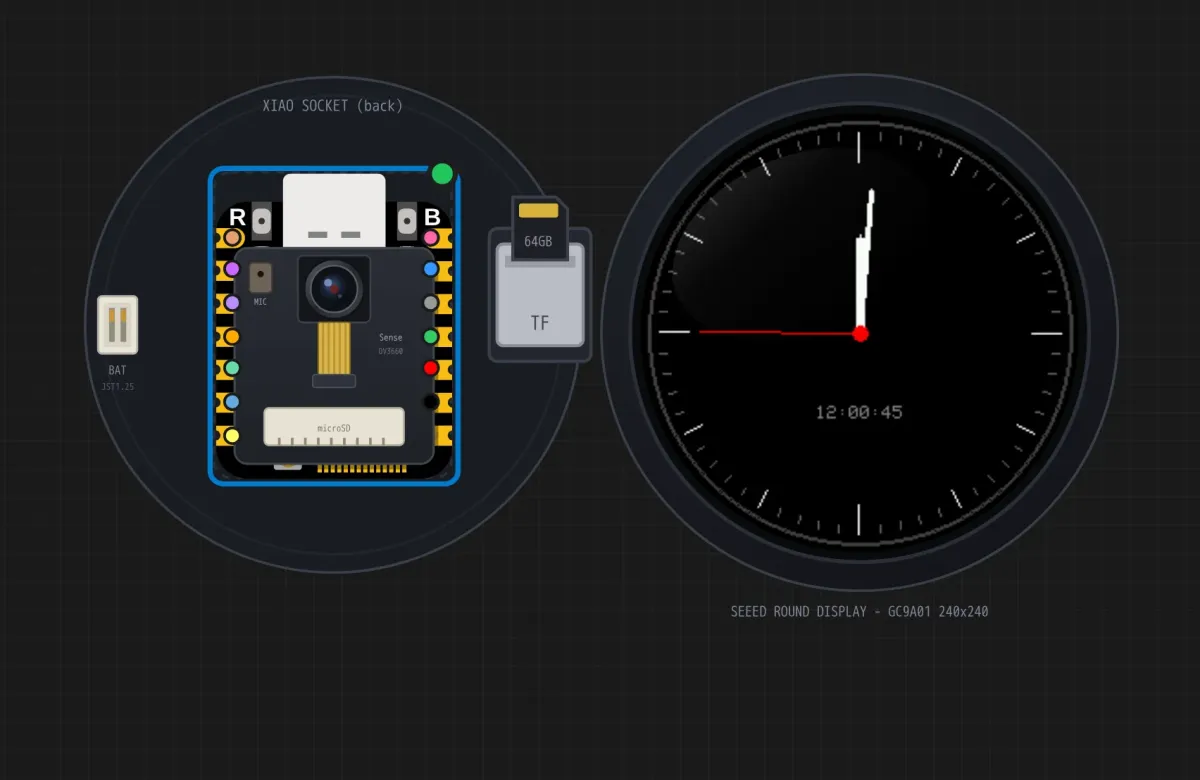
Seeed Studio makes some of the smallest dev boards you can buy. The XIAO is roughly postage-stamp sized, and around it Seeed built a whole family: a round touchscreen that plugs straight on, solderless Grove sensors, and a voice board with a real XMOS DSP. As of today, that family runs in the Sensbench browser simulator, and it’s all on the free plan.
This is the first in a short series about hardware companies that support Sensbench. We’re starting with Seeed because their boards were the most requested, and because the XIAO modules make good demos of what a simulator can do when it’s modeled against real hardware.
Start with the clock
The best introduction is the Round Display itself. The shield carries a 1.28-inch round screen, a touch controller, a real-time clock chip, a microSD slot, and a battery connector. A XIAO plugs onto the back. In the simulator it opens the same way it ships: XIAO already seated, nothing to wire.
Open the Round Display: analogue clock example from the gallery. You don’t need an account. Hit the play button in the toolbar. The sketch compiles on Sensbench’s servers (first build can take a few minutes; later ones are faster), then the XIAO boots.
Watch the round screen. The sketch draws an analogue face and reads the time from the PCF8563 clock chip on the shield. The hands move because the clock ticks, not because the sketch counts milliseconds. The serial monitor prints the same time once a second.
Now edit the sketch. Change the color of the seconds hand, or set a different time in setup(), and run it again.
The pins in that sketch are Seeed’s own (CS=D1, DC=D3, BL=D6, SPI bus on D8/D10), written as raw GPIO numbers so the code says what it means. Drive the backlight pin low and the glass goes dark, exactly as it does on the bench. Sketches written for the real shield run here unchanged, and sketches you write here run on the real shield.
What’s in the catalog
The XIAO boards
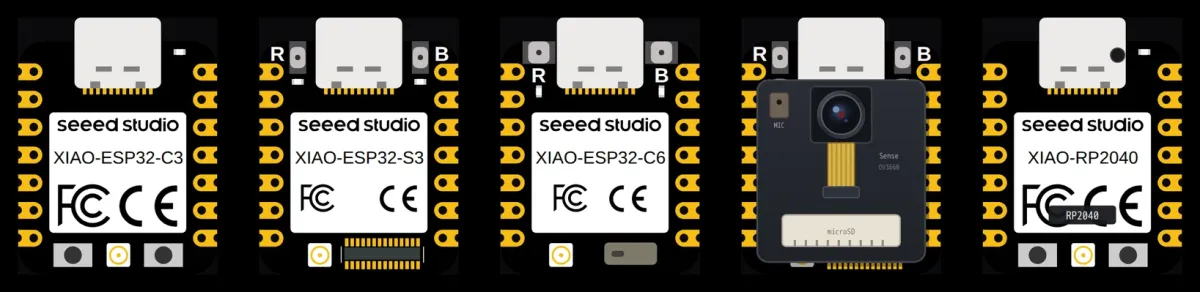
Five XIAO boards are in the picker. Two of them, the XIAO ESP32-S3 and XIAO ESP32-C3, are also part of the open-source Sensbench release. The other three are hosted on Sensbench:
- XIAO ESP32S3 Sense – The ESP32-S3 with camera module, PDM microphone, and microSD slot on the expansion board. In the simulator, the camera is your webcam:
esp_camera_fb_get()returns real frames, and the gallery example saves JPEG photos to the emulated card. The microphone is your computer’s mic, switched on with the Mic toggle in the canvas header. - XIAO ESP32C6 – The RISC-V ESP32-C6, with the same Arduino, MicroPython, and ESP-IDF choice as the rest of the ESP32 family.
- XIAO RP2040 – The RP2040 in the XIAO footprint, with its user RGB LED wired active-low the way the board has it. This runs on the same in-browser RP2040 engine as the Raspberry Pi Pico.
The Round Display for XIAO
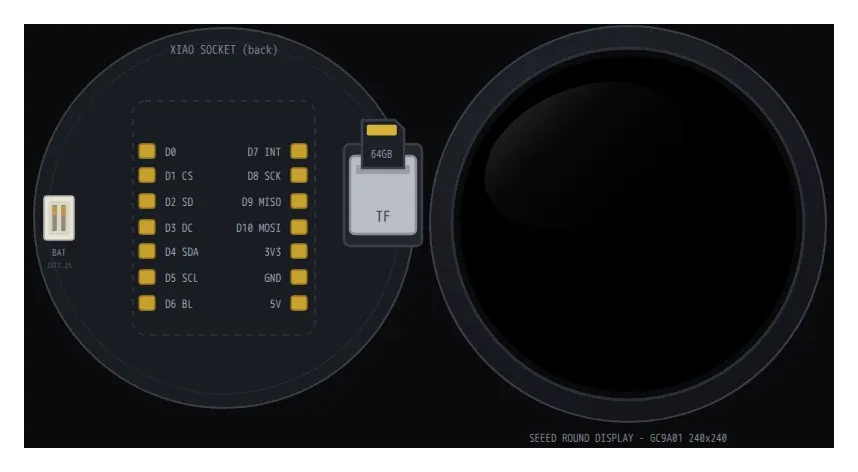
The shield from the clock example. Every part does something:
- The 240×240 GC9A01 screen paints whatever your sketch sends over SPI, with the same command set the real panel speaks.
- Touch works: click on the glass and the CHSC6X controller reports the point over I2C.
- The PCF8563 real-time clock keeps time and answers on I2C, so RTC-based sketches behave like they do on hardware.
- The TF slot is a real FAT card. Your project’s data files are copied onto it, and you can upload your own images or data through the component’s SD Card panel.
- The battery gauge is a slider: move the simulated battery voltage and watch the reading on A0 change.
Grove Smart IR Gesture Sensor
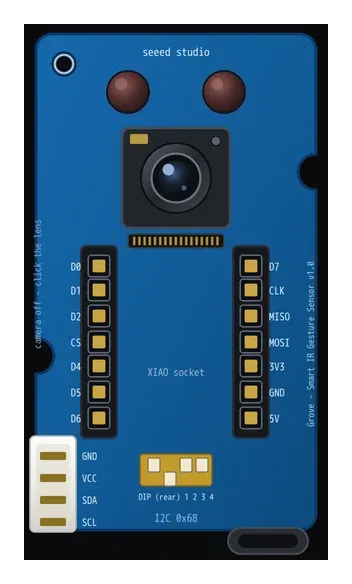
The gesture sensor is the module people find most surprising. Seat a XIAO ESP32C6 on its socket and there’s nothing to wire; the socket carries the I2C bus. When the simulation starts, the sensor asks for your webcam, and the gestures it recognizes come from your actual hand: swipe left and right, push, rotate, finger counting, pinch, grab, thumb up, thumb down. The result your sketch reads over I2C is the same register block the PAG7660 chip produces, and the recognized gesture flashes on the board’s silkscreen so you can see what it saw. The four-way DIP switch selects I2C or SPI, as on the hardware, and there’s an example for each.
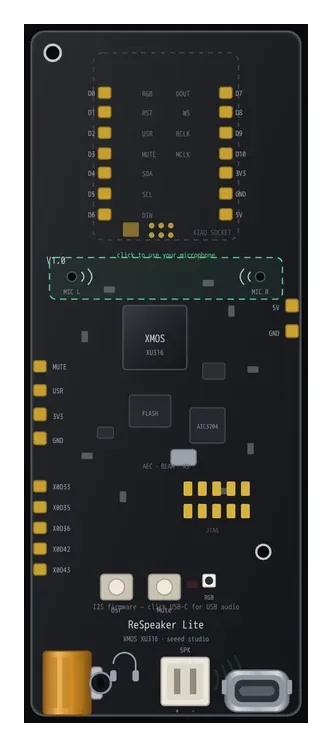
ReSpeaker Lite
Seeed’s far-field voice board, built around an XMOS XU316. It sends 16 kHz audio to the host XIAO over I2S and takes control commands over I2C. In the simulator it listens through your microphone, plays sketch output through your speakers, and its MUTE and USR buttons and red LED are live. Four examples cover the mic level meter, playing a melody, tracking the direction a voice comes from, and the buttons and control bus.
How it works
The simulator doesn’t just fake the peripherals—it models them at the register level. The GC9A01 screen emulates the exact command set, so your existing graphics library calls work unchanged. The PCF8563 keeps time based on your computer’s clock, so RTC-based sketches behave as they would on real hardware. The gesture sensor uses your webcam and runs a computer-vision model in the browser to map your hand movements to the PAG7660’s register values. The ReSpeaker Lite pipes your microphone audio through an I2S emulation, and the XU316’s control bus responds to the same I2C commands.
All the hardware is modeled next to the real thing. Seeed provided the physical boards and schematics, so pinouts are accurate, register maps are checked against Seeed’s drivers, and the gallery sketches are the ones you’d write from the Seeed wiki. That means code you write in the simulator will run on the physical hardware without modification—and vice versa.
Honest notes: what the simulator won’t tell you
Let’s be clear about the gaps. The simulator is good, but it’s not a physics engine.
- Timing is not cycle-accurate. The ESP32 and RP2040 emulations run at reasonable speed, but real-time constraints like I2S audio or camera frame rates might behave differently on real hardware. Your code might work in the sim but fail on the bench due to timing.
- The gesture sensor is a best-effort approximation. The PAG7660 uses an IR sensor array; the simulator uses your webcam. Lighting conditions, hand size, and background can affect recognition. The register values are correct, but the raw IR image won’t match what the real sensor sees.
- The ReSpeaker Lite’s far-field beamforming is simplified. The XU316 does complex DSP; the simulator just uses your microphone’s audio. Direction-of-arrival (DOA) tracking works, but it’s based on your single mic, not an array, so accuracy is limited.
- Power consumption is not simulated. You can’t measure current draw or battery life. The battery gauge is just a slider, not a real discharge curve.
- Some peripherals are stubbed. For example, the microSD card works, but if your sketch does raw SD card low-level access, it might hit unimplemented commands.
These aren’t reasons to avoid the simulator—they’re reasons to test on real hardware before shipping. Use the sim for development and learning; verify on the bench.
When it doesn’t work
- Symptom: The sketch compiles but nothing happens. Cause: You might not have pressed the play button, or the build is still running. Check the status bar.
- Symptom: The round screen stays black. Cause: The backlight pin (BL=D6) might be driven low. Check your code.
- Symptom: The gesture sensor doesn’t recognize anything. Cause: Your webcam might be blocked. Grant permission, and make sure your hand is visible and well-lit.
- Symptom: The ReSpeaker Lite doesn’t produce sound. Cause: Your speakers might be muted, or the I2S configuration might be wrong. Check the example.
- Symptom: The RTC time is wrong. Cause: The simulator uses your computer’s clock. If your system time is off, the RTC will be off.
Next steps
Try the other examples: save a photo from the Sense camera to the microSD, read the raw IR image from the gesture sensor, or play a melody through the ReSpeaker. Then grab a real XIAO and shield and watch the same code run on the bench. The simulator is a great way to prepare before you order hardware.
Open the Sensbench simulator and start with the Round Display clock example.