
Blog
Arduino Serial Echo: Type Something, Watch the Board Answer

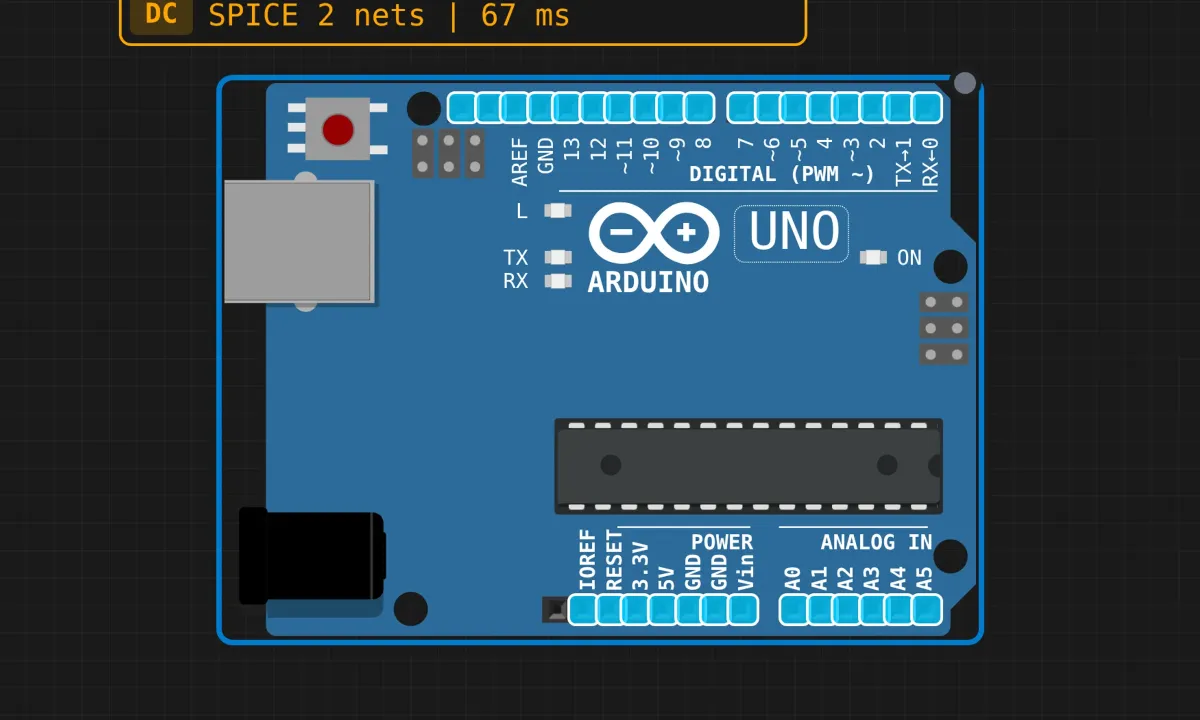
The serial hello-world project was a monologue — the board talked, you listened. This one is a conversation. You type a character into the serial monitor, and the board answers: got it, that was a ‘g’, ASCII code 103, and it’s the 42nd thing you’ve sent me. It’s called a serial echo, and it’s the standard first test of any UART link: if what comes back matches what went in, the wire works.
No components this time. Just the Uno and its USB-serial connection, emulated in the browser.
The circuit that isn’t
Place an Arduino Uno on the canvas and you’re done. Serial traffic flows over pins 0 (RX) and 1 (TX), which on a real board connect to the USB chip — and in the simulator connect straight to the built-in serial monitor. Nothing to wire, nothing to burn out.
The sketch
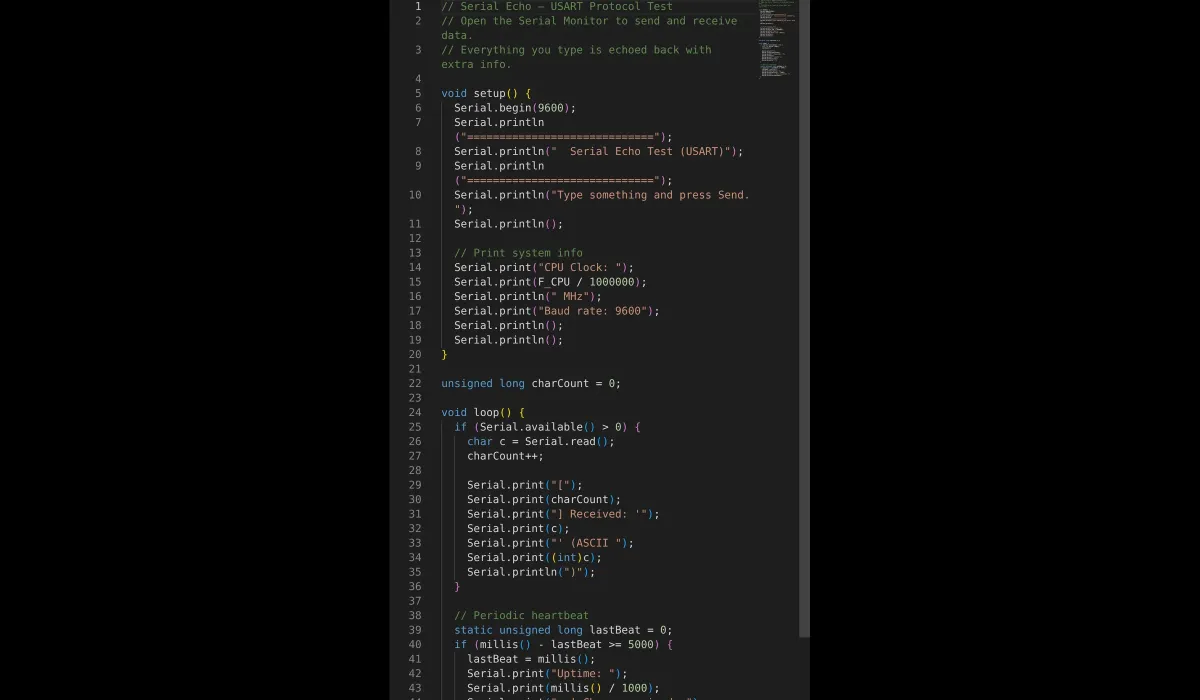
// Serial echo — everything you type comes back with its ASCII code
// plus a running count, and a heartbeat every 5 seconds

void setup() {
  Serial.begin(9600);
  Serial.println("=============================");
  Serial.println("  Serial Echo Test (USART)");
  Serial.println("=============================");
  Serial.println("Type something and press Send.");
  Serial.println();

  // a bit of system info for the curious
  Serial.print("CPU Clock: ");
  Serial.print(F_CPU / 1000000);
  Serial.println(" MHz");
  Serial.print("Baud rate: 9600");
  Serial.println();
  Serial.println();
}

unsigned long charCount = 0;

void loop() {
  if (Serial.available() > 0) {
    char c = Serial.read();
    charCount++;

    Serial.print("[");
    Serial.print(charCount);
    Serial.print("] Received: '");
    Serial.print(c);
    Serial.print("' (ASCII ");
    Serial.print((int)c);
    Serial.println(")");
  }

  // heartbeat, the non-blocking way
  static unsigned long lastBeat = 0;
  if (millis() - lastBeat >= 5000) {
    lastBeat = millis();
    Serial.print("Uptime: ");
    Serial.print(millis() / 1000);
    Serial.print("s | Chars received: ");
    Serial.println(charCount);
  }
}
Run it, type something
Press Run, open the serial monitor from the canvas toolbar, type a letter, hit Send. You’ll get back something like [1] Received: 'g' (ASCII 103). Every five seconds of silence, the board volunteers a status line with uptime and the running count.

The two patterns hiding in this sketch
Past the echo itself, this code quietly demonstrates the two idioms that separate toy sketches from real firmware:
- Check before you read.
Serial.available()tells you how many bytes are sitting in the receive buffer.Serial.read()on an empty buffer returns -1, which prints as garbage. Theifisn’t decoration — without it, the echo answers with nonsense 16,000 times a second. - The heartbeat never blocks. Look at how the 5-second timer works: no
delay(5000). It records the time, keeps looping, and fires when enough milliseconds have passed. That’smillis()-style timing — the same fix earlier projects needed whendelay()froze everything. Here it’s doing it right in front of you: the board stays responsive to your typing while keeping its schedule. staticinside a function keepslastBeatalive between loop iterations without polluting the global namespace. Small thing, good habit.
What will confuse you the first time
- Send “hi”, get three answers.
Serial.read()handles one byte at a time, so “hi” is two echoes — and most serial monitors append a newline when you press Send, which is a third invisible character (ASCII 10). If you see an extra blank-looking echo with code 10 or 13, nothing’s broken; that’s your Enter key. The monitor’s line-ending dropdown (“No line ending”) makes it go away. - The echo is not a protocol. Character-at-a-time is fine for a demo. Real devices that talk over serial — GPS modules, motor controllers — send framed messages with a start, a length, and usually a checksum. When you outgrow this sketch, the upgrade is buffering characters into a line and parsing on the newline.
- 9600 baud is a choice, not a law. It works everywhere and it’s forgiving of sloppy hardware, which is why tutorials use it. When you start pushing real data, 115200 is the practical default — but both ends must change together or you get the classic garbage-characters bug.
- What the sim skips: on a physical Uno, opening the serial monitor reboots the board, so your banner prints again every time you open the window. The simulator doesn’t reproduce that particular jump scare.
When it’s silent
- Nothing prints at all → sim not running, or the monitor isn’t open. Both have to be true at once.
- You type, Send, and nothing comes back → the sketch answers within milliseconds; if yours doesn’t, check that
Serial.available()line survived your edits. - Garbage symbols → baud mismatch. The sim’s monitor follows the sketch automatically; on real hardware you’ll set it by hand and forget exactly once.
- The heartbeat drifts → it uses
>=and re-anchors to the currentmillis(), so heavy printing can nudge it late by a few milliseconds. Harmless here, worth knowing when you copy the pattern into something timing-critical.
Where to take it
The classic upgrade is turning echoes into commands: buffer characters until newline, compare against “LED ON” / “LED OFF”, and wire an LED to pin 13 to obey. That’s genuinely how a lot of lab equipment is controlled — serial text commands, thirty years and counting. The binary-print variant (Serial.print(c, BIN)) is five seconds of work and weirdly satisfying.
Open the simulator and load the serial echo example. Type your name and watch it come back as numbers — that column of ASCII codes is your keyboard, translated. It’s the first time the board shows you what it actually sees.