
Blog
Arduino Serial Hello World: Make the Board Talk to You

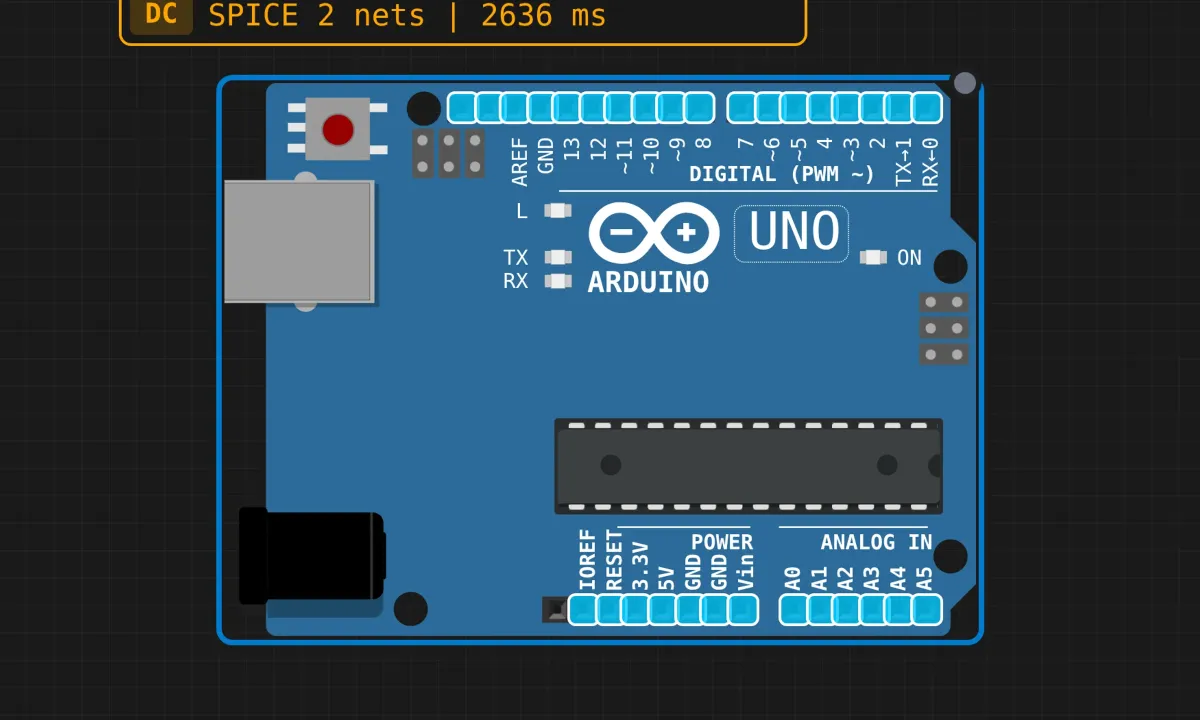
Every embedded project eventually reaches the point where you ask: “what is this thing actually doing?” On a PC you’d use a debugger or sprinkle printfs. On Arduino, you use the serial port. It’s the board’s way of texting you.
This project needs zero components — just an Uno and a sketch that prints a greeting plus a running uptime counter. We’ll watch the output in the simulator’s built-in serial monitor. If you’ve never opened a serial monitor before, this is the right first five minutes.
There’s no circuit, and that’s the lesson
Serial on the Uno travels over the same USB connection you’d use to program a real board, through a USB-to-serial converter chip on the PCB. Nothing to wire. In the simulator, that whole path is emulated — you place the board and you’re done.
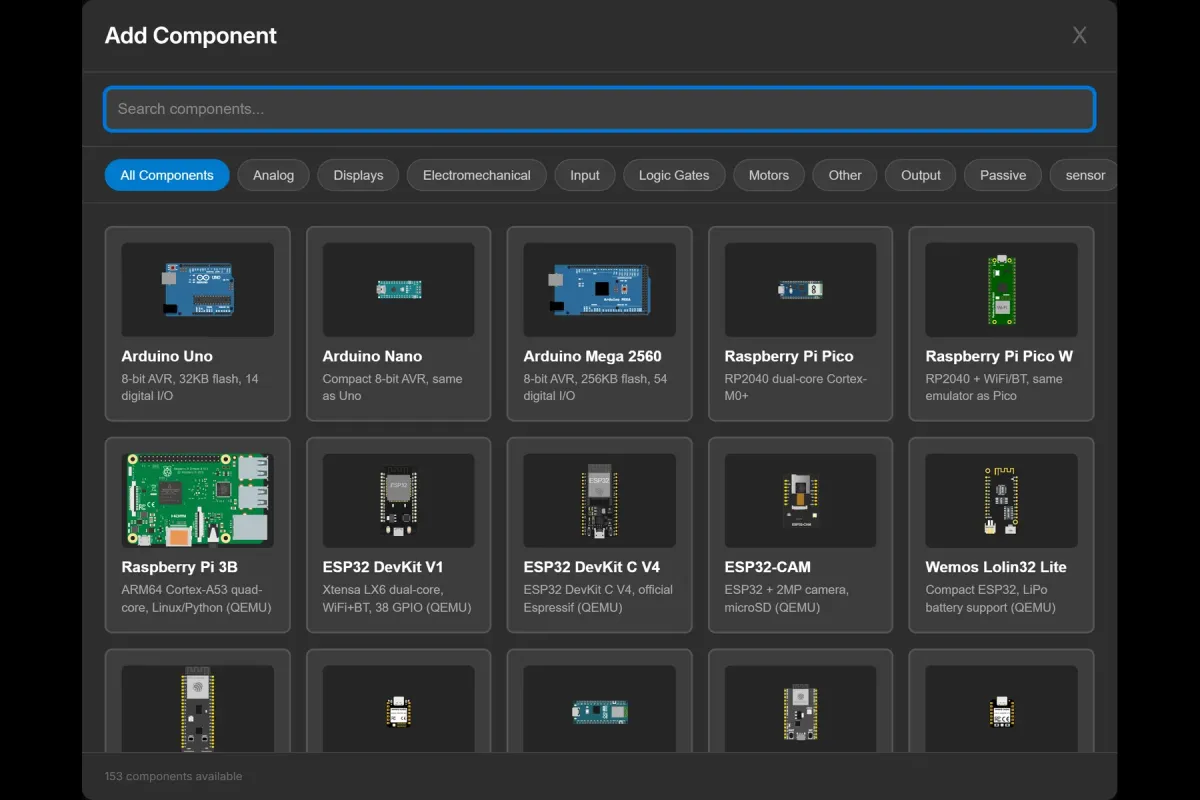
Placement is the same dance as before: Add on the canvas toolbar, search “Arduino Uno” in the component picker, drop it. If the picker feels familiar already, good — you’ll use it in every project from now on.
The sketch
// Serial hello world
// Greet once, then report uptime every 2 seconds

void setup() {
  Serial.begin(9600);
  Serial.println("Hello, Arduino!");
  Serial.println("System initialized");
}

void loop() {
  Serial.print("Uptime: ");
  Serial.print(millis() / 1000);
  Serial.println(" seconds");
  delay(2000);
}
A few things worth understanding rather than memorizing:
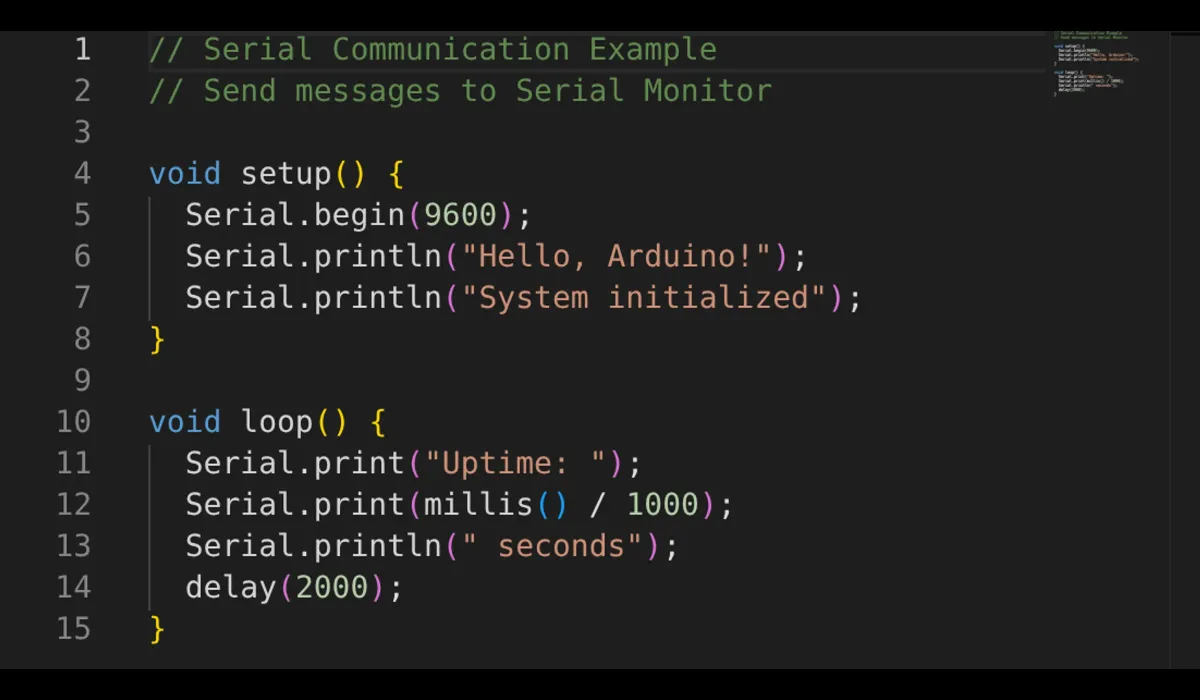
Serial.begin(9600)opens the port at 9600 baud — roughly 9600 bits per second. Both ends must agree on that number. Mismatch it and you don’t get silence; you get garbage characters, which is serial’s way of telling you something’s wrong.Serial.print()vsSerial.println()— thelnversion adds a newline at the end. That’s why the uptime line is built from three calls: twoprint()to stay on the same line, thenprintln()to finish it.millis()returns milliseconds since the sketch started. Dividing by 1000 gives whole seconds. Note this is the non-blocking way to know the time — the board keeps working whilemillis()keeps counting.delay(2000)then freezes everything for two seconds. Fine here. In bigger projects that freeze becomes the bug, andmillis()-based timing becomes the fix. Hold that thought for later.
Run it and read the output
Press Run in the editor toolbar, then open the serial monitor from the canvas toolbar. You should get:
Hello, Arduino!
System initialized
Uptime: 0 seconds
Uptime: 2 seconds
Uptime: 4 seconds
...
The two setup lines print once, then uptime ticks along every two seconds. That “print once in setup, tick forever in loop” pattern is the skeleton of almost every sensor sketch you’ll ever write.
What the sim version skips
- Opening the serial monitor resets a real Uno. Every time. Beginners think their sketch restarted itself; it’s the board auto-resetting when the port opens. The simulator doesn’t reproduce this quirk, so file it away for hardware day.
- 9600 baud is slow in real life. Print too much inside a fast loop on physical hardware and the transmit buffer fills — then
Serial.print()itself starts blocking. In the sim, output is basically free. - Real serial cables and drivers fail. CH340 drivers on clone boards, charge-only USB cables with no data wires… a whole genre of “why is my port not showing up” that a browser tab mercifully doesn’t have.
If it’s not printing
- Simulation not running — press Run first. The monitor only shows output from a live sim.
- No
Serial.begin()insetup(). Nothing opens the port, nothing prints. - Garbage characters → baud mismatch between sketch and monitor. In the simulator the monitor follows the sketch automatically, but on real hardware you’ll set it by hand, and you will forget once.
Where this goes next
Printing is half of serial; the other half is reading. Try Serial.read() or Serial.parseInt() to type commands into the monitor and have the board react — that’s how you turn “the board tells me things” into “I tell the board things”. A natural follow-up is printing a real sensor value, like a potentiometer’s position, every second.
Open the simulator and load the serial example. Change the greeting to something that makes you laugh, then set the delay to 100ms and watch the counter sprint. Small experiments, instant feedback — that’s the whole trick.