
Blog
Raspberry Pi Pico Blink LED: Onboard vs External (Simulator Tutorial)

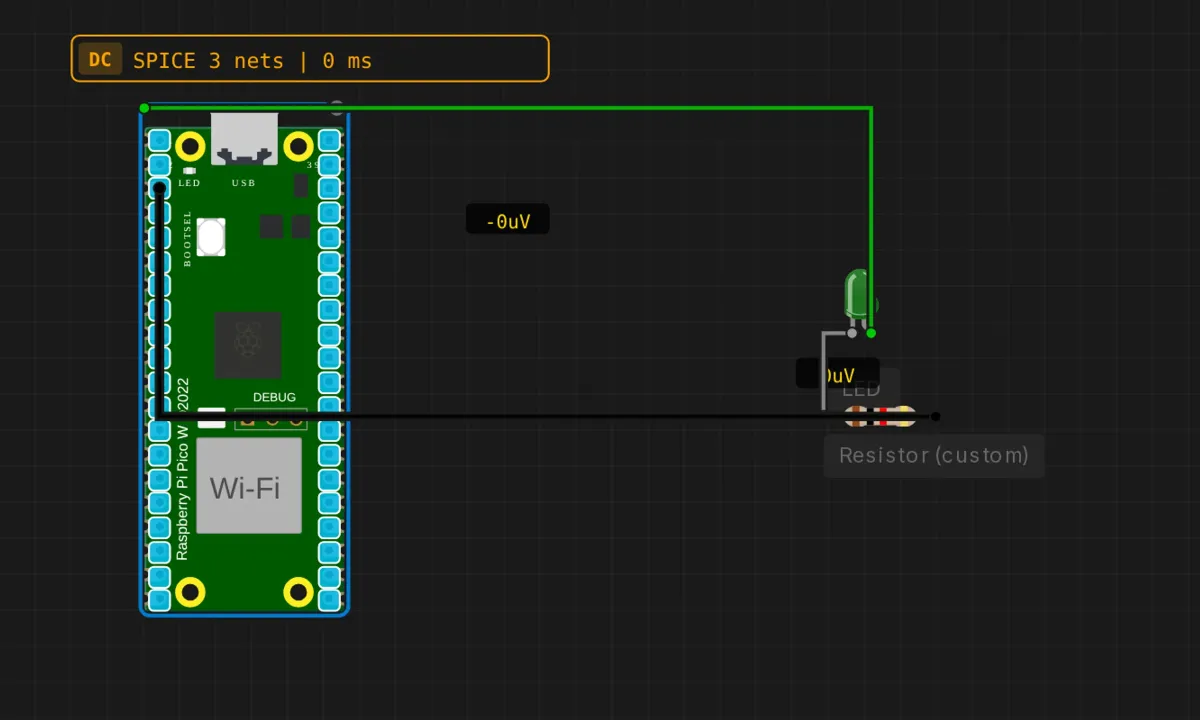
Every microcontroller journey starts the same way: one LED, blinking. On the Raspberry Pi Pico you don’t even need the LED — there’s one soldered to the board, hanging off GPIO 25. But this example does something slightly odd, and it’s the reason it’s worth reading instead of just running: it wires up an external LED on a breadboard circuit, then uploads a sketch that blinks the onboard one. We’ll get to that. It’s a teaching moment, not a bug.
Everything runs in the browser simulator — the board in the screenshots is a Pico W, and no hardware was harmed (or owned) in the making of this tutorial.
The circuit
The wiring is deliberately minimal. Three connections, one of which is ground:
- D2 (GPIO 2) → LED anode (the long leg, positive side) — green wire
- LED cathode (short leg) → one leg of the 220 Ω resistor
- Other resistor leg → GND on the Pico — black wire
The resistor is not decoration. A bare LED across a GPIO pin will draw whatever the pin can source and then some — 220 Ω caps the current at a level both the LED and the RP2040 can live with. On the Pico that’s 3.3V logic, not the 5V you might know from an Arduino Uno, so the same resistor gives you a slightly dimmer LED. That’s fine. Dimmer beats dead.
The sketch
// Raspberry Pi Pico — blink
// Flashes the ONBOARD LED (GPIO 25), once per second.
// Note: this does NOT drive the external LED on D2 — see below.

void setup() {
  pinMode(LED_BUILTIN, OUTPUT);   // LED_BUILTIN = GPIO 25 on the Pico
  Serial.begin(115200);
  Serial.println("Pico Blink Example");
}

void loop() {
  digitalWrite(LED_BUILTIN, HIGH);
  Serial.println("LED ON");
  delay(500);

  digitalWrite(LED_BUILTIN, LOW);
  Serial.println("LED OFF");
  delay(500);
}
Compile (the checkmark button), hit run, and two things happen: the tiny onboard LED starts pulsing at one second per cycle, and the serial monitor fills with LED ON / LED OFF at 115200 baud. The external LED you just wired sits there doing nothing. Which brings us to the interesting part.
Two LEDs, one sketch, and the mismatch worth understanding
Read the wiring list, then read the code again. The circuit connects an LED to GPIO 2. The sketch toggles LED_BUILTIN, which is GPIO 25. These are not the same pin, and the tutorial that ships this example admits as much in a footnote — but beginners routinely miss it, then spend twenty minutes checking solder joints that don’t exist.
The fix is one character. Change both digitalWrite calls and the pinMode from LED_BUILTIN to 2, and the external LED joins the party. Better: define #define LED_PIN 2 at the top and use that everywhere, so the pin number lives in exactly one place. The habit matters more than the sketch — “which pin am I actually driving” is a question you’ll ask on every project from now on.
Why use LED_BUILTIN at all then? Portability. The constant is defined per-board — GPIO 25 on the Pico, 13 on an Uno, 2 on most ESP32 devkits — so the same sketch blinks something on almost any board without edits. For a first test of a new board, it’s the right choice. For anything wired by hand, name your own pin.
Honest notes before you build on this
delay()blocks everything. While the sketch sits in that 500 ms pause, it does literally nothing else — no buttons read, no serial handled, nothing. For one LED that’s fine. The moment you add a second thing to do, blocking delays become the reason your project feels broken. The non-blocking pattern (millis()-based timing) is the natural next lesson.- On the Pico W, the onboard LED is a special case. On the plain Pico it’s a straight GPIO 25 line; on the W it’s wired through the Wi-Fi chip (the CYW43439), not directly to the RP2040. The Arduino core hides this —
LED_BUILTINjust works on both. But if you later switch to MicroPython on real hardware,Pin(25)fails on a Pico W and you needPin("LED"). Nobody warns you about this. Now you’ve been warned. - The simulator won’t punish your wiring. Swap the LED legs in the sim and you get a dark LED; do it on a real board with the resistor forgotten and you can cook the GPIO. The sim is where you check logic; hardware is where you learn respect for current limits. The RP2040 sources about 12 mA per pin comfortably — the 220 Ω resistor keeps you well inside that.
- Serial at 115200 is a suggestion, not a law. The Pico’s native USB doesn’t actually care about the baud rate the way a classic Uno’s UART bridge does — but the serial monitor still has a setting, and if it’s wrong on real UART-style boards you get garbage. Match them anyway; it’s a good reflex.
When the LED doesn’t blink
- Onboard LED blinks, external one doesn’t → you’re running the stock sketch. It’s driving GPIO 25, not your D2 circuit. Change the pin to 2 (this section’s whole point).
- External LED still dark after the pin fix → LED polarity. Anode (long leg) toward D2, cathode toward the resistor. LEDs only pass current one way.
- Nothing at all, not even onboard → sim not running. Compile first (checkmark), then run (play). A failed compile shows an error badge — read it before touching the wiring.
- Serial monitor is silent → monitor panel not open, or the run never started. On real hardware: baud mismatch.
Where to go from here
Three obvious upgrades, in order of effort: change the delay() values until the blink is just barely perceptible (around 30 ms it stops looking like blinking and starts looking like dimming — that’s persistence of vision, and it’s why PWM works); make the pin fix and drive the external LED; then combine both — onboard and external alternating, police-light style. After that, the button-input project is the natural next step, because an LED you can toggle with a button is the first circuit that feels like a machine instead of a demo.
Open the simulator and load the Pico blink example. Run it as-is first — watch GPIO 25 do its thing — then make the one-character fix and watch the LED you actually wired come alive. That small moment of “oh, THAT’S the pin it was driving” is worth more than the blink itself.