
Blog
Pico Serial Echo with a Heartbeat: UART, millis(), and One Overpromised LED

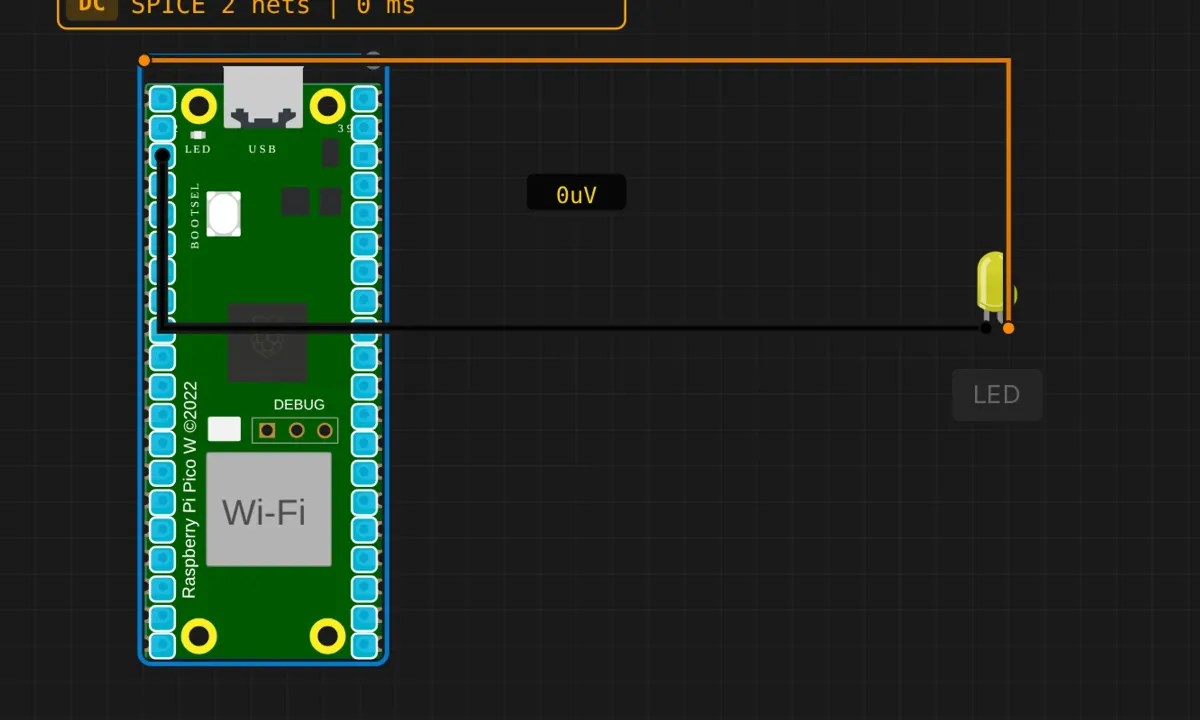
Last project we blinked an LED with delay(), and I warned you that blocking delays become a problem the moment your sketch has two things to do. This project is the antidote: a serial echo with a heartbeat timer, built on millis() instead of delay(). Type a character into the serial monitor, the Pico echoes it back; every two seconds it prints its uptime, and it never stops listening to do either.
There’s also an LED wired to the TX pin as a “serial activity” light. It’s a nice idea with two real-world problems, and we’ll get to both — but first, the circuit.
The circuit
Two connections, no resistor (hold that thought):
- LED anode (long leg) → TX pin (GPIO 0) — orange wire
- LED cathode (short leg) → GND — black wire
The intent: UART transmit lines idle high and toggle with every bit sent, so an LED on TX flickers whenever the Pico talks. Classic bench trick. On a board where the serial port is a real UART driving real pins, it works. On the Pico, there’s a catch — see the honest notes below.
The sketch
// Raspberry Pi Pico — serial echo + heartbeat
// Echoes everything you type; prints uptime every 2 s.
// No delay() anywhere — the loop never stops spinning.

void setup() {
  Serial.begin(115200);
  delay(500);   // one blocking pause at boot is fine
  Serial.println("=== Pico Serial Echo ===");
  Serial.println("Type something and press Enter.");
  Serial.println();
}

unsigned long lastHeartbeat = 0;

void loop() {
  // 1) echo whatever arrived, one char at a time
  while (Serial.available()) {
    char c = Serial.read();
    Serial.print("Echo: ");
    Serial.println(c);
  }

  // 2) heartbeat — non-blocking, millis()-based
  if (millis() - lastHeartbeat >= 2000) {
    lastHeartbeat = millis();
    Serial.print("[Heartbeat] Uptime: ");
    Serial.print(millis() / 1000);
    Serial.println("s");
  }
}
Why this loop shape matters
Compare this to the blink sketch. There, delay(500) froze the whole program twice per second — acceptable when blinking is the only job. Here, the sketch has two jobs: answer the user immediately, and report uptime on a schedule. Solve the heartbeat with delay(2000) and every character you type during those two seconds waits in a buffer until the nap ends. Type fast enough and the 64-byte buffer overflows and characters vanish silently.
The millis() pattern replaces the nap with a glance at the clock: has 2000 ms passed since the last heartbeat? No? Keep looping. The loop body runs thousands of times per second, the echo is effectively instant, and the heartbeat still fires on schedule. Every “do several things at once” Arduino project you’ve ever admired is built on this one if-statement. Note the details that make it robust: unsigned long (so the value survives the 49.7-day rollover), and subtraction-comparison (millis() - lastHeartbeat >= 2000), which stays correct across the rollover. Comparing millis() >= lastHeartbeat + 2000 looks equivalent and breaks every 49 days. Embedded bugs don’t get more classic than that.
Honest notes on that TX LED
- There’s no resistor, and that’s not okay on real hardware. An LED from a GPIO straight to ground pulls more current than the pin is rated for the moment the line goes high. The simulator tolerates it; a real RP2040 pin is good for about 12 mA and the LED will happily ask for more. On a breadboard, put 220 Ω–1 kΩ in series. Yes, the tutorial circuit omits it. Don’t copy that part.
- The bigger catch:
Serialon the Pico is USB, not the TX pin. In the Arduino core,Serialis the USB connection to your computer — its traffic never touches GPIO 0. The physical TX/RX pins belong to UART0, which you talk to asSerial1. So on a real Pico running exactly this sketch, the LED stays dark no matter how much you print. In the simulator the LED does flicker, because the sim bridges its virtual serial port to the TX pin — convenient for the demo, and a lie about the hardware. If you want the activity light to work on a real board:Serial1.begin(115200)and print throughSerial1. - Even when it works, it’s faint. A UART frame is ten bits and over in microseconds; at 115200 baud a single character lights the LED for under 90 µs. What you see is a dim shimmer during long prints, not a blink. That’s normal, not a fault.
When it doesn’t echo
- Garbage characters in the monitor → baud mismatch. Sketch says 115200; set the monitor to the same.
- Nothing echoes back → you’re not actually sending. In the sim, type in the serial monitor’s input and press Enter. (On real hardware with an external adapter, you’d also check the RX wiring — the sim handles that for you.)
- Heartbeat missing →
lastHeartbeatdeclared asintinstead ofunsigned long?millis()outgrows a 16-bit int in about 32 seconds, which produces exactly this symptom. - Echo arrives but the TX LED never moves (real Pico) → expected — the USB-vs-UART issue above. The pin is innocent; the port is wrong.
Where to go from here
The source article’s extension list is genuinely good: add a second LED on RX (GPIO 1) so you can see both directions; then stop echoing and start parsing — buffer characters until newline, compare against “ON” / “OFF”, and drive an LED from your keyboard. That’s the serial-LED-control project, and it’s the point where a serial port stops being a debug tool and starts being a user interface. The millis() heartbeat, meanwhile, is a pattern you’ll reuse forever: any “every N seconds, do X” requirement that must coexist with responsive code.
Open the simulator and load the Pico serial echo example. Type a few characters, watch the echoes and the heartbeat interleave, and look at the TX LED shimmer while the welcome message prints. Then ask yourself the question this project is really about: would that LED be doing anything on a physical Pico? Now you know why not — and how to fix it.