
Blog
Custom WiFi Access Points in the Browser Simulator

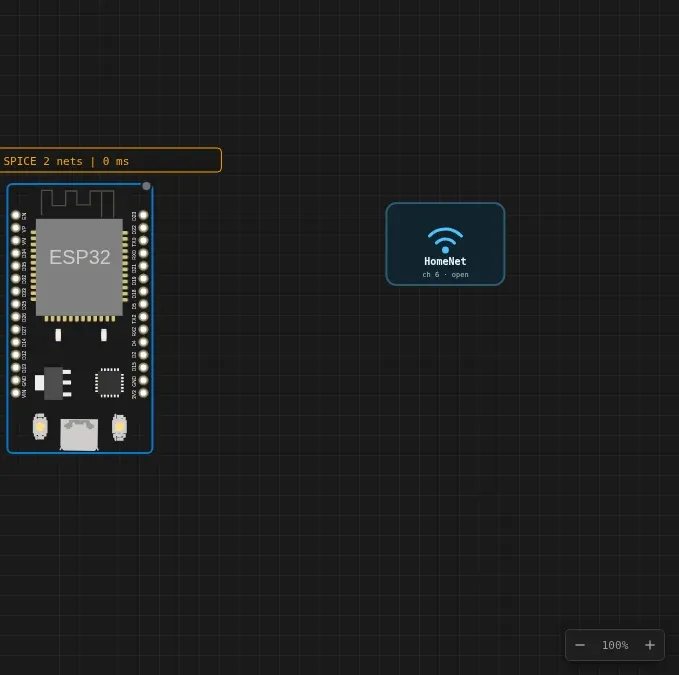
Most embedded simulators give you a WiFi stack and a fake network that just works. You connect, you get an IP, you move on. But if you’re building a device that needs to pick a network, or handle a captive portal, you’re stuck—you can’t control the airwaves. The browser simulator now lets you drop a WiFi Access Point part onto the canvas, and the emulated radio actually broadcasts the SSID you set. That changes what you can test without hardware.
This walkthrough covers setting up custom access points, connecting your sketch to them, and using the new WiFi panel to capture 802.11 traffic to a PCAP file. We’ll also look at the local network gateway, which lets your simulated board reach services running on your own machine.
Wiring It Up: No Pins, Just Airspace
The WiFi Access Point part is the first in the catalog with no pins. You don’t wire it—you place it on the canvas and configure it. It’s not a component; it’s airspace. Give it a name (SSID), a channel, and a signal strength. Your sketch connects to that network exactly as you’d expect:
WiFi.begin("HomeNet", ""); // the SSID on your Access Point partThat’s it. No demo SSIDs, no rewriting your sketch. The SSID you type is the SSID that exists. Add multiple access points to build a network-selection UI, each with its own channel and strength. The scan even jitters a few dB between passes, just like a real one.
Two settings on the part are worth knowing:
- Internet — Turn this off to isolate the network. The board associates and gets a DHCP lease, but nothing routes out. That’s the provisioning / captive-portal scenario, now testable in the simulator.
- Password — Stored with the part and shown on its card. Sketches that pass a password connect fine.
As soon as you add one access point part, the built-in demo networks go quiet. The canvas is the whole spectrum now.
The Sketch
Here’s a complete example that scans for networks, connects to the one you specified, and prints the result. It’s the same logic you’d use on real hardware, but it runs against your custom access point.
#include <WiFi.h>

// Replace with your access point's SSID and password
const char* ssid = "HomeNet";
const char* password = "";

void setup() {
  Serial.begin(115200);
  delay(1000);

  // Start by scanning for networks to see what's on the air
  Serial.println("Scanning for WiFi networks...");
  int n = WiFi.scanNetworks();
  Serial.print("Found ");
  Serial.print(n);
  Serial.println(" networks");

  for (int i = 0; i < n; i++) {
    Serial.print(i + 1);
    Serial.print(": ");
    Serial.print(WiFi.SSID(i));
    Serial.print(" (") ;
    Serial.print(WiFi.RSSI(i));
    Serial.print(" dBm) ");
    Serial.println(WiFi.encryptionType(i) == WIFI_AUTH_OPEN ? "open" : "encrypted");
  }
  Serial.println("");

  // Connect to the access point we placed on the canvas
  Serial.print("Connecting to ");
  Serial.println(ssid);
  WiFi.begin(ssid, password);

  while (WiFi.status() != WL_CONNECTED) {
    delay(500);
    Serial.print(".");
  }
  Serial.println("");
  Serial.println("WiFi connected");
  Serial.print("IP address: ");
  Serial.println(WiFi.localIP());
}

void loop() {
  // Keep the connection alive—nothing to do here
  delay(10000);
}
How It Works
The simulator runs the real ESP32 WiFi stack, but the radio layer is emulated. When you place an access point part, it registers a virtual network with the emulated radio. The scan function sees exactly what you put on the canvas—no hidden networks. The signal strength you set is used for the RSSI values, with a small random jitter added between scans to mimic real-world variation.
Connecting is straightforward: your sketch calls WiFi.begin() with the SSID and password. The emulated radio performs an association handshake, gets a DHCP lease from the simulator’s built-in DHCP server, and you’re on the network. If you turned off the Internet toggle, the network is isolated—you get an IP but no routing to the outside world.
The WiFi Panel and PCAP Export
The WiFi icon in the toolbar is now a split button. The icon itself keeps its one-click action—with an IP it opens the board’s web server. The little caret next to it opens the new WiFi panel.
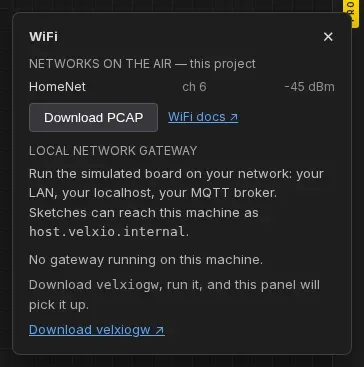
The panel shows the networks currently on the air, which one the board joined, and its IP. The standout feature is Download PCAP. That hands you the run’s 802.11 traffic as a capture file that Wireshark opens directly: the association handshake, DHCP, DNS, the TCP your sketch made, with simulated-time stamps. Nothing is uploaded; the file is produced in your browser. The next time a connection “just doesn’t work,” you can see exactly where it stopped instead of guessing from Serial.println.
Reaching Your Own Network
By default, the simulated board reaches the internet through the simulator’s cloud gateway—but not your local network. The new local network gateway removes that limit: a small program you run on your own machine (the gateway, source public, binaries free), paired from the WiFi panel with a one-time code. From the next Run on, the board’s traffic egresses from your machine—your MQTT broker, your Home Assistant, the API you are developing on localhost, all reachable from the sketch, and the machine itself addressable as host.sensbench.internal.
If you’re using the Sensbench Desktop app, you don’t even need that: the simulation already runs on your machine, so the board is on your network by construction.
Honest Notes: What the Simulator Won’t Tell You
Let’s be clear about the gaps between this and real hardware. The emulated radio is not a real radio. It doesn’t model interference, multipath, or actual packet loss. The jitter on RSSI is cosmetic—it won’t cause a marginal connection to drop. If you’re testing roaming or signal-strength-based logic, you’ll still need real hardware to validate.
The PCAP is a faithful capture of the emulated traffic, but the timestamps are simulated. The association handshake happens in milliseconds, not the tens of milliseconds you’d see on real silicon. And the capture won’t include any traffic from your local network unless you route through the gateway—it’s only what the emulated radio sees.
Also, the access point part is a configuration, not a full AP implementation. You can’t tweak beacon intervals or set WPA2 vs WPA3. It’s enough for testing client-side logic, but don’t expect to build a virtual AP with enterprise features.
When It Doesn’t Work
- Symptom: The scan shows no networks.
Cause: You haven’t placed an access point part, or the part’s SSID is empty. The simulator only shows networks you define. - Symptom: Connection times out.
Cause: The SSID or password in your sketch doesn’t match the part. Double-check the part’s card for the exact SSID and password. - Symptom: You get an IP but can’t reach the internet.
Cause: The Internet toggle on the access point is off. Turn it on to enable routing. - Symptom: The PCAP file won’t open in Wireshark.
Cause: You might have an older Wireshark that doesn’t support the link type. Update to the latest version. - Symptom: The local gateway won’t pair.
Cause: The one-time code expires quickly. Make sure the gateway is running and you enter the code before it expires.
Next Steps
Try building a network-selection UI with multiple access points. Or set up a captive portal scenario with the Internet toggle off and test your provisioning flow. If you’re working with MQTT, point your sketch at your local broker using the gateway. The simulator is a solid tool for getting the logic right before you burn firmware to real silicon.
Ready to try it? Open the simulator and place a WiFi Access Point part on the canvas.