
Blog
Arduino LCD Hello World: Text on a 20×4 Display in 6 Wires

LEDs blink, and that’s charming for about a day. The moment a project can show words — a label, a reading, a menu — it stops being a demo and starts being a device. The 20×4 character LCD is the cheapest way to get there: four rows of twenty characters, driven by a library that’s been part of Arduino since forever.
This one has more wires than anything we’ve built so far — six signal lines. Still no soldering, still running entirely in the browser simulator.
Six wires that matter
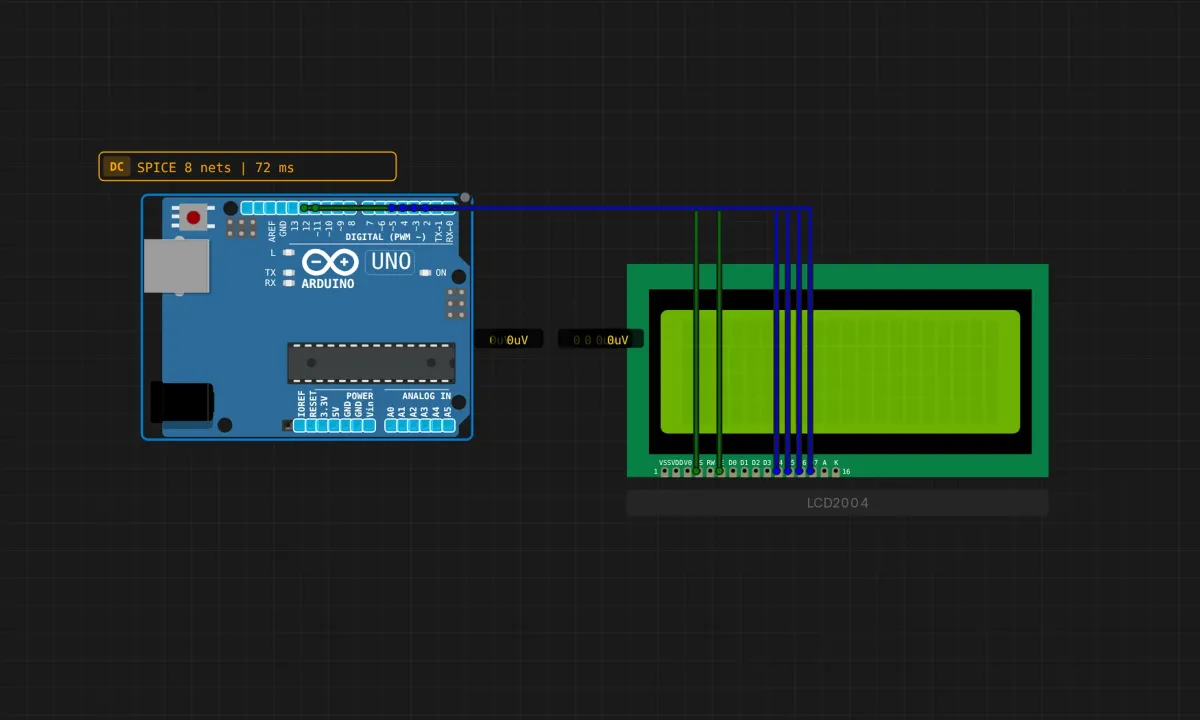
The LCD module has 16 pins, but most are power and housekeeping. Only six carry data:
- RS (register select) → pin 12 (green)
- E (enable) → pin 11 (green)
- D4 → pin 5 (blue)
- D5 → pin 4 (blue)
- D6 → pin 3 (blue)
- D7 → pin 2 (blue)
Four data lines instead of eight is deliberate — it’s called 4-bit mode, and it exists purely to save I/O pins. The LiquidCrystal library handles the protocol of splitting each byte into two halves. You pay a tiny speed cost; on a character LCD you’ll never feel it.
In the simulator, power and ground hook themselves up when you place the parts. That’s convenient, and also the first thing this tutorial owes you honesty about — more below.
The sketch
// 20x4 LCD hello world
// Three static rows, one ticking uptime row

#include <LiquidCrystal.h>

// pins the LCD is wired to: RS, E, D4, D5, D6, D7
const int rs = 12, en = 11, d4 = 5, d5 = 4, d6 = 3, d7 = 2;
LiquidCrystal lcd(rs, en, d4, d5, d6, d7);

void setup() {
  lcd.begin(20, 4);              // 20 columns, 4 rows
  lcd.print("Hello, Arduino!");  // row 0, where the cursor starts
  lcd.setCursor(0, 1);
  lcd.print("Sensbench Sim");
  lcd.setCursor(0, 2);
  lcd.print("LCD 2004 Test");
}

void loop() {
  lcd.setCursor(0, 3);           // last row
  lcd.print("Uptime: ");
  lcd.print(millis() / 1000);    // seconds since reset
}
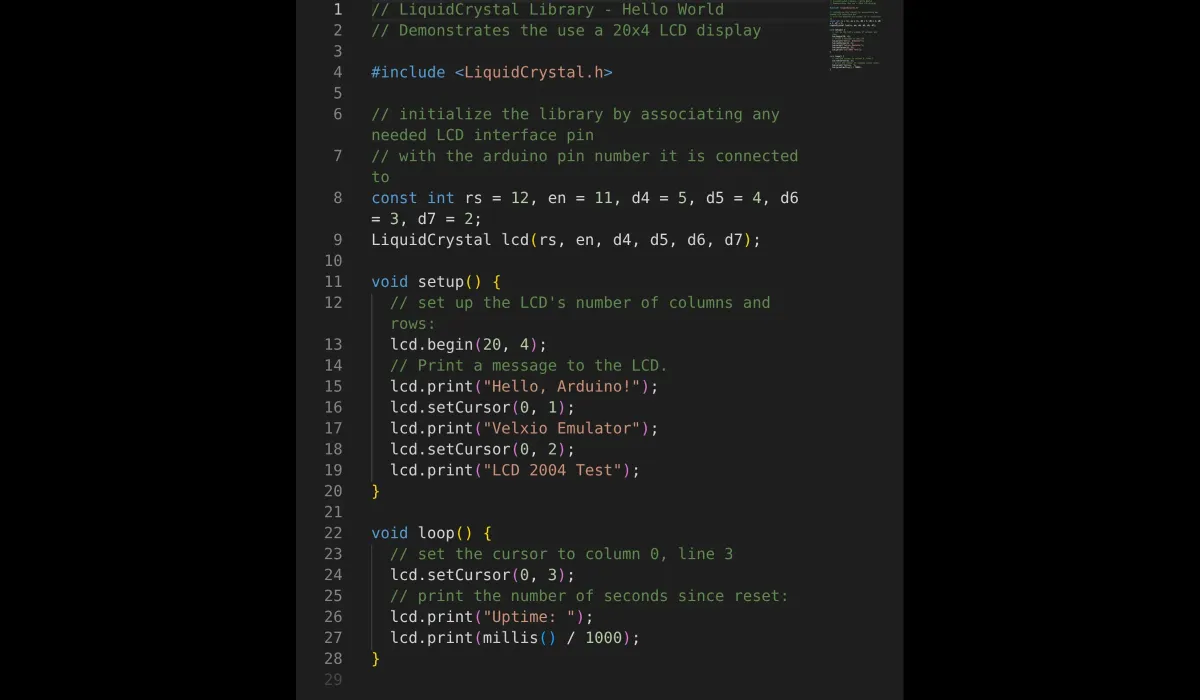
The shape of every LCD program is on display here: create the LiquidCrystal object with your pin numbers, call lcd.begin(cols, rows) once in setup, then setCursor(col, row) + print() whenever you want text somewhere. Two things trip people up immediately: rows and columns count from zero, and print() starts wherever the cursor happens to be — it doesn’t clear anything, doesn’t wrap politely, doesn’t care.
Run it
Press Run in the editor toolbar and the virtual screen fills in: three static lines, and the bottom row counting seconds. If your display stays blank in the sim, the suspect list is short — check RS and E first, then the four data wires, in order.

What the simulator is hiding from you
The sim version of this project auto-connects power and never shows you the single most common piece of LCD grief on real hardware:
- The contrast pin (V0). On a physical module, V0 needs a voltage between 0 and 5V — usually from a small potentiometer. Leave it floating or at the wrong level and the screen shows absolutely nothing, with perfect wiring and perfect code. A whole generation of beginners has re-checked sixteen wires before learning about this one. If your real LCD ever looks dead, reach for the contrast pot before anything else.
- The backlight pins (A/K) also need power on real hardware, often through a resistor. The sim’s screen is always lit.
- RW is tied to ground in most real-world wiring (write-only mode), and the sim quietly does the equivalent. On a breadboard that’s one more wire to remember.
None of this makes the sim version inferior as a learning tool — it just means day one with physical parts has a couple of extra failure modes waiting. Now you know they exist.
The 20×4’s dirty secret: rows wrap wrong
Here’s a quirk almost no tutorial mentions. These displays descend from the HD44780 controller, and its memory isn’t laid out like a grid. Row 0’s characters live at addresses 0x00–0x13, row 1 at 0x40, row 2 at 0x14 — directly after row 0 — and row 3 at 0x54. Print 21 characters starting at row 0 and the 21st doesn’t land on row 1. It lands on row 2.
In practice: keep every line at 20 characters or fewer and position with setCursor() instead of relying on flow. The uptime row in this sketch is safe only because "Uptime: " plus a growing number never reaches 20 chars within a reasonable demo. If you reuse the pattern for longer strings, you’ll meet the wrap.
Related: print() never erases. Overwrite “Uptime: 100” with “Temp: 5” and you’ll read “Temp: 5 00”. The fix is printing spaces over the old content first, or padding the new string to a fixed length.
When the text is wrong
- Garbled characters → two data wires swapped. D4–D7 must land on 5, 4, 3, 2 in that order; check them one at a time against the code constants.
- Text truncated or on the wrong rows →
lcd.begin()dimensions don’t match the physical display. This is a 20×4;begin(16, 2)will misplace everything. - Numbers leave stale digits behind → you’re printing over old text without clearing. Pad or overwrite with spaces.
- Nothing at all, real hardware → contrast pot. Always the contrast pot.
Where to take it
The natural next step is live data: wire a potentiometer to A0 and show analogRead() results updating twice a second. After that, lcd.scrollDisplayLeft() turns a long message into a ticker, and lcd.createChar() lets you define up to eight custom 5×8 glyphs — battery icons, arrows, a tiny bar graph. Add a button that pages between “screens” and you’ve built the UI of half the bench equipment ever sold.
Open the simulator and load the LCD example — the wiring from this article is already in place. Change the second line to your name and watch the uptime tick. First one to print something longer than 20 characters gets to meet the row-wrap bug in the wild.