
Blog
Pico Serial LED Control: Three Commands, One Switch Statement

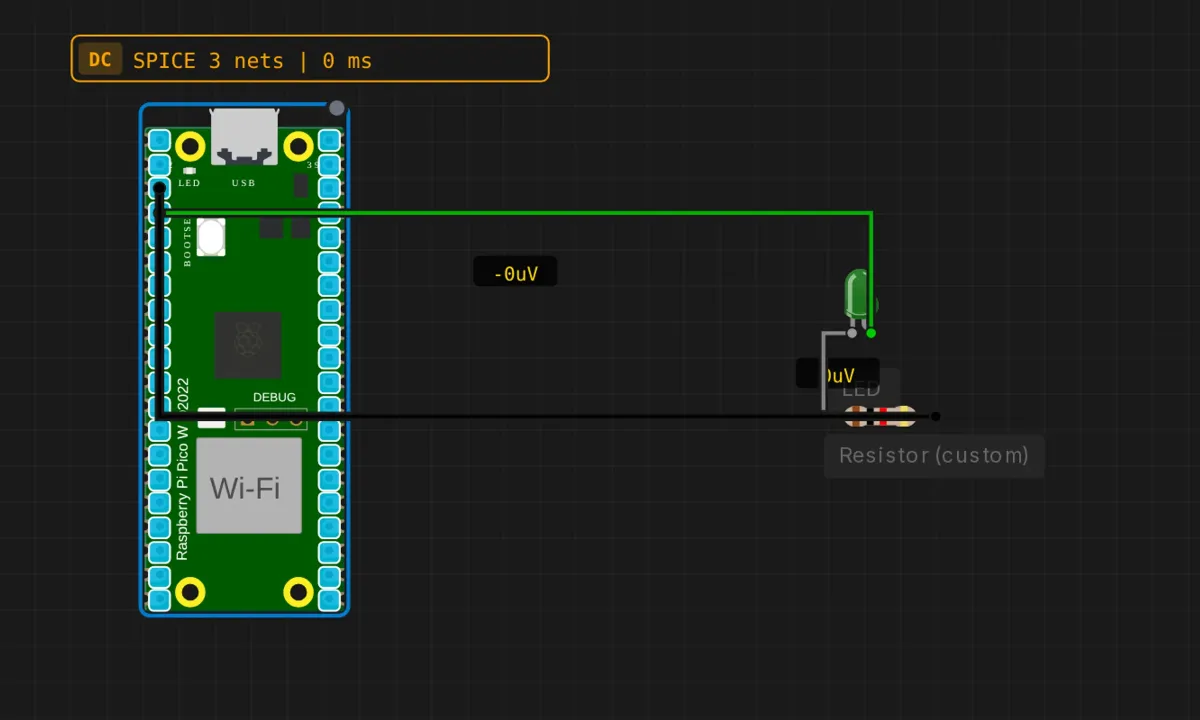
The serial echo project proved the Pico can hear you. This one makes it obey: type 1, an LED turns on; type 0, off; type ? and it reports its own state. Three single-character commands, one switch statement, and you’ve built the smallest possible user interface — the pattern behind every “type HELP for commands” gadget ever shipped.
And yes, the wired-versus-onboard LED mismatch from the blink project is back. The circuit puts an LED on D2; the sketch drives the onboard LED on GPIO 25. At this point it’s clearly a deliberate recurring lesson, so we’ll treat it like one.
The circuit
Same LED circuit as the blink project — and this time the resistor is where it belongs:
- D2 (GPIO 2) → LED anode — green wire
- LED cathode → 220 Ω resistor → GND — black wire
The math, for once printed in the source and worth repeating: a green LED drops about 2V, the Pico drives 3.3V, so the resistor sees 1.3V and passes 1.3 / 220 ≈ 6 mA. Comfortably inside the RP2040’s per-pin budget, bright enough to see. When a tutorial shows you a resistor value, this two-line calculation is how you check it instead of trusting it.
The sketch
// Raspberry Pi Pico — serial LED control
// Commands: '1' = on, '0' = off, '?' = report state

void setup() {
  pinMode(LED_BUILTIN, OUTPUT);   // onboard LED, GPIO 25
  Serial.begin(115200);
  delay(500);
  Serial.println("=== Pico LED Control ===");
  Serial.println("Commands: 1=ON  0=OFF  ?=status");
}

void loop() {
  if (Serial.available()) {
    char cmd = Serial.read();
    switch (cmd) {
      case '1':
        digitalWrite(LED_BUILTIN, HIGH);
        Serial.println("LED: ON");
        break;
      case '0':
        digitalWrite(LED_BUILTIN, LOW);
        Serial.println("LED: OFF");
        break;
      case '?':
        Serial.print("LED: ");
        Serial.println(digitalRead(LED_BUILTIN) ? "ON" : "OFF");
        break;
      default:
        if (cmd >= ' ') {   // ignore r, n and other control chars
          Serial.print("Unknown command: ");
          Serial.println(cmd);
        }
        break;
    }
  }
}
The details doing quiet work
if, notwhile. The echo project usedwhile (Serial.available())to drain the buffer; this one reads a single character per loop pass. Both work here because the loop spins fast; thewhileversion is strictly better when bursts of input arrive. Single-character commands just don’t produce bursts worth worrying about.- The
cmd >= ' 'filter exists because of your Enter key. Space is ASCII 32; carriage return is 13, newline is 10. Every time you type1and hit Enter, most serial monitors send two or three characters, not one. Without the filter, every valid command would be followed by one or two “Unknown command” complaints. The default case swallows control characters silently and only scolds you for printable nonsense. Delete the filter and run it — the spam teaches the lesson in five seconds. digitalRead()on an output pin. The ‘?’ command reads back the state of a pin configured as OUTPUT. On the RP2040 this works — you get the level you’re driving. It’s not universal across Arduino-land; some older cores return the last written value, some read the actual pad, some do something unhelpful. For a self-built status command, keeping your ownbool ledOnvariable is the portable answer. Reading the pin is the lazy version that happens to work here.- A
switchon characters is the embryonic command parser. Clean, fast, and it falls apart the moment commands need more than one character. “LED ON” doesn’t fit in achar. That’s the extension below, and it’s where parsing gets real.
Honest notes
- The sketch ignores the circuit. Same as the blink project: LED wired to D2, code driving GPIO 25. Run it as-is and your breadboard LED does nothing while the tiny onboard dot obeys perfectly. The fix is the same one character —
LED_BUILTIN→2, or better, a named constant. If you did the blink project first, this takes you ten seconds; if you didn’t, it takes twenty minutes and a mild existential review. That’s the lesson. - No input means no confirmation. This UI trusts you completely — type
1twice and it says “LED: ON” twice, whether or not anything changed. Real control systems acknowledge transitions, not just commands. Adding “already on” handling is a five-line upgrade and a good instinct to build early. - Serial control has no security whatsoever. Anything that can open the port can drive the pin. For a desk toy, irrelevant; the moment a serial port touches a motor or a relay, “who is allowed to send 1” becomes a design question. Better to notice the door is unlocked while the LED is the only thing behind it.
When it doesn’t work
- Commands echo in the monitor but the breadboard LED stays dark → the D2-vs-25 mismatch again. Check which LED the code drives.
- “Unknown command” after every valid command → someone deleted the printable-character filter, or the monitor is set to send extra line endings and the filter’s gone. Restore
if (cmd >= ' '). - No response at all → monitor not open / not at 115200 / sim not running. The unholy trinity, same as every serial project.
- ‘?’ says OFF but the LED is visibly on (real hardware, after your own modifications) → you changed the pin in
digitalWritebut not indigitalRead, or vice versa. One more argument for a single named constant.
Where to go from here
Multi-character commands are the real upgrade: buffer into a String until newline, trim() it, then compare — cmd == "ON", cmd.startsWith("BLINK ") and parse the number after the space. That turns three buttons into a command line. Add a second LED on another pin with its own command letter and you’ve invented multiplexing-by-vocabulary. And when the if-chain gets long enough to annoy you — congratulations, you’ve felt the pain that lookup tables and function-pointer arrays exist to cure.
Open the simulator and load the Pico serial LED example. Drive the onboard LED with 1/0/?, then make the pin fix and drive the one on your breadboard. Type a nonsense key on purpose — watching the filter swallow your Enter key but reject your typo is the whole parser philosophy in miniature.