
Blog
Arduino Button-Controlled LED: Read Your First Digital Input

Blink was fun, but it only talks out. The moment you want the board to react to the world — a finger, a sensor, anything — you need an input. This project is the classic first one: hold a button down, an LED comes on. Let go, it goes off.
Two new ideas land here: reading a digital pin with digitalRead(), and a little resistor inside the chip that saves you a component. We’ll build the whole thing in the browser simulator, so if your wiring is wrong, nothing smells bad.
Wiring it up
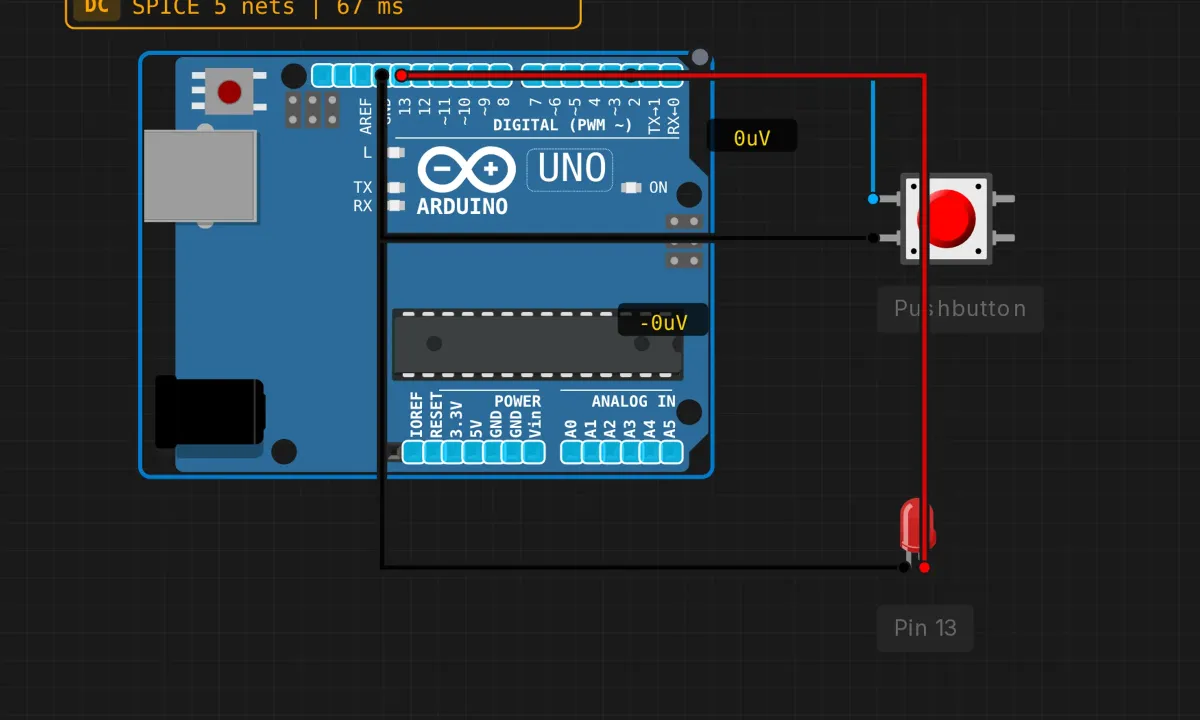
Three parts: an Arduino Uno, a pushbutton, and a red LED. The connections:
- Button: one leg to digital pin 2 (the blue wire), the other leg to GND (black). That’s it — no resistor on the button side, and I’ll explain why in a minute.
- LED: anode (long leg) to pin 13 (red wire), cathode (short leg) to GND.
One thing to notice in the demo circuit: there’s no series resistor on the LED. The simulator doesn’t care. A real LED absolutely does — on physical hardware, put a 220Ω resistor in series with that LED or you’ll shorten its life. Consider that a freebie lesson the sim can’t teach you by failing.
The sketch
// Button-controlled LED
// Press the button, LED lights up

const int BUTTON_PIN = 2;
const int LED_PIN = 13;

void setup() {
  pinMode(BUTTON_PIN, INPUT_PULLUP);
  pinMode(LED_PIN, OUTPUT);
}

void loop() {
  int buttonState = digitalRead(BUTTON_PIN);

  if (buttonState == LOW) {
    digitalWrite(LED_PIN, HIGH);
  } else {
    digitalWrite(LED_PIN, LOW);
  }
}
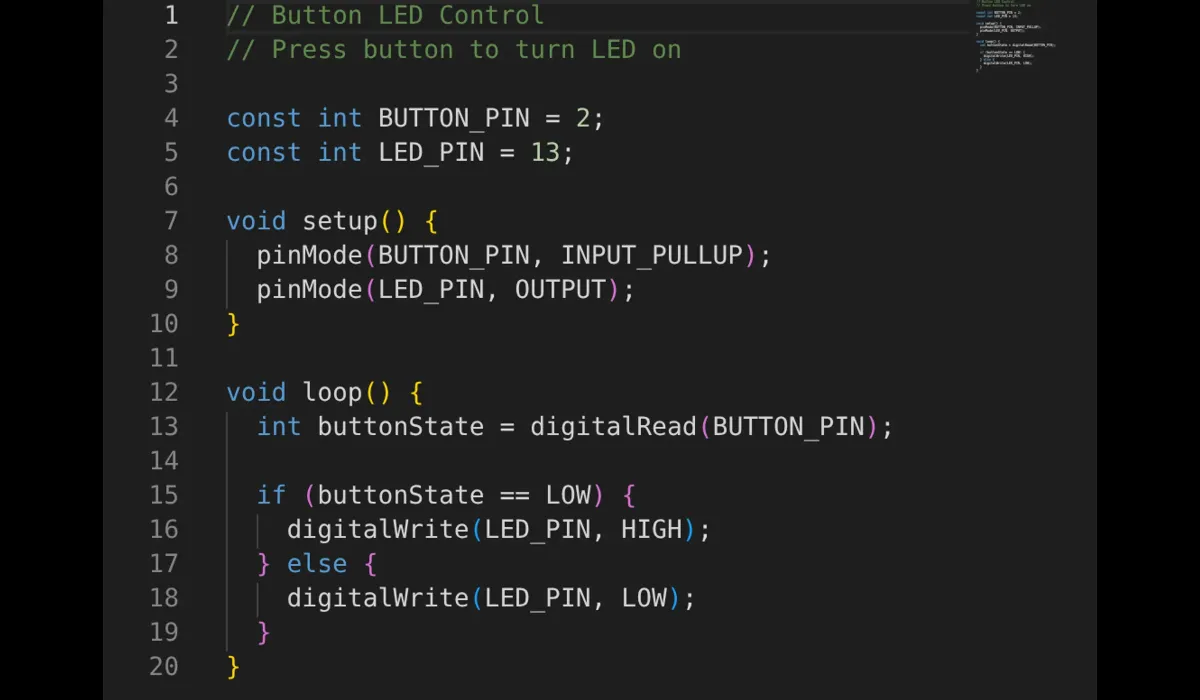
The line that does the heavy lifting is pinMode(BUTTON_PIN, INPUT_PULLUP). It switches on a pull-up resistor inside the AVR chip (somewhere in the 20k–50kΩ range) that holds pin 2 at 5V while the button is untouched. Press the button and you short the pin straight to ground, which wins over the weak pull-up. So the pin reads HIGH when idle, LOW when pressed.
Yes, that’s backwards from what your gut expects. Pressed = LOW. Everyone writes the if the wrong way round once. The constants at the top (BUTTON_PIN, LED_PIN) exist so that when you move the button to another pin, you change one line instead of hunting through the code.
Run it
Hit Run in the editor toolbar, then click the pushbutton right on the canvas. The LED follows your finger. That’s genuinely all there is to the demo.

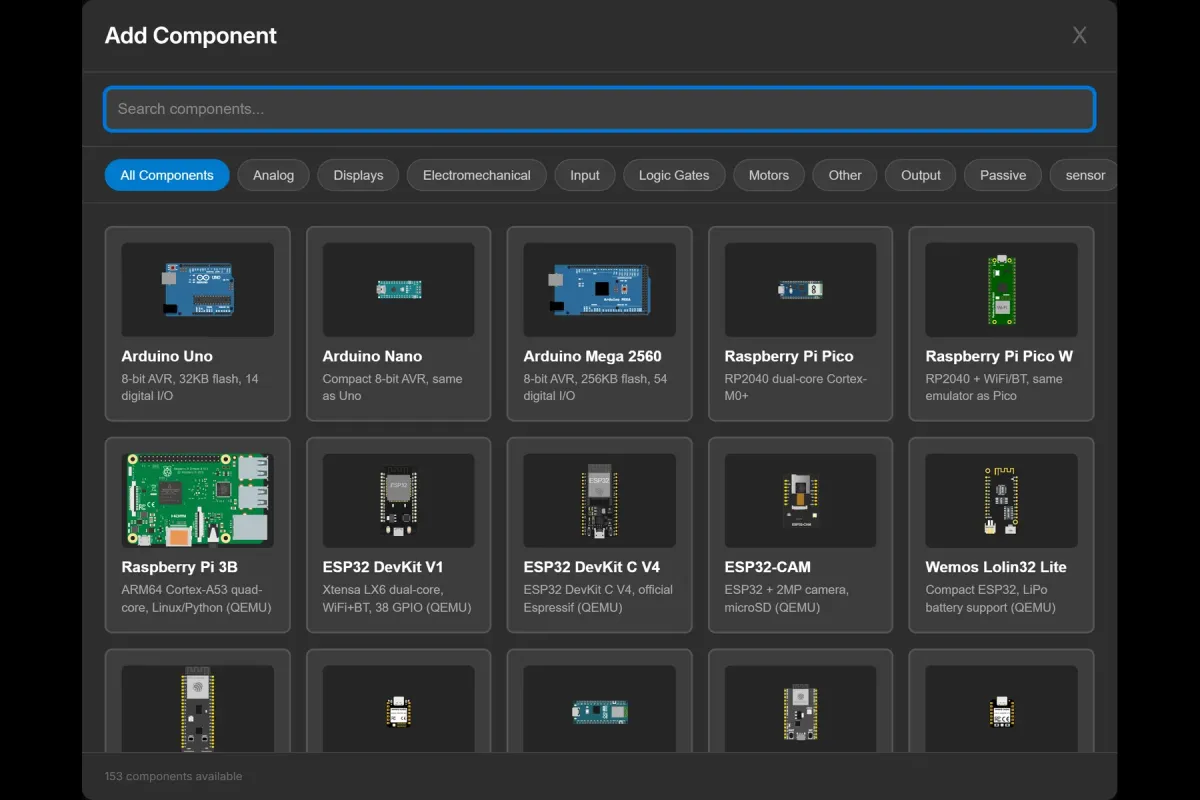
If you want to poke at the circuit, the canvas toolbar has pause and reset, and the component picker (the Add button) is where you found the button and LED in the first place.
Why the button needs that pull-up
An input pin connected to nothing is called floating, and it behaves like a tiny antenna — it reads HIGH, LOW, or garbage depending on static, your hand nearby, the phase of the moon. The pull-up gives the idle pin a defined voltage so it reads a clean HIGH until the button deliberately drags it LOW.
If you forget and write plain INPUT instead of INPUT_PULLUP, you get a floating pin. In the simulator you’ll see the LED flicker or sit in the wrong state. On a real board it’s worse: it might work on your desk and fail at your friend’s house. Debugging that without knowing about pull-ups has ruined afternoons.
There’s one more thing real buttons do that simulated ones don’t: bounce. Mechanical contacts don’t close cleanly — they rattle between open and closed for a few milliseconds. This sketch doesn’t care, because the LED just follows the last state. The day you write “count each press” code and get 7 counts from one press, that’s bounce. The fix is a short 50ms ignore window or a debounce library (the simulator has a library manager if you want to play with one).

When it doesn’t work
- LED always on or randomly flickering → you used
INPUTinstead ofINPUT_PULLUP, or the button’s ground leg isn’t actually at GND. - Button does nothing → check which legs you wired. A common breadboard pushbutton has legs paired internally; connect across the wrong pair and it’s permanently closed (or open). Rotate it 90° and try again — on a real breadboard this is the #1 button bug.
- LED logic inverted (on when idle, off when pressed) → your
iftests HIGH instead of LOW. Welcome to pull-up logic. - LED still dark with correct code → polarity. Long leg to the pin, short leg to ground.
Make it yours
Three upgrades, in order of difficulty. First: make each press toggle the LED instead of holding it — you’ll need a variable to remember the state, and you’ll immediately meet bounce in spirit even in the sim. Second: print buttonState to the serial monitor so you can watch the numbers instead of the LED. Third: swap digitalWrite for analogWrite on a ~ pin and map press duration to brightness.
Open the simulator and load the button example — the wiring from this article is already there. Press the button a few times, then break the circuit on purpose and watch what changes. That instinct — “what happens if I remove this” — is most of electronics.