
Blog
Fade an LED with Arduino PWM: analogWrite() in 4 Minutes

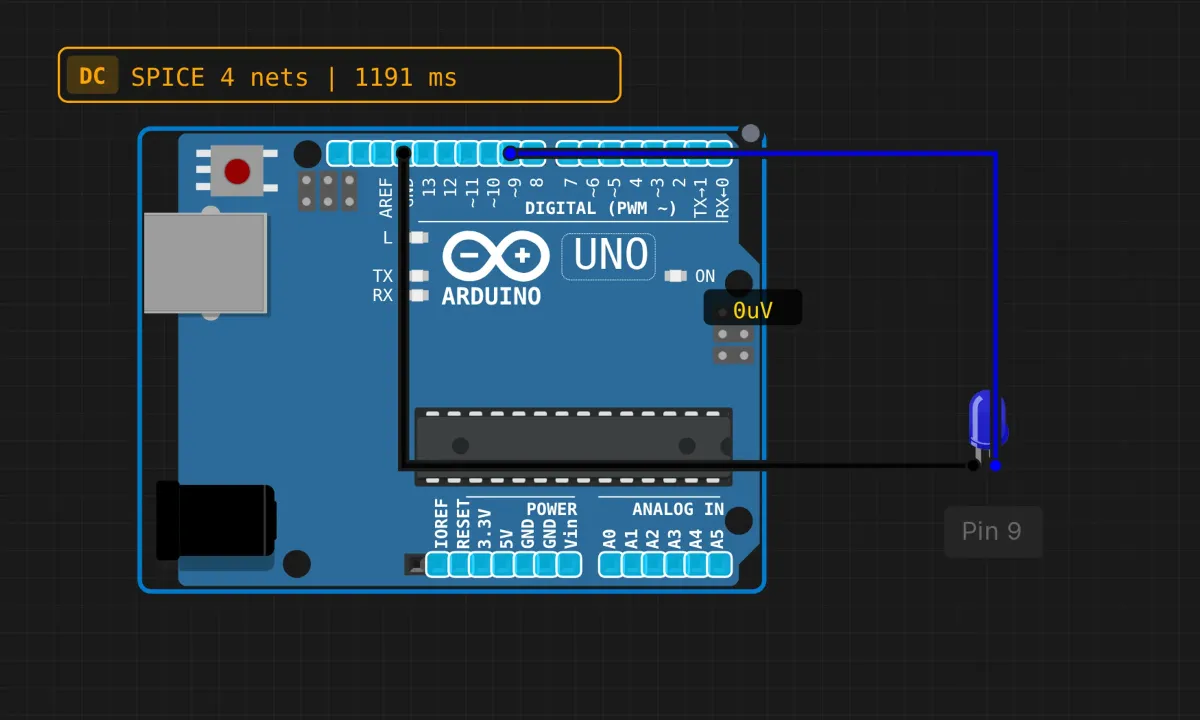
Blink turns an LED on and off. Fade is the same LED, but it breathes — gliding from dark to full brightness and back. The trick that makes it possible is PWM, and the one function you need to learn is analogWrite().
This is still a two-wire circuit, so it’s a fast build. We’ll run it in the browser simulator; no board required.
Two wires, one catch
The wiring couldn’t be shorter: LED anode (long leg) to pin 9, cathode (short leg) to GND. Blue wire for the signal if you want to match the screenshots.
The catch is the pin number. Not every pin on the Uno can do PWM — only the ones printed with a ~ next to them: 3, 5, 6, 9, 10, and 11. Pin 13, hero of the last two projects, can’t fade anything. Pick 9.
Second catch: the simulated circuit skips the LED’s series resistor because the sim’s LED model has internal resistance built in. On a real board, add 220Ω–1kΩ in series. The sim forgives; physics doesn’t.
The sketch
// Fade an LED with PWM
// Brightness ramps up, then back down

const int LED_PIN = 9;  // must be a ~ (PWM) pin

int brightness = 0;
int fadeAmount = 5;

void setup() {
  pinMode(LED_PIN, OUTPUT);
}

void loop() {
  analogWrite(LED_PIN, brightness);

  brightness += fadeAmount;

  if (brightness <= 0 || brightness >= 255) {
    fadeAmount = -fadeAmount;
  }

  delay(30);
}
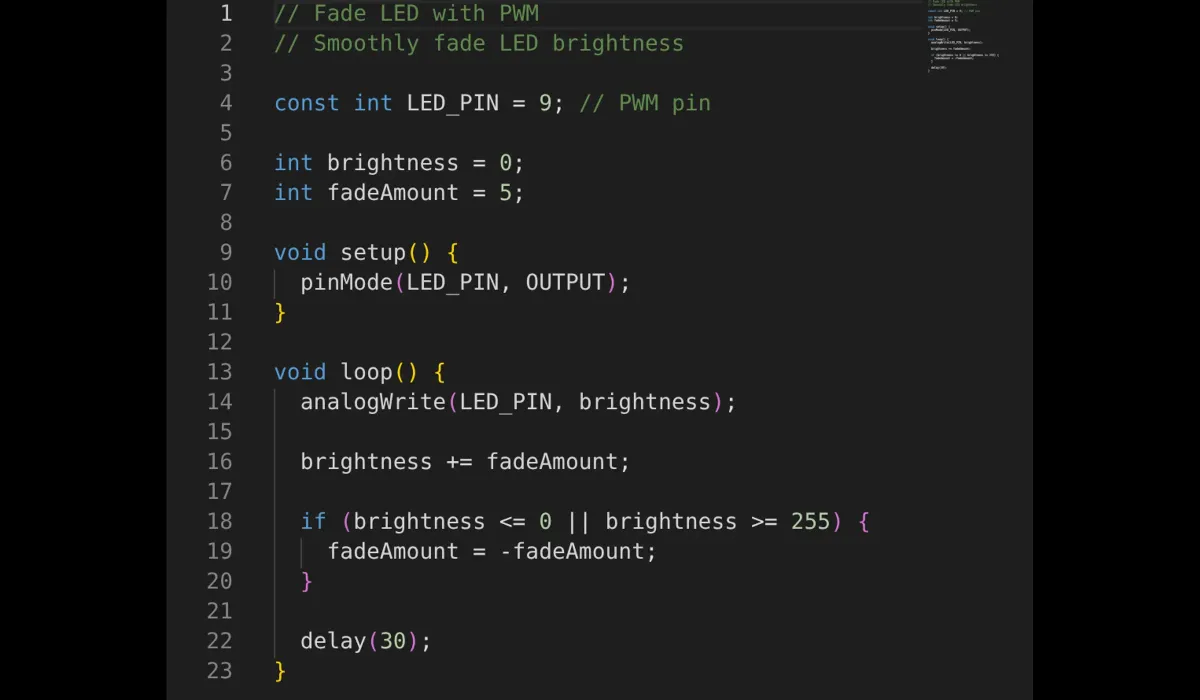
What’s going on, line by line:
analogWrite(LED_PIN, brightness)— despite the name, this doesn’t output a smoothly varying voltage. It flips the pin between 5V and 0V hundreds of times per second. The value you pass (0–255) sets the duty cycle: how much of each cycle is spent ON. 0 = never on, 255 = always on, 128 = half the time. Your eye averages it into brightness.brightness += fadeAmount— nudge the value by 5 each pass.- The
ifat the ends — when brightness hits 0 or 255, flipfadeAmountnegative (or back to positive), so the ramp reverses instead of wrapping around. delay(30)— without this the fade completes in a few milliseconds and looks like a light switch. 30ms per step gives a smooth ~1.5 second climb.
Run it and watch
Press Run in the toolbar. The LED on the canvas should glide up to full brightness, then sink back down, forever. If it just snaps on and off, read the next section before touching anything else.

The fade doesn’t fade — debugging
- LED is only full-on or full-off → you’re on a non-PWM pin. Move to 9 (or 3, 5, 6, 10, 11) and update
LED_PIN. This is the fade project’s entire bug report, nine times out of ten. - Nothing lights at all → polarity again. Anode to pin 9, cathode to GND. Then check you actually pressed Run.
- Fade is jumpy or too fast → raise
delay(30)to 50–100, or dropfadeAmountto 1 for the smoothest ramp.
Honest notes before you buy the board
- Your eyes aren’t linear. The sim (and real hardware) ramps duty cycle linearly, but human vision perceives brightness roughly logarithmically. On a real LED the fade will look like it rushes through the dark end and lingers near bright. That’s not a bug — it’s your retina. Cine-level fades use a gamma table; worth Googling once you care.
- Cameras see the flicker. PWM looks solid to you, but point a phone camera at a dimmed LED and you’ll often catch banding. Normal, harmless, occasionally ruins a product video.
analogWritefrequency is fixed on the Uno (around 490Hz on most pins). Fine for LEDs; too slow and noisy for some motors or audio tricks without extra work.
Take it further
Natural next steps: fade two LEDs on pins 10 and 11 in opposite directions. Or grab a potentiometer on an analog input and let it control fadeAmount — that’s the first time your project responds to an analog world. Or go straight for the RGB LED and cross-fade three channels into a color wheel.
The example is pre-wired in the simulator: open the editor, load Fade LED, and change one number at a time. Watching what fadeAmount does at 1 vs 25 teaches you more than this paragraph does.