
Blog
Arduino RGB LED: Mix Any Color with Three PWM Pins

An RGB LED is three LEDs sharing one plastic bubble — red, green, and blue dies in a single package. Drive them at different brightnesses and they blend into basically any color you can name. It’s the first project that feels like a light show instead of an electronics lesson.
The whole thing runs on three PWM pins and a helper function called setColor(). We’ll cycle through seven colors: red, green, blue, yellow, cyan, magenta, white. In the browser simulator, so no parts bin required.
Four legs, one gotcha
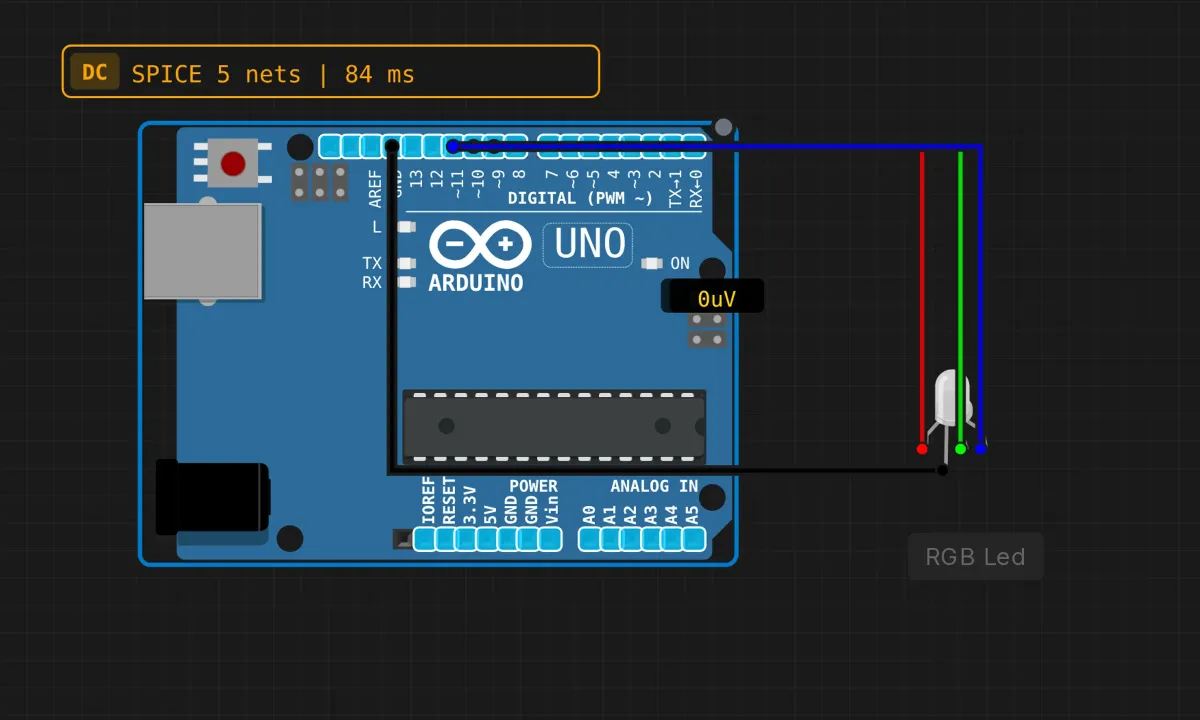
An RGB LED has four pins: three anodes (R, G, B) and one common pin (COM). The gotcha is that “common” comes in two flavors. This project uses a common-cathode LED — COM goes to GND, and you light a channel by driving its pin HIGH. If you ever buy a common-anode one by accident, COM goes to 5V instead and the logic inverts (LOW turns a channel on). The colors will look possessed until you figure that out. Check the listing when you order.
- R pin → Arduino pin 9 (red wire)
- G pin → pin 10 (green)
- B pin → pin 11 (blue)
- COM → GND (black)
All three channels must land on PWM (~) pins, because we’re dimming each one independently — 9, 10, 11 qualify. On real hardware you’d also drop a 220Ω resistor on each anode; the sim’s LED model has that covered internally.
The sketch
// RGB LED color cycler
// Seven colors, one second each

const int RED_PIN = 9;
const int GREEN_PIN = 10;
const int BLUE_PIN = 11;

void setup() {
  pinMode(RED_PIN, OUTPUT);
  pinMode(GREEN_PIN, OUTPUT);
  pinMode(BLUE_PIN, OUTPUT);
}

void setColor(int red, int green, int blue) {
  analogWrite(RED_PIN, red);
  analogWrite(GREEN_PIN, green);
  analogWrite(BLUE_PIN, blue);
}

void loop() {
  setColor(255, 0, 0);     // red
  delay(1000);
  setColor(0, 255, 0);     // green
  delay(1000);
  setColor(0, 0, 255);     // blue
  delay(1000);
  setColor(255, 255, 0);   // yellow
  delay(1000);
  setColor(0, 255, 255);   // cyan
  delay(1000);
  setColor(255, 0, 255);   // magenta
  delay(1000);
  setColor(255, 255, 255); // white
  delay(1000);
}
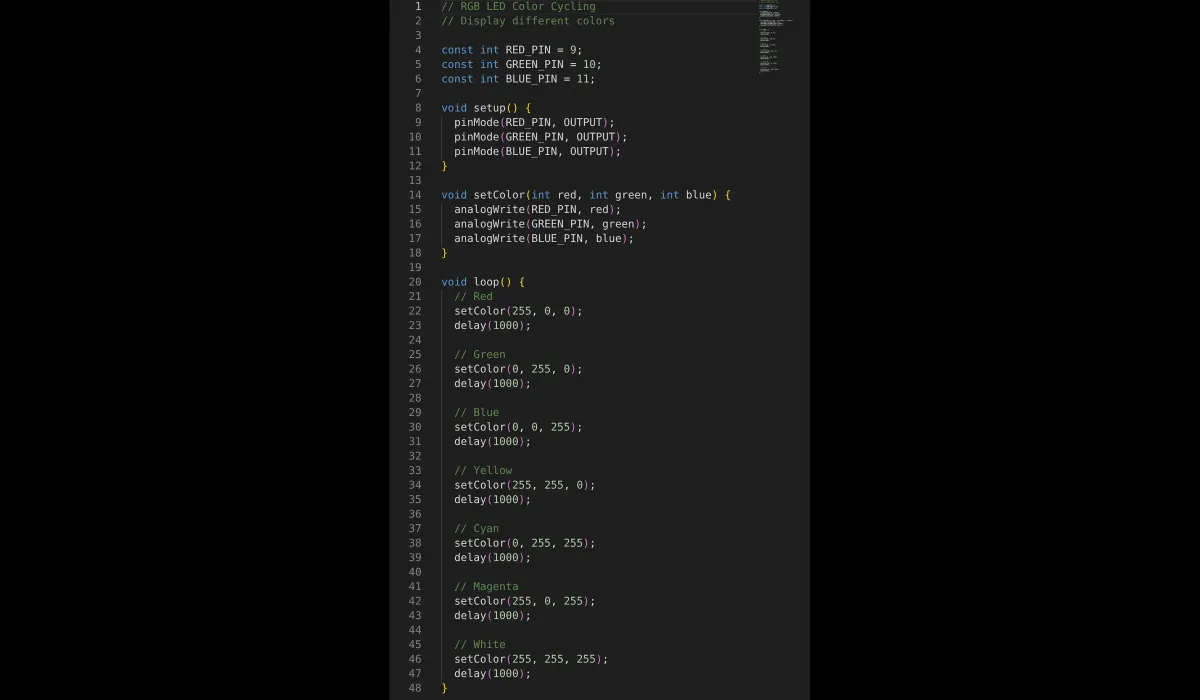
setColor() is the star. Three arguments, 0–255 each, one analogWrite() per channel. Once that helper exists, the loop reads like a playlist: call a color, wait a second, call the next one. Mixed colors are just addition — red + green gives yellow, green + blue gives cyan, red + blue gives magenta, all three at full gives white-ish.
Under the hood each channel is PWM running at roughly 490Hz: the pin flickers on and off faster than you can see, and the fraction of “on” time becomes the brightness. Same trick as the single-LED fade project, times three.
Run it
Press Run and watch the LED step through the rainbow. The jump between colors is instant — pretty, but a little harsh. We’ll fix that in the extensions.
When the colors look wrong
- Colors are swapped (you ask for red and get green) → two anode wires are crossed. Match wires to the pin numbers, not to where the legs happen to reach.
- Dead LED entirely → COM isn’t grounded. It’s the one wire everything depends on.
- Only full-brightness colors, no mixes → a channel landed on a non-PWM pin. No ~, no dimming.
- “White” looks blue-ish or pink-ish on real hardware → normal. The three dies have different efficiencies, and 255,255,255 rarely gives a neutral white without tuning. Drop green and blue a bit and eyeball it.
Worth knowing about the sim version
The simulator renders the mixed color perfectly, which is generous. Real RGB LEDs have quirks the model doesn’t bother with: the red die usually needs less voltage than green and blue (which is why its resistor value sometimes differs in serious builds), the viewing angle differs per die so the color shifts as you move your head, and cheap units have visible hotspots. None of it matters for learning — just don’t expect your $5 kit to look like the screen.
Next level
The obvious upgrade is fading between colors instead of jumping: nest a loop that steps each channel from its current value to the target, a few counts every few milliseconds. That one change turns this from a demo into ambient lighting. After that: a potentiometer to sweep the hue, or serial commands so you can type “255 100 0” and get exactly that.
Open the simulator and load the RGB example. First experiment to try: setColor(255, 40, 0). It’s orange, and it looks way better than it has any right to.