
Blog
Arduino TFT Display: Graphics and a Bouncing Ball on the ILI9341

The character LCD from the last project shows text — forty characters of it, in one greenish shade. A color TFT is the next rung up: 240×320 pixels, 65,536 colors, and the ability to draw shapes, which means you can build something that moves. This demo draws a title screen with a palette and bounces a ball around a play-field, all on an Arduino Uno, all in the browser simulator.
Fair warning: this is the first project that needs external libraries, and the first one where the Uno starts to feel slow. Both are part of the lesson.
Wiring: SPI plus three extras
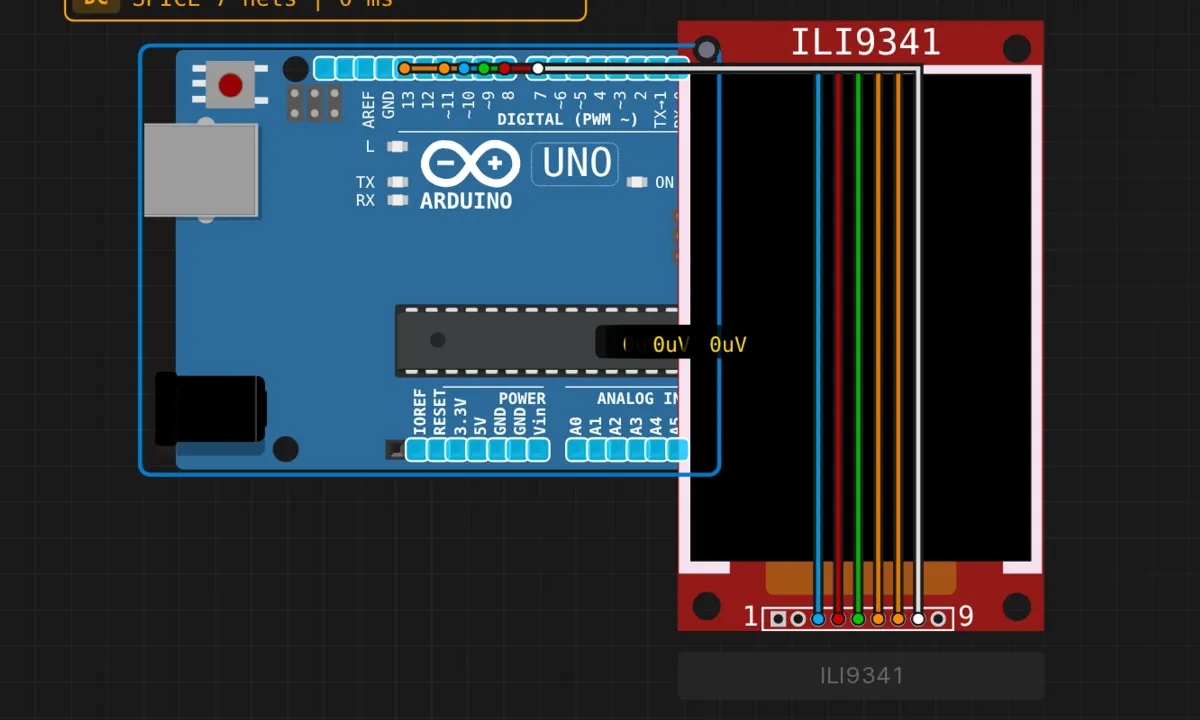
The display talks SPI — the same bus we’ll use properly in later projects — plus a few control lines of its own:
- Pin 13 (SCK) → display SCK (orange)
- Pin 11 (MOSI) → display MOSI (orange)
- Pin 10 (CS) → display CS (blue)
- Pin 9 (D/C) → display D/C (green)
- Pin 8 (RST) → display RST (red)
- Pin 7 (LED) → display LED (white)
Three of these are the actual SPI bus: SCK carries the clock, MOSI carries the pixel data from Arduino to display, and CS (chip select, active low) tells the display “this transmission is for you.” The other three are display housekeeping: D/C flags each byte as a command or pixel data, RST resets the controller, and LED is literally the backlight — drive it HIGH or stare at a black rectangle wondering what broke. Power (5V/GND) hooks itself up in the simulator.
SCK and MOSI aren’t arbitrary choices: on the Uno, hardware SPI lives on pins 11 and 13 specifically. Move the wires and the library falls back to bit-banging — or just doesn’t work, depending on how it’s configured. Keep them where they are.
Install the libraries first
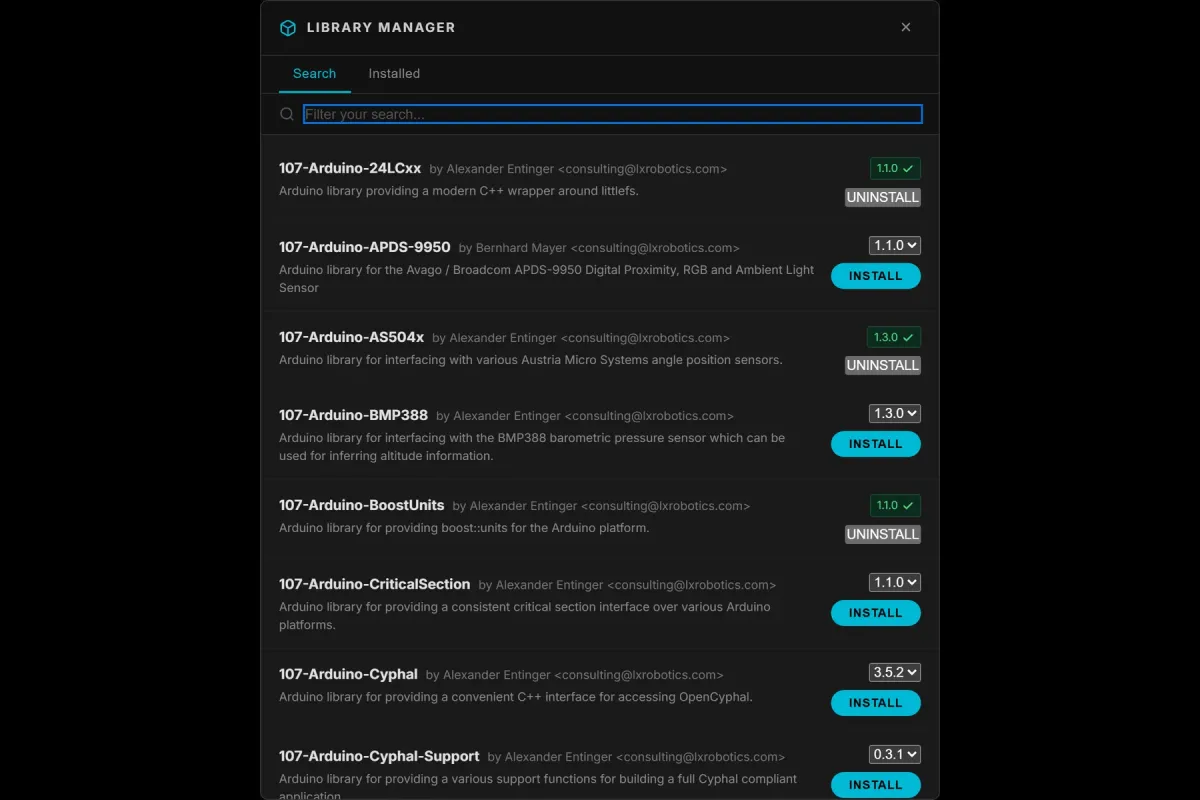
This sketch won’t compile out of the box. Open the Library Manager and add Adafruit ILI9341 and Adafruit GFX Library (GFX provides the drawing primitives; the ILI9341 lib drives the chip; SPI comes along automatically). One-time step per project.
The sketch
// TFT ILI9341 demo (240x320)
// Needs: Adafruit ILI9341 + Adafruit GFX libraries
// Wiring: CS=10, DC=9, RST=8, LED=7, MOSI=11, SCK=13

#include <Adafruit_GFX.h>
#include <Adafruit_ILI9341.h>
#include <SPI.h>

#define TFT_CS   10
#define TFT_DC    9
#define TFT_RST   8
#define TFT_LED   7

Adafruit_ILI9341 tft(TFT_CS, TFT_DC, TFT_RST);

#define BG_COLOR 0x001F   // dark blue, 16-bit 565 format

// ball state
int ballX = 120, ballY = 200;
int ballDX = 3, ballDY = 2;
const int BALL_R = 10;

// play-field boundaries
const int FX = 5, FY = 110, FW = 230, FH = 200;

void drawStaticUI() {
  tft.fillScreen(BG_COLOR);

  // title
  tft.setTextSize(3);
  tft.setTextColor(tft.color565(255, 220, 0));
  tft.setCursor(20, 10);
  tft.print("SENSBENCH");

  // subtitle
  tft.setTextSize(2);
  tft.setTextColor(tft.color565(180, 180, 255));
  tft.setCursor(30, 50);
  tft.print("ILI9341 Demo");

  // color palette bars
  tft.fillRect(10, 82, 70, 18, tft.color565(220, 50, 50));
  tft.fillRect(85, 82, 70, 18, tft.color565(50, 200, 50));
  tft.fillRect(160, 82, 70, 18, tft.color565(50, 100, 240));

  // play-field border
  tft.drawRect(FX, FY, FW, FH, tft.color565(80, 80, 130));
}

void setup() {
  pinMode(TFT_LED, OUTPUT);
  digitalWrite(TFT_LED, HIGH);   // backlight on, or screen stays dark

  tft.begin();
  drawStaticUI();
}

void loop() {
  // erase old ball by painting over it with background
  tft.fillCircle(ballX, ballY, BALL_R, BG_COLOR);

  ballX += ballDX;
  ballY += ballDY;

  // bounce off the borders (account for the ball's radius)
  if (ballX < FX + BALL_R + 1 || ballX > FX + FW - BALL_R - 1) ballDX = -ballDX;
  if (ballY < FY + BALL_R + 1 || ballY > FY + FH - BALL_R - 1) ballDY = -ballDY;

  tft.fillCircle(ballX, ballY, BALL_R, tft.color565(255, 140, 0));

  delay(30);
}
How the animation works
There’s no frame buffer, no sprite engine, no magic. Each pass through loop() does three things: paints over the ball’s old position with background color, updates the coordinates, and redraws the ball in orange at the new spot. Erase → move → redraw, thirty-ish times a second. The bounce check compares the ball’s edge (center ± radius) against the field borders and flips the direction sign when they touch. That’s the entire physics engine.
Two details worth stealing for your own projects:
- Erase-by-repaint only works because the background is uniform. The moment your background has texture, you need to save and restore what’s under the ball — that’s the slippery slope toward real frame buffers, which the Uno’s 2KB of RAM cannot hold for a 240×320 screen (153KB at 16-bit color — the RAM is short by a factor of 75). Small moving elements on static backgrounds are the sweet spot for this class of board.
color565()packs RGB into 16 bits — 5 red, 6 green, 5 blue. Green gets the extra bit because your eye is most sensitive to it. The display can actually do 18-bit color, but the library trades it for speed, and on this hardware speed is the scarce resource.
Honest notes on speed and voltage
- The Uno is the bottleneck. Every pixel costs 16 bits of SPI traffic. A full
fillScreen()pushes ~154KB through a bus that tops out around 8MHz — you can watch it sweep if you look closely. The demo stays fluid precisely because it never redraws more than one circle per frame. Plan your own UI around small updates: redraw the number, not the screen. - “5V tolerant” is a gamble, not a spec. The ILI9341 chip is a 3.3V part. Many breakout modules add level shifters or resistors and survive 5V logic fine; some don’t, and the difference is printed nowhere on the board. The simulator doesn’t care. When you buy hardware, look for modules that explicitly say 5V-tolerant, or budget four level-shifting resistors.
- No double buffering means tearing. Update a large region while it’s being scanned out and you’ll catch half-drawn frames. You won’t notice with a 10-pixel ball; you will with a full-width bar graph. The library’s
startWrite()/endWrite()batching helps; it doesn’t cure it. - The sim’s
delay(30)is honest. Frame pacing here is just a blocking delay, so the ball stutters if you add work to the loop. Same constraint as the real chip, same eventualmillis()-based fix.
When the screen stays dark
- Completely black → backlight. Pin 7 must be wired to the display’s LED pin and driven HIGH in setup. It’s the display’s most creative failure mode because everything else can be perfect.
- Won’t compile → libraries missing. Both Adafruit packages, not just one.
- Garbled noise or a white screen → SPI wiring. Recheck MOSI→11, SCK→13, CS→10, and that D/C and RST match the
#defines. One wrong wire and the controller interprets your pixels as commands. - Ball escapes the box → the bounds use
FX + BALL_R + 1so the ball’s edge bounces off the line, not its center. Changed the radius? The bounds still work. Changed the field? Update all four constants.
Where this goes next
Add a second ball with its own velocity — fifteen lines of code, doubles the chaos. Then replace the palette bars with a live bar graph from a potentiometer on A0: one analogRead(), one scaled fillRect(), and you’ve built a meter. The ambitious version is Pong; the field border and collision math are already written for you.
Open the simulator and load the TFT example — display pre-wired, ball already bouncing. Change ballDX from 3 to 9 and you’ll understand immediately why the erase-redraw trick matters: at that speed, any smear becomes obvious.