
Blog
Arduino Traffic Light: Three LEDs, One Sequence, Zero Hardware

One LED is a demo. Three LEDs doing something in a specific order — that’s a system. The traffic light is the classic “my first state machine” project: red, yellow, green, in a sequence everyone on the planet already understands.
You’ll wire three LEDs to three pins and write the timing by hand. It runs in the browser simulator, so the only traffic jam risk is metaphorical.
The wiring
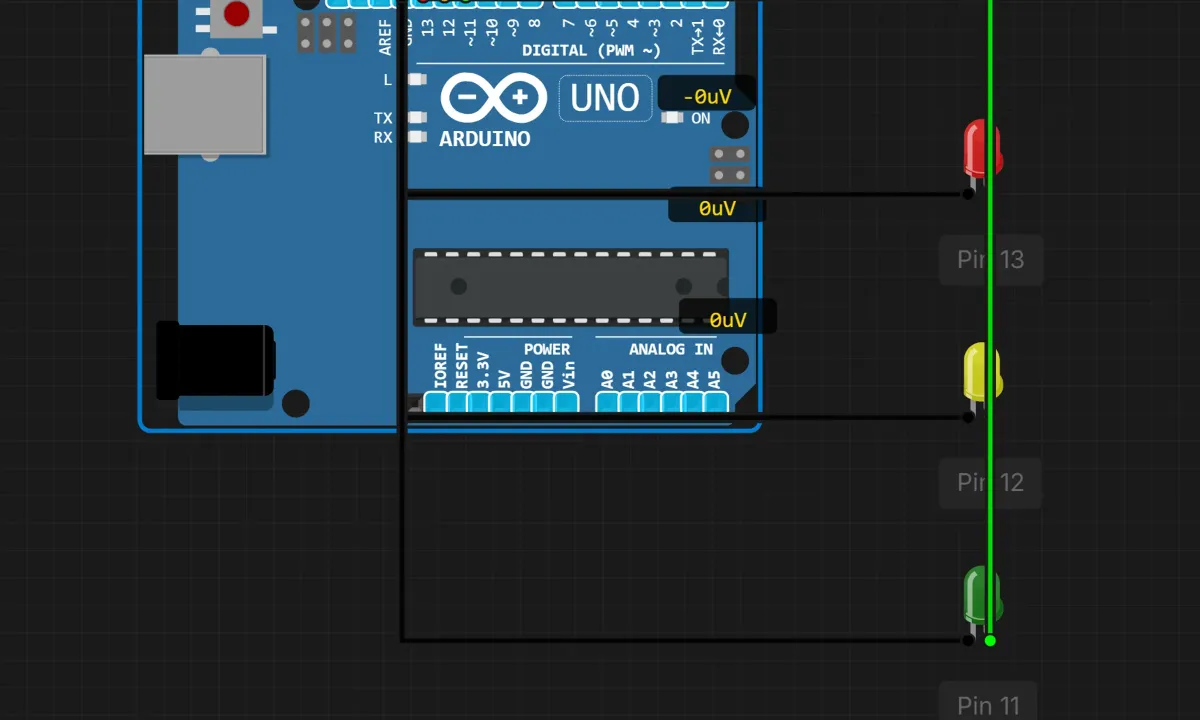
Three LEDs, three pins, one shared ground:
- Red LED → pin 13 (red wire, if you like your wires color-coded — the sim does)
- Yellow LED → pin 12
- Green LED → pin 11
- All three cathodes (short legs) → GND. Sharing one ground like this is called, imaginatively, a common ground, and you’ll see it in basically every circuit you ever build.
Long leg (anode) to the pin, short leg (cathode) to ground — same polarity rule as every LED project. The simulator’s LEDs come with internal resistors modeled, so nothing burns. On a real breadboard, each LED wants its own 220Ω resistor in series. Three LEDs, three resistors, no exceptions.
The sketch
// Traffic light
// Red -> yellow -> green -> yellow -> back to red

const int RED_PIN = 13;
const int YELLOW_PIN = 12;
const int GREEN_PIN = 11;

void setup() {
  pinMode(RED_PIN, OUTPUT);
  pinMode(YELLOW_PIN, OUTPUT);
  pinMode(GREEN_PIN, OUTPUT);
}

void loop() {
  digitalWrite(RED_PIN, HIGH);
  delay(3000);
  digitalWrite(RED_PIN, LOW);

  digitalWrite(YELLOW_PIN, HIGH);
  delay(1000);
  digitalWrite(YELLOW_PIN, LOW);

  digitalWrite(GREEN_PIN, HIGH);
  delay(3000);
  digitalWrite(GREEN_PIN, LOW);

  digitalWrite(YELLOW_PIN, HIGH);
  delay(1000);
  digitalWrite(YELLOW_PIN, LOW);
}
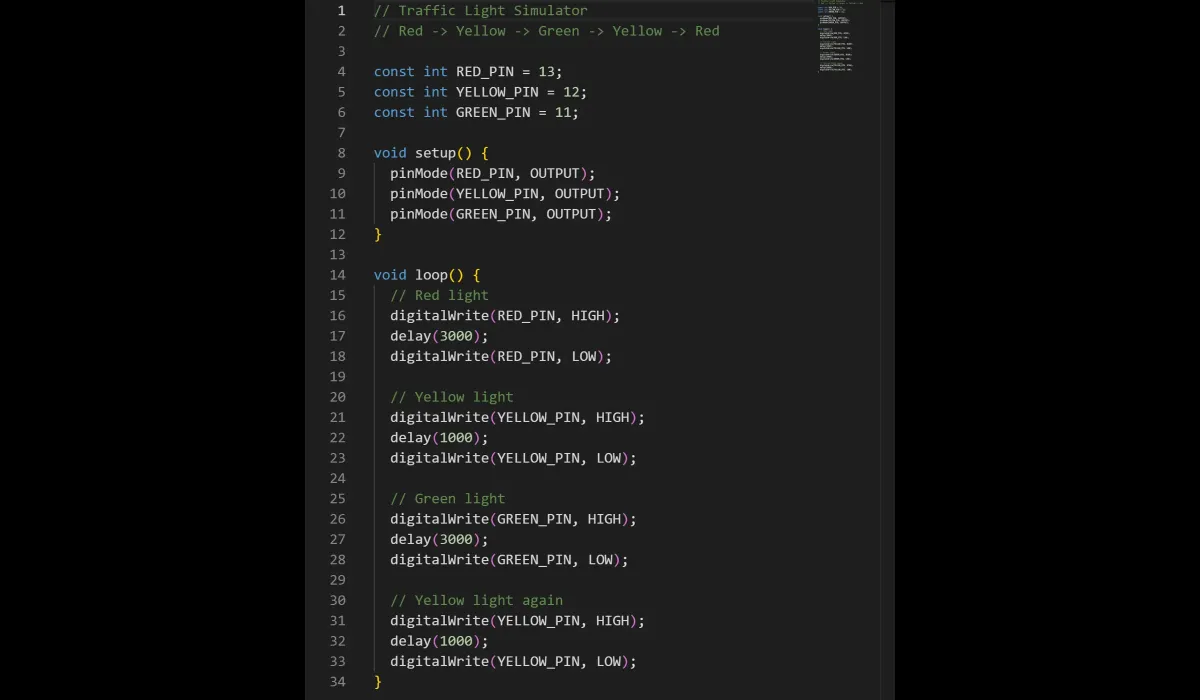
Read loop() top to bottom and it reads like the sequence itself: red for three seconds, yellow for one, green for three, yellow for one, repeat. That line-by-line predictability is the whole lesson — a microcontroller is just a machine that does exactly what the list says, in order, forever.
Two habits worth copying from this sketch into everything you write later: pin numbers live in const definitions at the top (rewire the hardware, change one line), and each light is a tidy on–wait–off block. Boring code is a compliment here.
Run it
Run in the editor toolbar, then watch the canvas. Red holds, yellow blinks by, green holds, yellow again. If yours skips a color, the suspect list is short: pin number in code doesn’t match the wire, or an LED is in backwards.

The thing this version gets away with
Look at the loop again: eight seconds of delay() per cycle. During every one of those milliseconds, the chip is doing literally nothing else. It can’t check a button, read a sensor, or answer serial. This sketch can afford it — traffic lights don’t multitask. But the moment you add a pedestrian crossing button, the delay-based design falls apart: press the button during the 3-second red and nobody notices until it’s too late.
The grown-up fix is millis() — record the time, keep looping, and change lights when enough time has passed instead of freezing. It’s a bigger rewrite than it sounds, which is exactly why it’s the suggested extension below and not the main sketch. Learn to walk in a straight line first.
Debugging the usual suspects
- One color never lights → pin mismatch between code and wiring, or that LED’s legs are reversed. Check the wire color against the
constdefinitions first. - Everything works but the order feels wrong → it isn’t; read the loop again slowly. The yellow appears twice per cycle by design (going-to-green and coming-from-green both pass through yellow, like the real thing).
- Timing drifts when you add more code later → that’s
delay()showing its limits. Time to learnmillis().
Extensions worth your evening
The pedestrian button is the obvious one: a pushbutton that forces red and lights a white “walk” LED. Try it with delay() first and feel the pain, then redo it with millis() — you’ll understand non-blocking timing better than any explanation can teach you. A piezo buzzer that beeps before green ends is another good one, and it only needs one extra pin.
Open the simulator and load the traffic light example — three LEDs already wired, sequence already running. Change the 3000 to 800 and watch the intersection become very stressful.